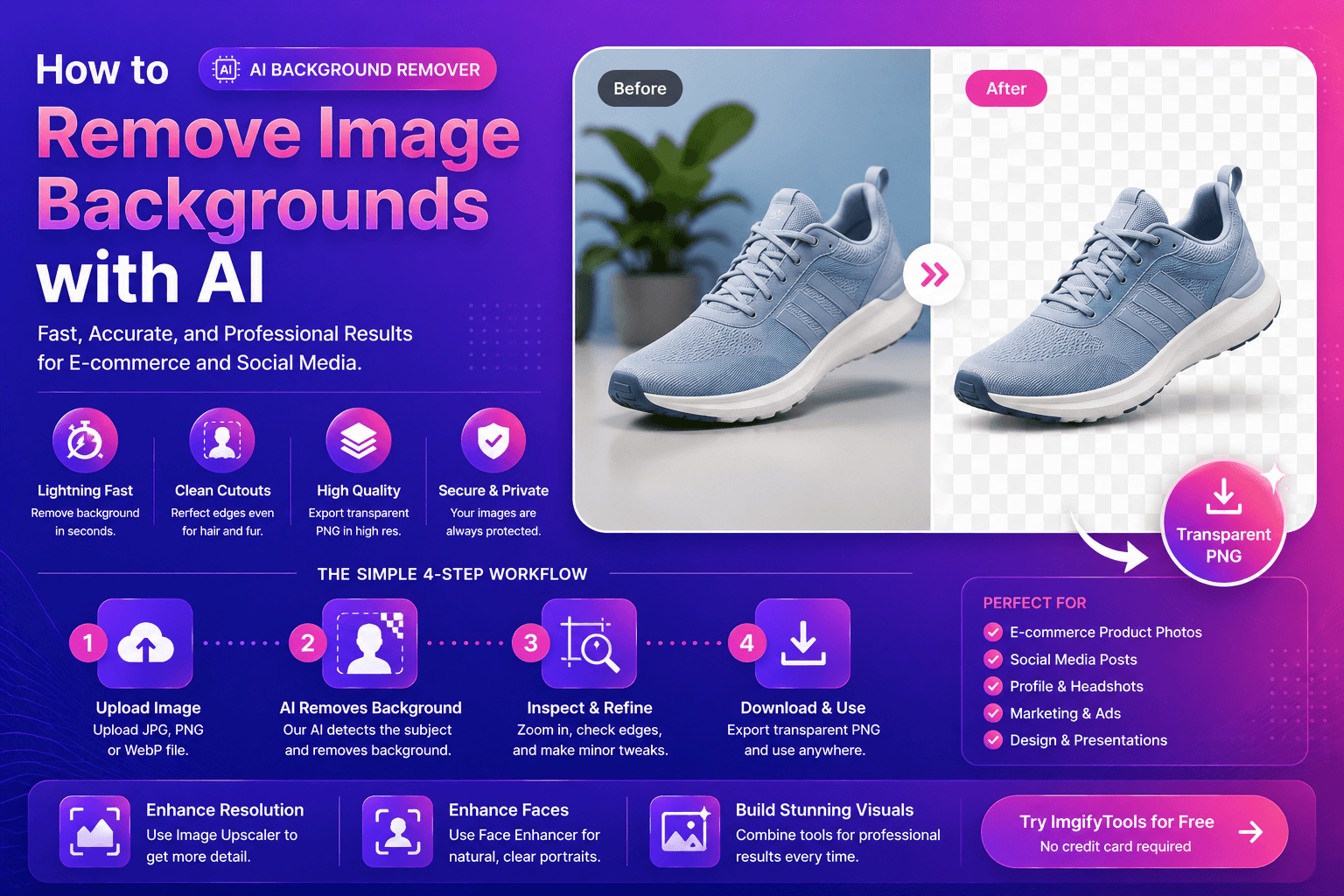
How to Remove Image Backgrounds with AI
If you have ever spent an hour tracing hair with a pen tool, you already know why AI background removal changed the industry. Manual masking is accurate, but it is slow, expensive, and painful when deadlines stack up. Today, a modern AI image editor can separate a subject from its backdrop in seconds—often well enough for catalogs, ads, and social posts without touching a Bézier curve.
This guide explains how the process works, what to watch for at the edges, and how to build a simple workflow around ImgifyTools so you can ship visuals faster without sacrificing quality.
Why traditional background removal breaks down
Classic workflows rely on clipping paths, magic wands, or chroma keys. Those methods work when lighting is perfect and edges are simple. Real photos rarely cooperate: flyaway hair, semi-transparent glass, motion blur, and busy textures all break rules-based tools.
That is where machine-learning segmentation helps. Instead of guessing pixels by color similarity, models learn what “subject” means from huge datasets—then predict a mask that follows contours more like a human retoucher would.
What happens when you use an AI background remover
Most AI background remover tools follow the same user journey, even if the model underneath differs:
- Upload a PNG, JPG, or WebP file at the highest quality you have.
- Segmentation runs in the cloud or locally, producing a mask that separates foreground from background.
- Review the cutout zoomed in—especially around hair, mesh, and product edges.
- Export a PNG with transparency, or place the subject on a new color or scene.
The difference between “okay” and “great” is rarely the button you click. It is lighting, resolution, and how you handle the export. For official context on how images behave on the web, see Google’s image SEO documentation—it is written for publishers, but the same habits (clear subject, descriptive context) help your assets perform everywhere.
Step-by-step: a workflow that actually holds up in production
Start with a photo that helps the model
AI is powerful, but it is not magic. Give it a fair file:
- Prefer even lighting on your subject; harsh shadows can confuse depth cues.
- Avoid heavy JPEG artifacts; re-saving a tiny file ten times creates mushy edges.
- Leave a little space around the subject so the model sees context, not a tight crop on a single eyelash.
Run the cutout, then inspect the three problem zones
Every team develops its own checklist. Ours is simple:
- Hair and fur — stray strands should fade naturally, not chop into hard lines.
- Product edges — rims, shoe soles, and bottle caps should stay crisp.
- Semi-transparent areas — glass, smoke, and thin fabrics need soft alpha, not binary on/off masks.
When you are happy with the silhouette, you can move to the next step in your stack. If you also need more pixels for a banner, pair this workflow with our image upscaler so you are not stretching a tiny export past its limit.
Drop the subject onto a brand-safe background
Transparent PNGs are flexible: white studio, gradient, or layered collage. Keep brand contrast high enough for accessibility—MDN’s introduction to images on the web is still one of the clearest references for how image choices affect layout and performance.
When AI background removal is the wrong tool
Honesty builds trust. AI segmentation can struggle when:
- Subjects match the backdrop (white shoes on a white floor with no shadow separation).
- Motion blur smears detail the model interprets as background.
- Fine repetitive patterns (chain-link fences, mesh) create “flicker” along the mask.
In those cases, reshoot if you can, or plan a hybrid fix: AI first, light touch-up second.
Benefits teams see when they switch to AI-first cutouts
- Speed — batch-ready outputs for launches and seasonal swaps.
- Consistency — every SKU framed the same way for marketplaces.
- Lower cost — fewer hours billed for manual paths on straightforward products.
- Accessibility — designers spend energy on creative direction, not rote masking.
If portraits are part of your pipeline—founder photos, team pages, or speaker headshots—run faces through our face enhancer after background work so skin tones stay natural while eyes and clarity pop.
FAQs
How accurate is AI background removal compared to manual editing?
For most product and portrait photos, modern models are “client-ready” out of the box. Complex cases may still need a quick pass, but the starting point is dramatically faster than a from-scratch path.
Does AI background removal work on free tools?
Yes—many platforms, including ImgifyTools, let you start without a credit card. Always read the privacy policy so you know how files are handled.
What file format should I export?
PNG is standard for transparency. Use JPG only when you intentionally want a flat background baked in.
Can I remove backgrounds on mobile?
Yes. Mobile browsers can run the same flows; just watch file size on cellular networks. web.dev’s image performance guidance explains why large uploads feel slower on phones—and how to keep things snappy.
What should I do after removing the background?
Consider resizing for each channel (shop, social, ads), compress intelligently, and—if the crop is tight—try our free AI background remover first, then upscale only when the creative brief demands extra resolution.
Try ImgifyTools today
You do not need another bloated install. Upload your image to our free AI background remover, review the cutout, and download a transparent PNG in moments.
Ready to go further? Chain background removal with the image upscaler for large-format banners, or polish people shots with the face enhancer—all inside the same ImgifyTools experience.
Conclusion
AI background removal is not a gimmick; it is a practical replacement for slow manual masking on a huge share of real-world work. When you pair smart shooting habits with a reliable AI image editor, you get pro cutouts without the pro wait times. Start with one catalog batch, measure the hours you save, and scale the workflow across your team—your future launches will thank you.
You may also like
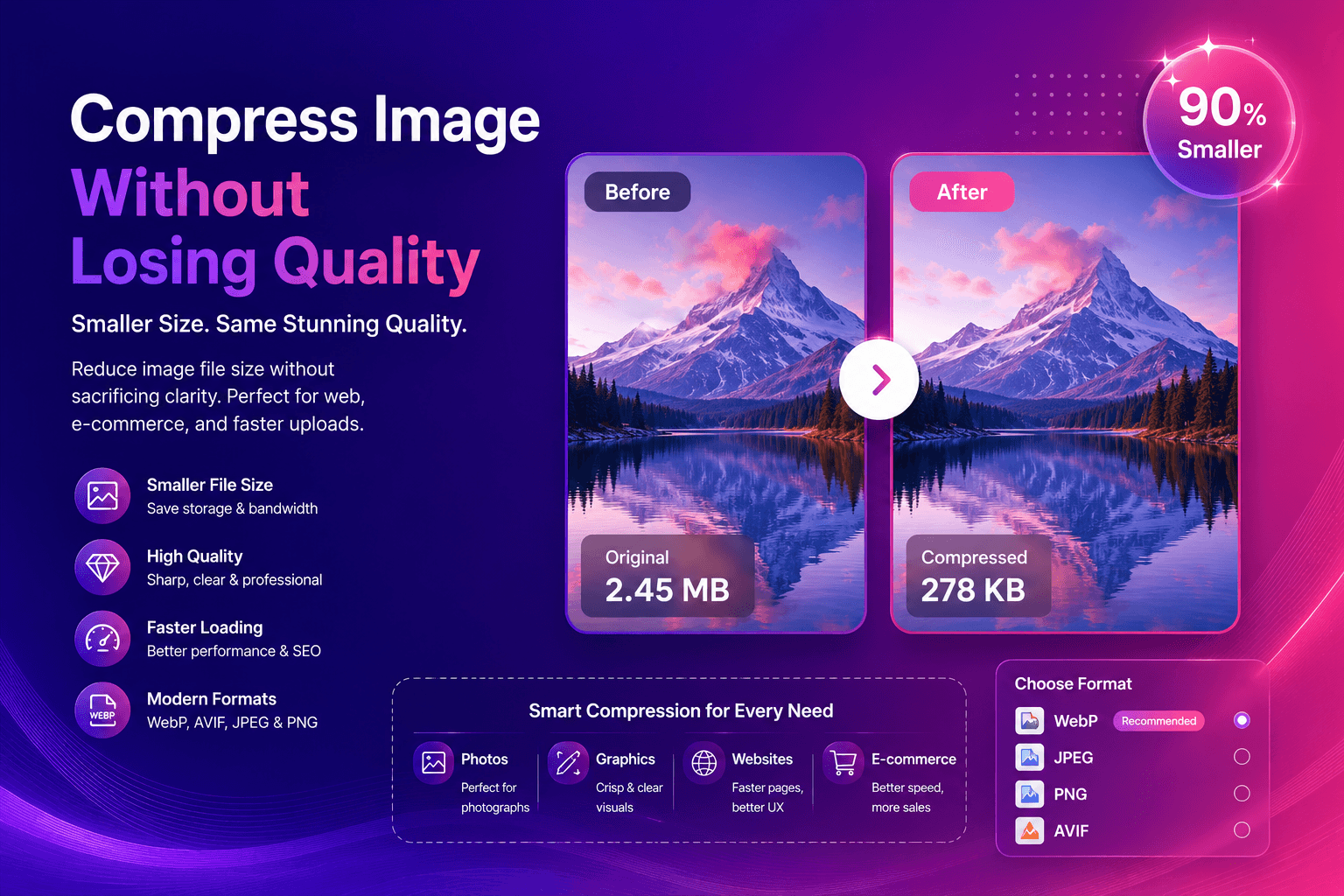
Compress Image Without Losing Quality (Best Methods)
Compress images without losing quality using practical methods for web and e-commerce. Learn formats, settings, and a simple workflow for fast, sharp results.
Read next →
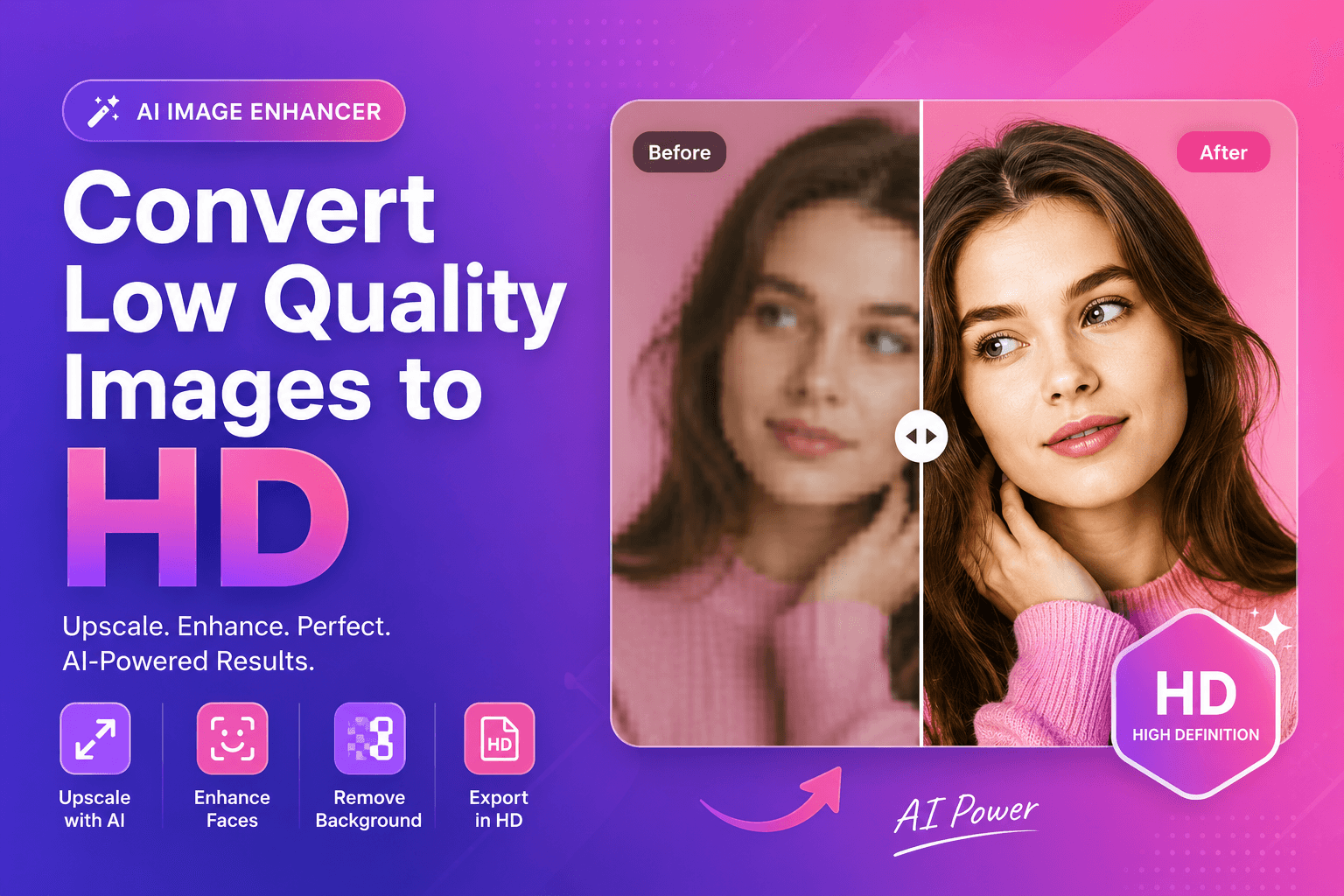
Convert Low Quality Images to HD (AI Method)
Convert low quality images to HD using AI. Learn a clean step-by-step workflow to upscale, reduce artifacts, and improve faces and cutouts for real use.
Read next →
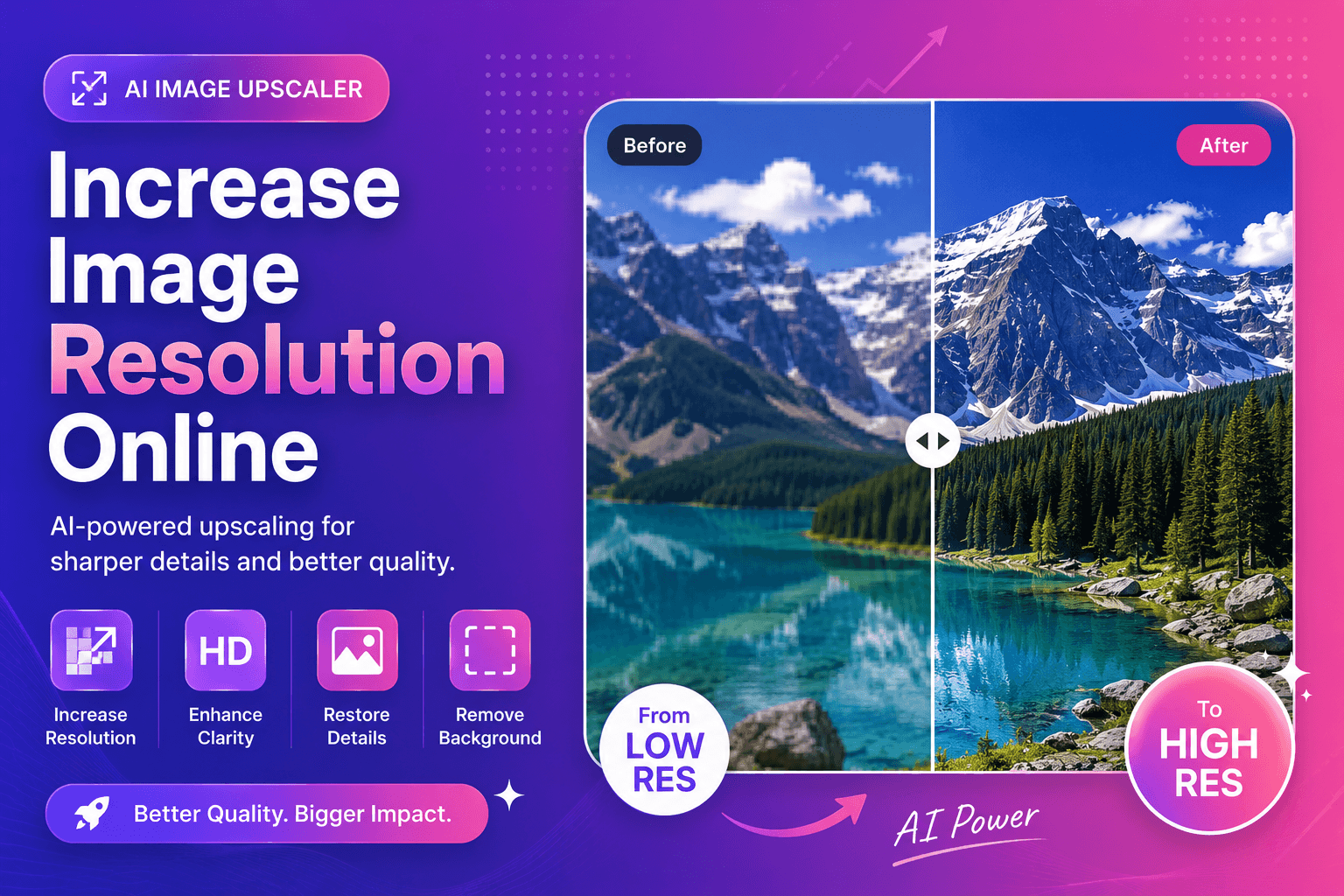
Increase Image Resolution Online (AI Guide)
Increase image resolution online with AI. Learn what resolution really means, how to upscale cleanly, and how to avoid blurry, fake-looking results.
Read next →