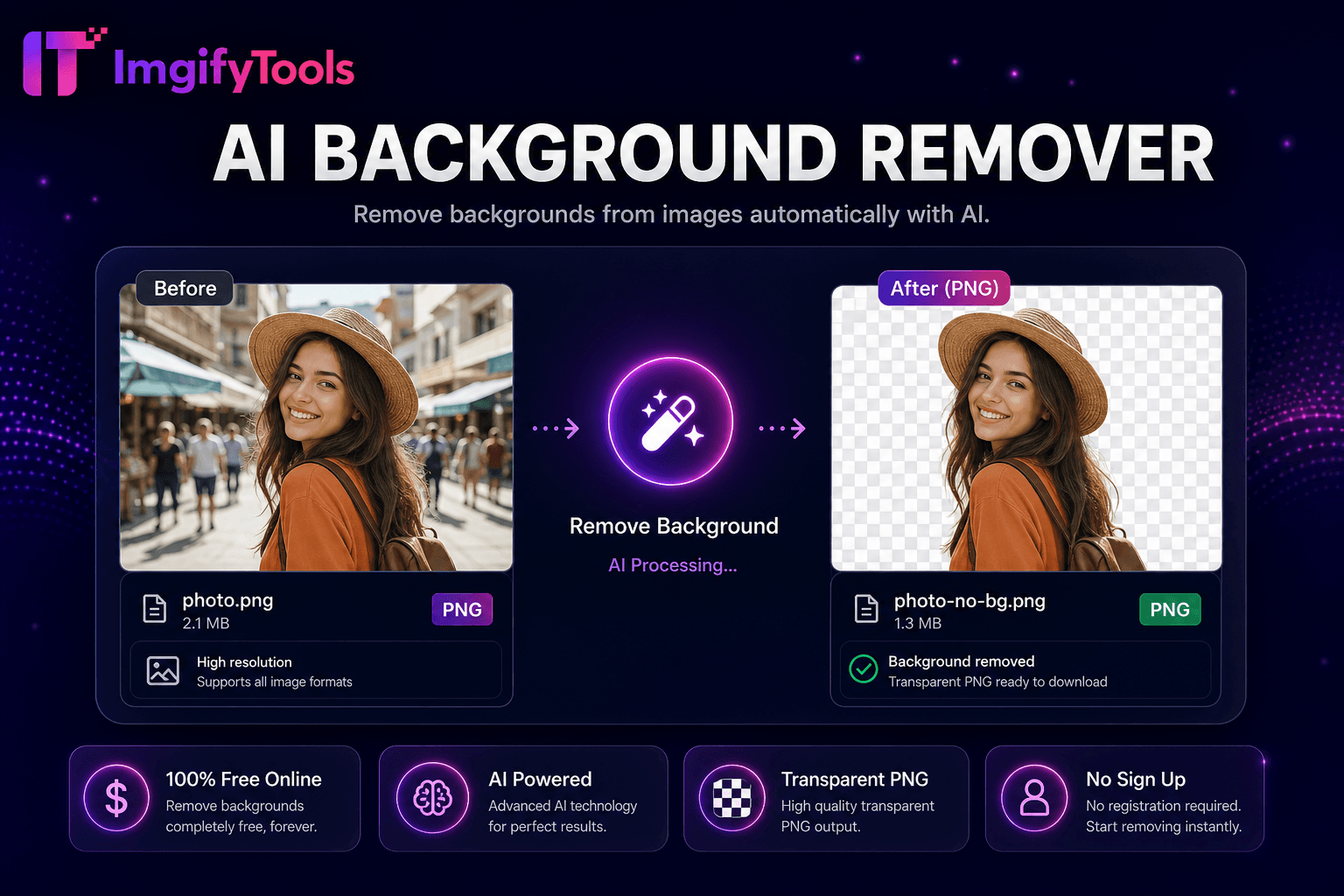
AI Background Remover
Elimina fondos de imágenes automáticamente con IA.
Herramienta de lanzamientoMejora las fotos borrosas en línea. Rápido, seguro y completamente gratis — no requiere registro.
ImgifyTools Sharpen Image restaura la claridad de los bordes de fotografías suaves, documentos escaneados y archivos JPEG comprimidos mediante una máscara de enfoque ajustable, sin los halos ni la amplificación de ruido de las pilas de filtros de escritorio descuidadas. Las instantáneas del teléfono, las capturas de la cámara web y los recursos web reducidos a menudo pierden el microcontraste que hace que el texto sea legible y los bordes del producto sean nítidos. Nuestra herramienta analiza los gradientes de luminancia y aumenta los detalles de alta frecuencia proporcionalmente a su configuración de intensidad, manteniendo los tonos de piel naturales mientras las letras y el tejido de la tela resaltan nuevamente. Los vendedores de comercio electrónico rescatan fotos de proveedores ligeramente suaves antes de subirlas al mercado. Los estudiantes perfeccionan las páginas escaneadas de los libros de texto antes de compartir las notas de estudio. Los agentes de bienes raíces aclaran los ladrillos exteriores y los adornos de las ventanas en las fotografías tomadas con una luz nebulosa. A diferencia de los escaladores de IA que inventan píxeles, la nitidez mejora la estructura existente, mejor cuando la fuente ya contiene detalles recuperables. Cargue JPG, PNG o WebP, obtenga una vista previa del antes y el después y descárguelo en segundos. Enfoque ilimitado, gratuito y basado en navegador para flujos de trabajo que necesitan un paso rápido de claridad.
Cargue una imagen JPG, PNG o WebP suave o ligeramente borrosa.
Ajuste la intensidad del afilado usando el control deslizante de fuerza.
Compare la vista previa con el original para los artefactos de Halo.
Ajuste hasta que el texto y los bordes se vean nítidos sin aumento de ruido.
Descargue la imagen mejorada para la web, para imprimirla o para editarla más.
A diferencia de muchas otras plataformas que comprometen la calidad u ocultan los resultados detrás de muros de pago, ImgifyTools ofrece resultados de alta fidelidad centrándose en la velocidad y la privacidad del usuario. No es necesario crear una cuenta para comenzar a transformar sus imágenes.
El proceso de enfoque aplica una máscara de enfoque: una copia borrosa se resta del original para aislar los detalles del borde, luego ese detalle se vuelve a agregar con una intensidad que usted controla. Los parámetros de umbral suprimen la nitidez en zonas de cielo y piel suaves para limitar el aumento de ruido. El procesamiento se ejecuta por canal en el mapa de bits decodificado a resolución completa: la vista previa coincide con la exportación. La salida conserva las dimensiones y los metadatos de orientación normalizados para una visualización correcta. La fuerza extrema produce halos blancos alrededor de bordes de alto contraste; el control deslizante le permite encontrar la mayor claridad antes de que aparezcan artefactos. La transparencia PNG agudiza los canales RGB y al mismo tiempo conserva el alfa. La ejecución del lado del servidor evita los límites de memoria del navegador en archivos DSLR de gran tamaño. Los resultados se descargan como JPG o PNG estándar compatible con CMS, correo electrónico y flujos de trabajo de preparación de impresión.
Afinar después de las operaciones de reducción de tamaño: la reducción de escala por sí sola suaviza los bordes; una pasada ligera restaura la perforación de miniaturas web. Los escaneos de documentos se benefician de una nitidez moderada antes del OCR; empareje con el convertidor de DPI de imagen cuando las imprentas especifiquen la resolución. Evite afilar archivos JPEG muy comprimidos dos veces: una pasada con una intensidad conservadora supera a los filtros apilados. Para retratos, mantenga baja la potencia en cultivos con mucha piel; Los ojos y el cabello toleran más. Las fotografías de productos sobre fondos blancos se vuelven más nítidas porque los bordes de alto contraste responden limpiamente. Si aparecen halos alrededor de sujetos oscuros sobre fondos claros, primero reduzca la intensidad o desenfoque el fondo por separado. Encadenar con compresor de imagen solo después del enfoque: la compresión después del enfoque conserva las ganancias de los bordes mejor que el orden inverso.
toolPage.comparisonSubtitle
| Función | ⟦0 | iloveimg |
|---|---|---|
| Precio | Herramienta de afilado gratuita, ilimitada | Gratis con anuncios; lote premium |
| Control | Control deslizante de fuerza ajustable | Niveles de nitidez preestablecidos |
| Avance | Vista previa en vivo antes/después | Vista previa antes de descargar |
| Soporte de formato | JPG, ⟦1 | Múltiples formatos ráster |
| control de artefactos | Los impagos conservadores reducen los halos | Filtro de enfoque estándar |
| Privacidad | Solo procesamiento de sesión | Almacenamiento temporal en la nube |
| Integración de la suite | Se empareja con cambiar tamaño y comprimir | Páginas de efectos separadas |
Herramientas relacionadas
Elimina fondos de imágenes automáticamente con IA.
Herramienta de lanzamiento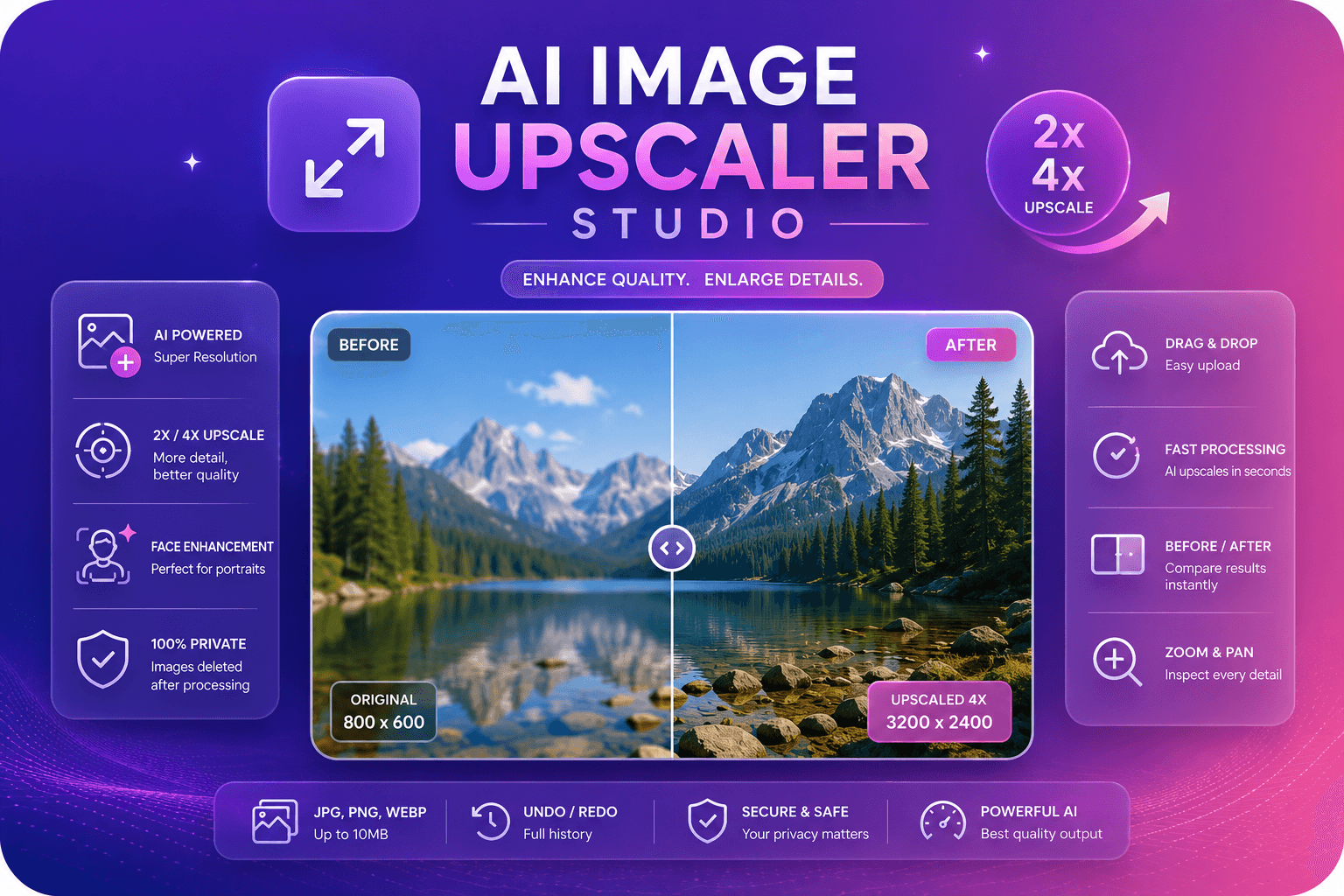
Mejore y mejore la calidad de la imagen hasta 4 veces mediante IA.
Herramienta de lanzamiento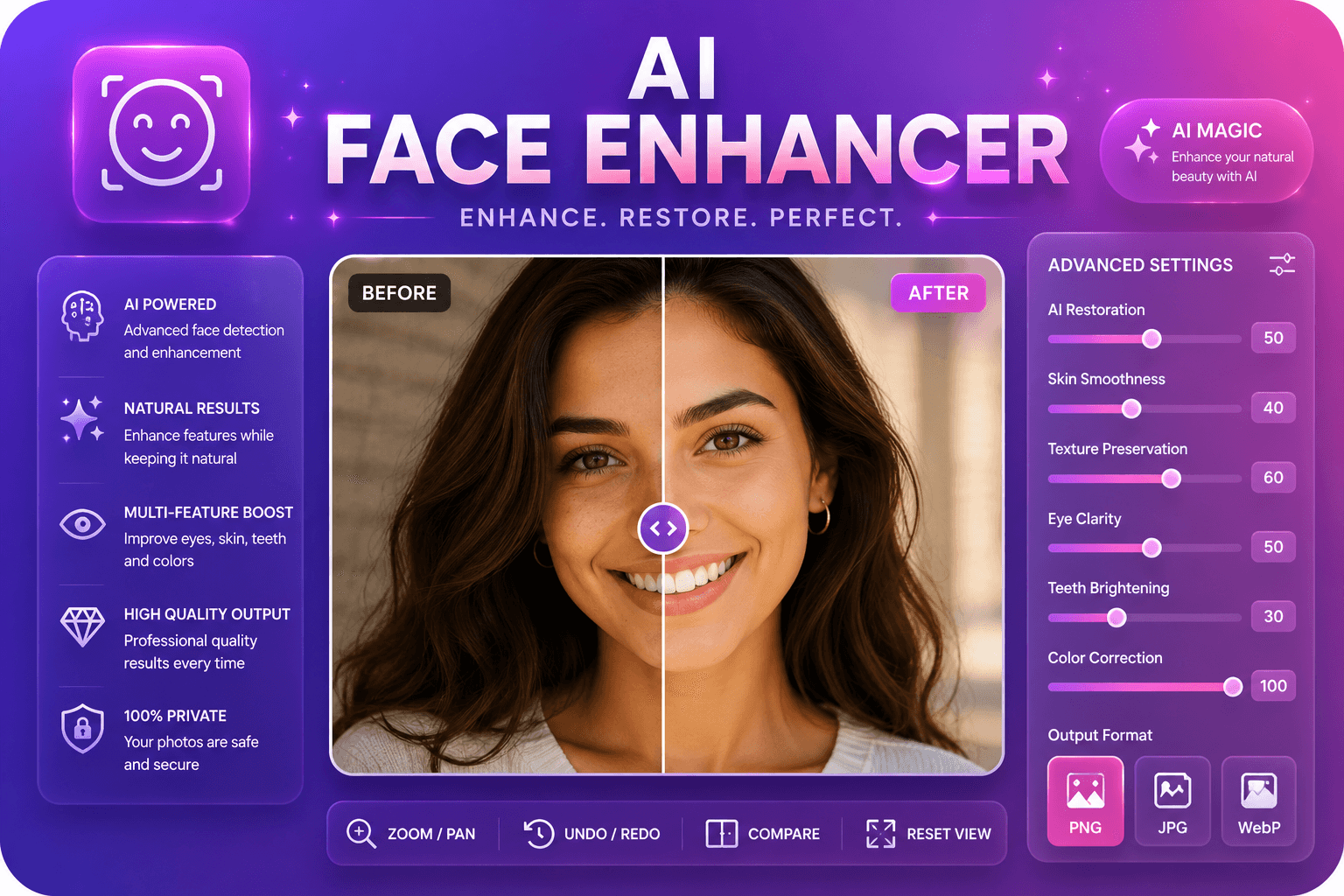
Mejore los rasgos faciales en las fotografías utilizando IA.
Herramienta de lanzamientoMás herramientas
Otras utilidades especializadas para su flujo de trabajo.
Elimina fondos de imágenes automáticamente con IA.
Herramienta de lanzamientoMejore y mejore la calidad de la imagen hasta 4 veces mediante IA.
Herramienta de lanzamientoMejore los rasgos faciales en las fotografías utilizando IA.
Herramienta de lanzamiento