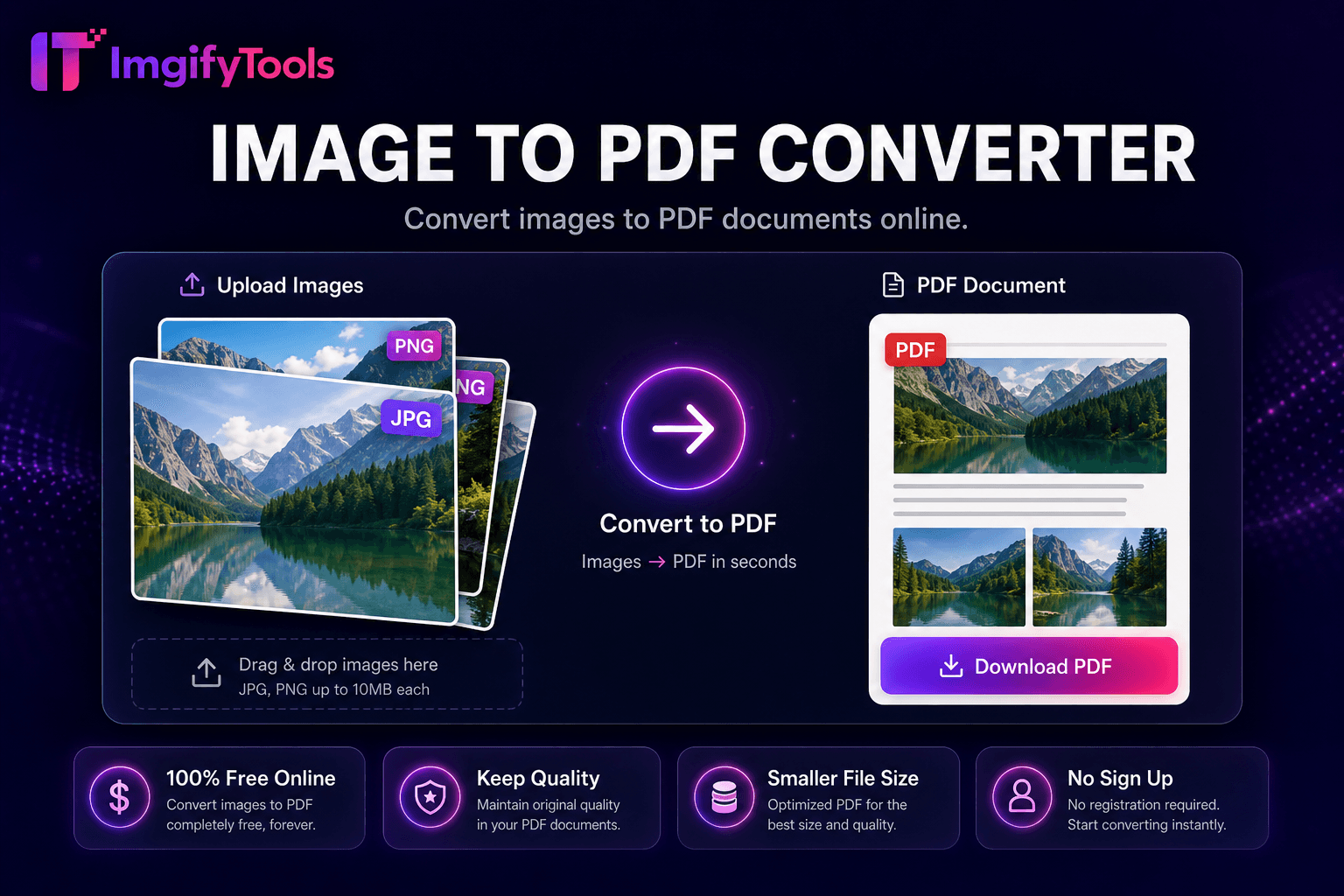
Image to PDF Converter
Convierta imágenes a documentos PDF en línea.
Herramienta de lanzamientoConvierta páginas PDF a imágenes PNG o JPG. Rápido, seguro y completamente gratis — no requiere registro.
ImgifyTools PDF to Image Converter extrae páginas de documentos PDF en archivos JPG o PNG para editarlos, compartirlos en redes sociales, generar miniaturas e incrustarlos en CMS cuando los visores de PDF no están disponibles. Los profesionales del marketing extraen diapositivas de presentaciones descargadas para crear ilustraciones de blogs. Los investigadores capturan figuras de artículos sin desenfoque de captura de pantalla manual. HR convierte formularios PDF firmados en archivos de imágenes. Los desarrolladores rasterizan los íconos PDF para sistemas heredados y rechazan los recursos PDF vectoriales. Seleccione el rango de páginas, el formato de salida y la resolución DPI antes de exportar. Los archivos PDF de varias páginas se agrupan en secuencias de imágenes numeradas adecuadas para importar presentaciones de diapositivas. El procesamiento gratuito del navegador evita la instalación de Ghostscript o Illustrator para tareas de extracción sencillas. Emparéjelo con el compresor de imágenes después de la extracción para obtener tamaños de bytes listos para la web.
Sube tu documento PDF.
Seleccione las páginas para extraer: todas o un rango específico.
Elija el formato de salida (JPG o PNG) y la resolución DPI.
Extracción de procesos y vista previa de páginas de muestra.
Descargue imágenes individualmente o en lote.
A diferencia de muchas otras plataformas que comprometen la calidad u ocultan los resultados detrás de muros de pago, ImgifyTools ofrece resultados de alta fidelidad centrándose en la velocidad y la privacidad del usuario. No es necesario crear una cuenta para comenzar a transformar sus imágenes.
El analizador de PDF lee el árbol de páginas y procesa cada página seleccionada a través de un motor de rasterización al DPI elegido: 72 para vistas previas de pantalla, 150 a 300 para extracciones con calidad de impresión. La salida se codifica como JPEG para fotografías y contenido mixto o PNG cuando dominan el texto nítido y los colores planos. Los trabajos de varias páginas se comprimen o se descargan secuencialmente según la interfaz. Los archivos PDF protegidos con contraseña deben desbloquearse antes de procesarse. Antialias de contenido vectorial en el momento del renderizado; Las líneas finas pueden necesitar un DPI más alto para evitar escalones. La renderización del lado del servidor maneja archivos PDF arquitectónicos de gran tamaño que ahogan los convertidores que solo funcionan con el navegador.
Extraiga páginas infográficas de documentos técnicos para carruseles de LinkedIn: PNG conserva los bordes del texto. Convierta escaneos de menús PDF a JPG para publicaciones de Instagram. Utilice un mínimo de 150 DPI para las tuberías de preprocesamiento de OCR que alimentan Tesseract. La extracción de sólo la página 1 acelera la generación de miniaturas para bibliotecas de documentos. Después de la exportación, recorte los márgenes con el recortador de imágenes si el PDF incluye demasiado espacio en blanco. Respete los derechos de autor al extraer páginas de archivos PDF de terceros.
ImgifyTools utiliza carga encriptada segura y no almacena permanentemente sus archivos después del procesamiento. Ningún registro de cuentas significa que no se recopilan datos personales para conversiones básicas. Para documentos legales, médicos o financieros confidenciales, considere la política de datos de su organización antes de subir. Recomendamos eliminar archivos descargados de dispositivos compartidos después del uso.
Abra esta página en su navegador móvil (Safari, Chrome o Firefox). Pulsa cargar, selecciona tu ⟦0 de Archivos o almacenamiento en la nube, elige la salida JPG y descarga las imágenes convertidas directamente en tu teléfono. No es necesario instalar ninguna aplicación. Para grandes ⟦1ss, utilice Wi-Fi para evitar cargos de datos móviles durante la carga.
toolPage.comparisonSubtitle
| Función | ⟦0 | iLovePDF |
|---|---|---|
| Precio | Conversiones gratuitas e ilimitadas | Gratis con anuncios; prima elimina límites |
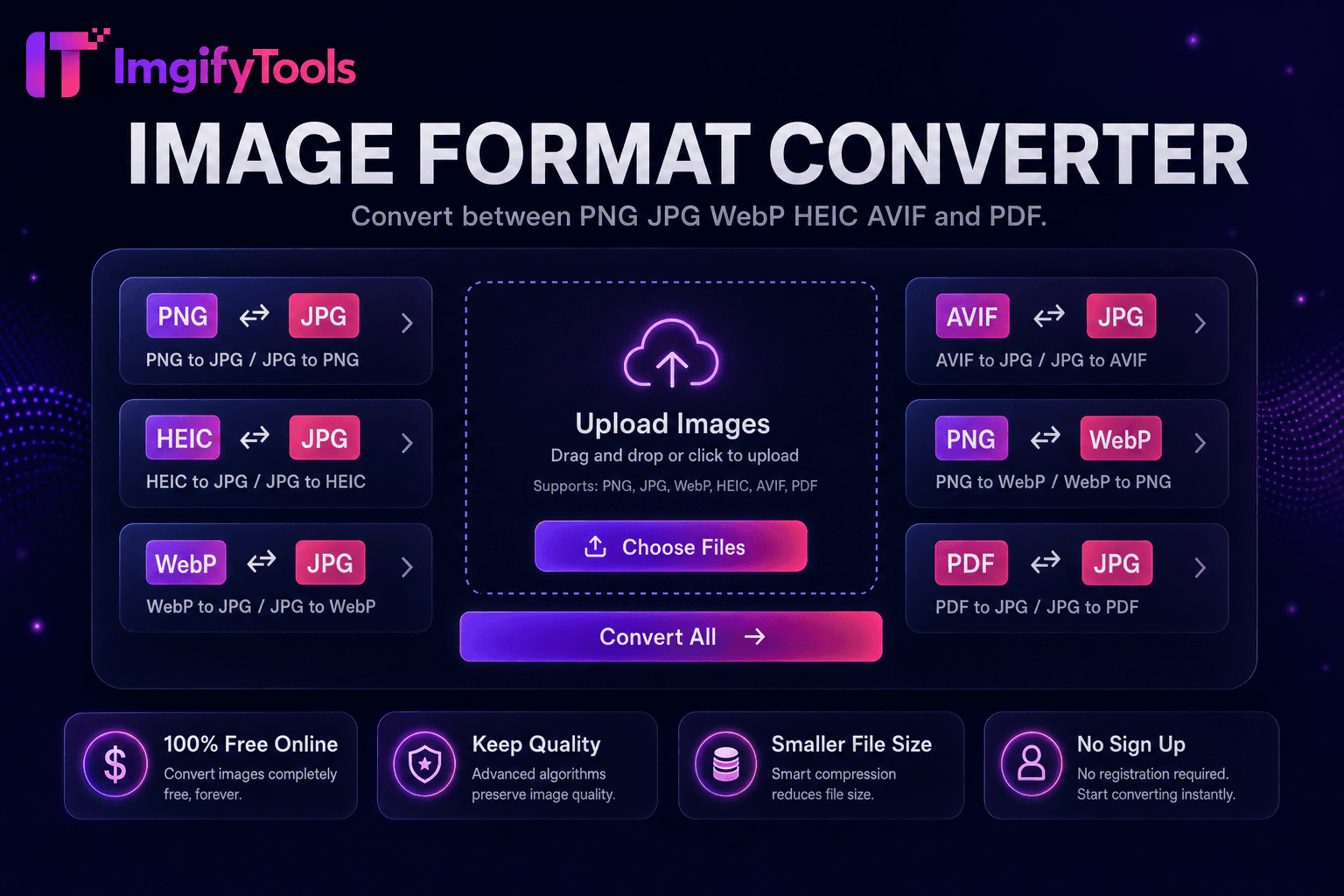
| Cobertura de formato | PNG, JPG, WebP, ⟦0, AVIF, PDF | Soporte de gran formato |
| conversión por lotes | Hub admite múltiples herramientas | Lote en prima |
| Configuraciones de calidad | Preservar u optimizar la calidad | Ajustes preestablecidos de calidad estándar |
| Privacidad | Sin almacenamiento permanente | Procesamiento temporal en la nube |
| Velocidad | Conversión rápida del lado del servidor | Procesamiento rápido en la nube |
| herramientas adicionales | Suite completa en una plataforma | Páginas de herramientas separadas |
Herramientas relacionadas
Más herramientas
Otras utilidades especializadas para su flujo de trabajo.