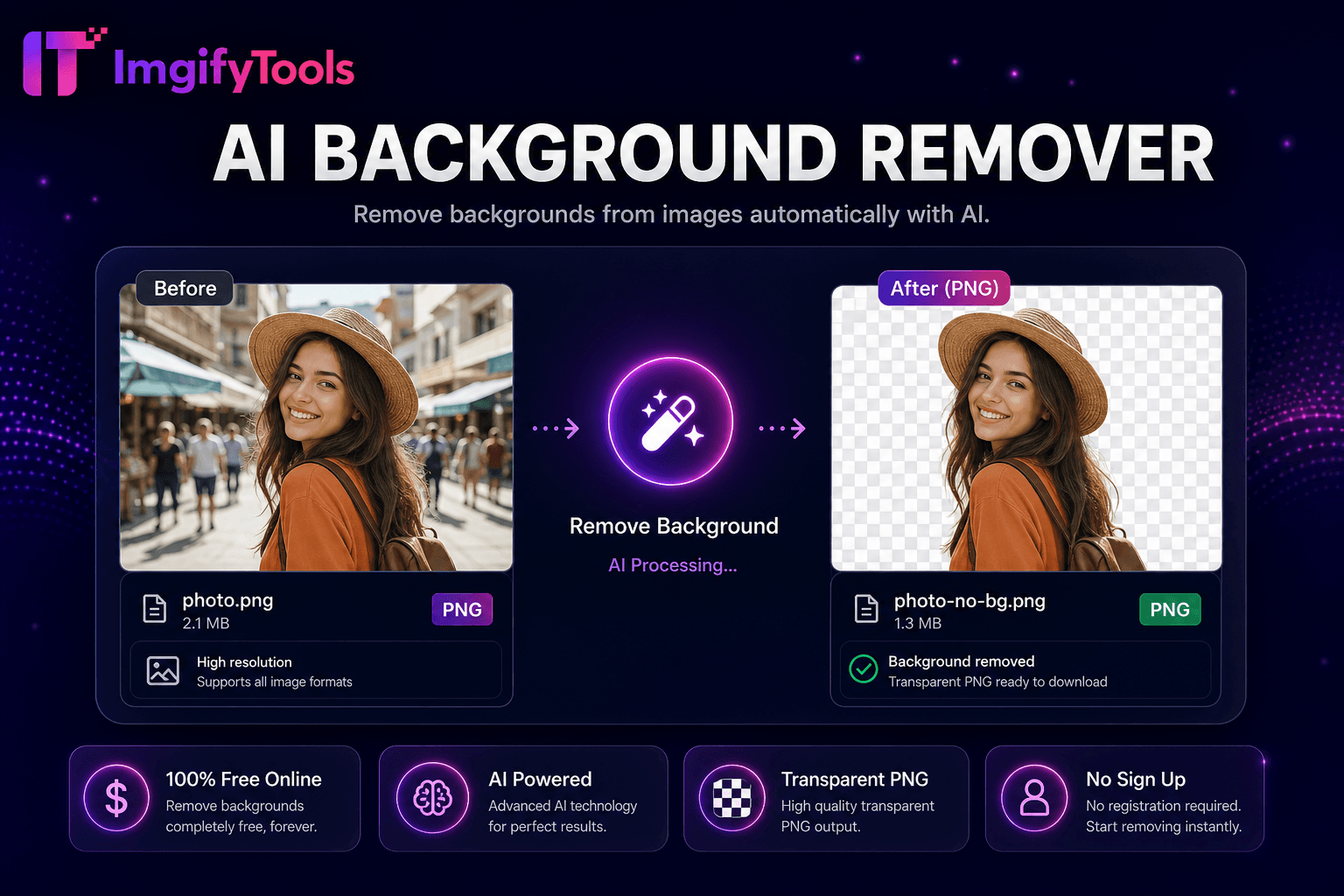
AI Background Remover
Supprimez automatiquement les arrière-plans des images avec l'IA.
Outil de lancementCombinez deux images côte à côte ou empilées. Rapide, sécurisé et entièrement gratuit — aucune inscription requise.
ImgifyTools Merge Images combine deux photos en une seule toile, côte à côte horizontalement ou empilée verticalement, pour des collages de comparaison, des vitrines avant et après, des listes de produits doubles et des substituts de carrousel social dans un seul cadre statique. Les agents immobiliers placent les pièces avant rénovation à côté des photos après. Les créateurs de fitness affichent des photos de progression alignées sur des arrière-plans cohérents. Les vendeurs de commerce électronique affichent des variantes de couleurs sans créer de modèles de collage complets dans Canva. Les développeurs documentent les comparaisons de bogues de l'interface utilisateur avec des captures d'écran appariées. Téléchargez deux fichiers JPG, PNG ou WebP, choisissez le sens de la mise en page, prévisualisez l'alignement et téléchargez une image unifiée aux dimensions combinées. L'outil gère les hauteurs incompatibles en remplissant ou en mettant à l'échelle les options une fois exposé, gardant les sujets lisibles sans redimensionnement manuel du canevas dans Photoshop. Des fusions gratuites et illimitées complètent les outils de recadrage, de retournement et de compression pour des pipelines de publication complets. Pas de filigrane, pas de barrières de compte : juste une composition rapide de deux images pour le marketing, la documentation et les projets personnels qui nécessitent deux instants dans un seul fichier partageable.
Téléchargez deux images au format JPG, PNG ou WebP.
Choisissez une disposition horizontale (côte à côte) ou verticale (empilée).
Prévisualisez l’alignement et la mise à l’échelle si les hauteurs ou les largeurs diffèrent.
Sélectionnez le format de sortie : PNG pour la transparence, JPG pour une taille plus petite.
Téléchargez l'image composite fusionnée.
Unlike many other platforms that compromise on quality or hide results behind paywalls, ImgifyTools offers high-fidelity output with a focus on speed and user privacy. Aucune création de compte n'est requise pour commencer à transformer vos images.
Chaque image téléchargée est décodée en bitmap. La fusion crée un nouveau canevas dont la largeur est égale à la somme des deux largeurs (disposition horizontale) ou dont la hauteur est égale à la somme des hauteurs (disposition verticale). Les images s'alignent sur l'axe orthogonal : alignées en haut pour les fusions horizontales, alignées à gauche pour les piles verticales, sauf si l'alignement central est proposé. Le remplissage d'arrière-plan utilise généralement du blanc ou du transparent pour la sortie PNG lorsque les dimensions diffèrent légèrement. La mise à l'échelle facultative normalise les hauteurs incompatibles en mode horizontal afin que les comparaisons côte à côte semblent équilibrées. Le composite est encodé une fois au format JPG ou PNG à pleine résolution combinée. Le traitement est côté serveur pour plus de rapidité sur les grandes photos de téléphone. Le téléchargement fournit un fichier unique prêt pour les publications Instagram, les mises à jour Slack, l'intégration de PDF ou une compression supplémentaire.
Faites correspondre les dimensions avant de fusionner pour obtenir des résultats plus nets : recadrez les deux sources à la même hauteur lors de la création de publications de fitness horizontales avant/après. Utilisez la sortie PNG lorsque l’une ou l’autre source inclut la transparence des flux de travail de suppression d’arrière-plan. Pour les variantes de couleurs des produits, photographiez les articles à une échelle et un éclairage identiques afin que les paires fusionnées aient un aspect professionnel. Les développeurs fusionnant des captures d’écran doivent désactiver les différences de mise à l’échelle de l’interface utilisateur entre les captures. Après la fusion, exécutez le compresseur d'image si le fichier combiné dépasse les limites du courrier électronique ou du CMS. Les piles verticales conviennent aux dimensions de l'histoire mobile ; les paires horizontales excellent sur le contenu de Twitter et des blogs. Ajoutez des étiquettes en externe dans les outils de conception lorsque des annotations de texte sont requises : cet outil se concentre sur la combinaison d'images pures.
toolPage.comparisonSubtitle
| Fonctionnalité | - Oui. | iloveimg |
|---|---|---|
| Prix | Outil de fusion gratuit et illimité | Gratuit avec des publicités ; lot premium |
| Options de mise en page | Pile horizontale et verticale | Options côte à côte et grille |
| Nombre d'entrées | Deux images par fusion | Plusieurs images sur premium |
| Qualité de sortie | Composite haute résolution | Exportation de fusion standard |
| Transparence | Fusion PNG avec support alpha | PNG disponible |
| Vitesse | Composition rapide côté serveur | Traitement de fusion cloud |
| Suite | Recadrer, retourner, compresser la même plateforme | Outils de collage séparés |
Outils associés
Supprimez automatiquement les arrière-plans des images avec l'IA.
Outil de lancement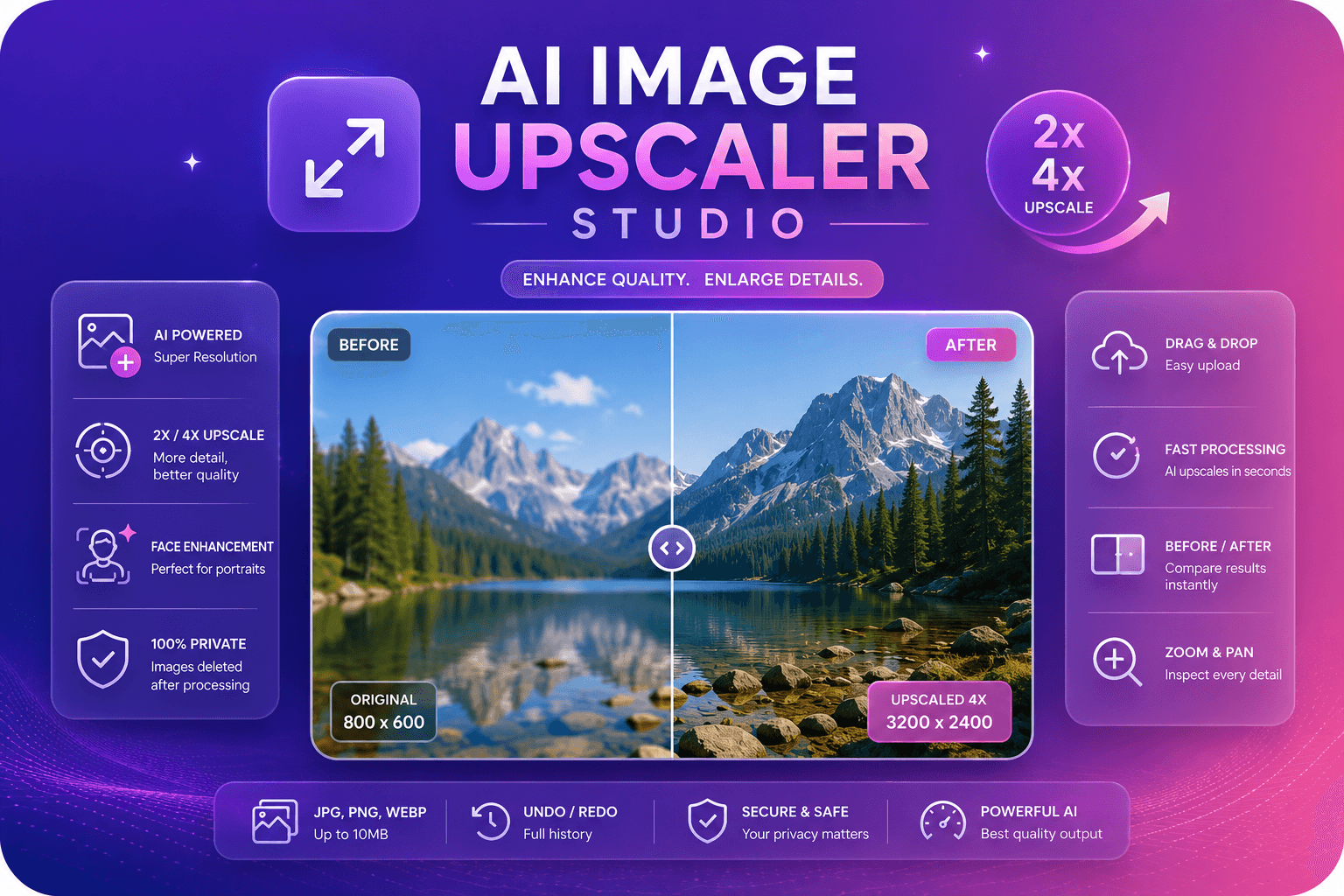
Améliorez et améliorez la qualité de l'image jusqu'à 4x grâce à l'IA.
Outil de lancement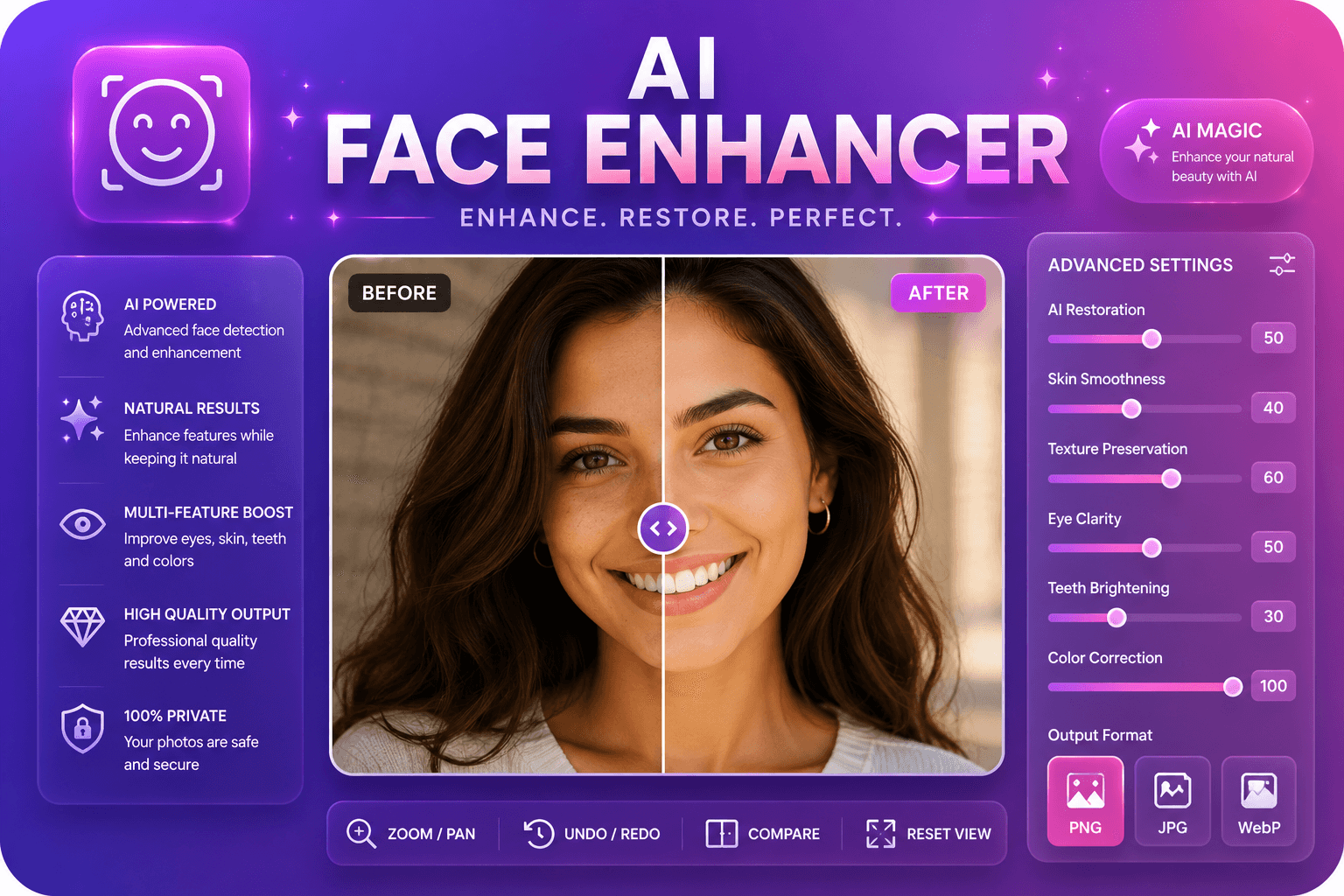
Améliorez les traits du visage sur les photos à l’aide de l’IA.
Outil de lancementPlus d'outils
D'autres utilitaires spécialisés pour votre workflow.
Supprimez automatiquement les arrière-plans des images avec l'IA.
Outil de lancementAméliorez et améliorez la qualité de l'image jusqu'à 4x grâce à l'IA.
Outil de lancementAméliorez les traits du visage sur les photos à l’aide de l’IA.
Outil de lancement