Image Compressor
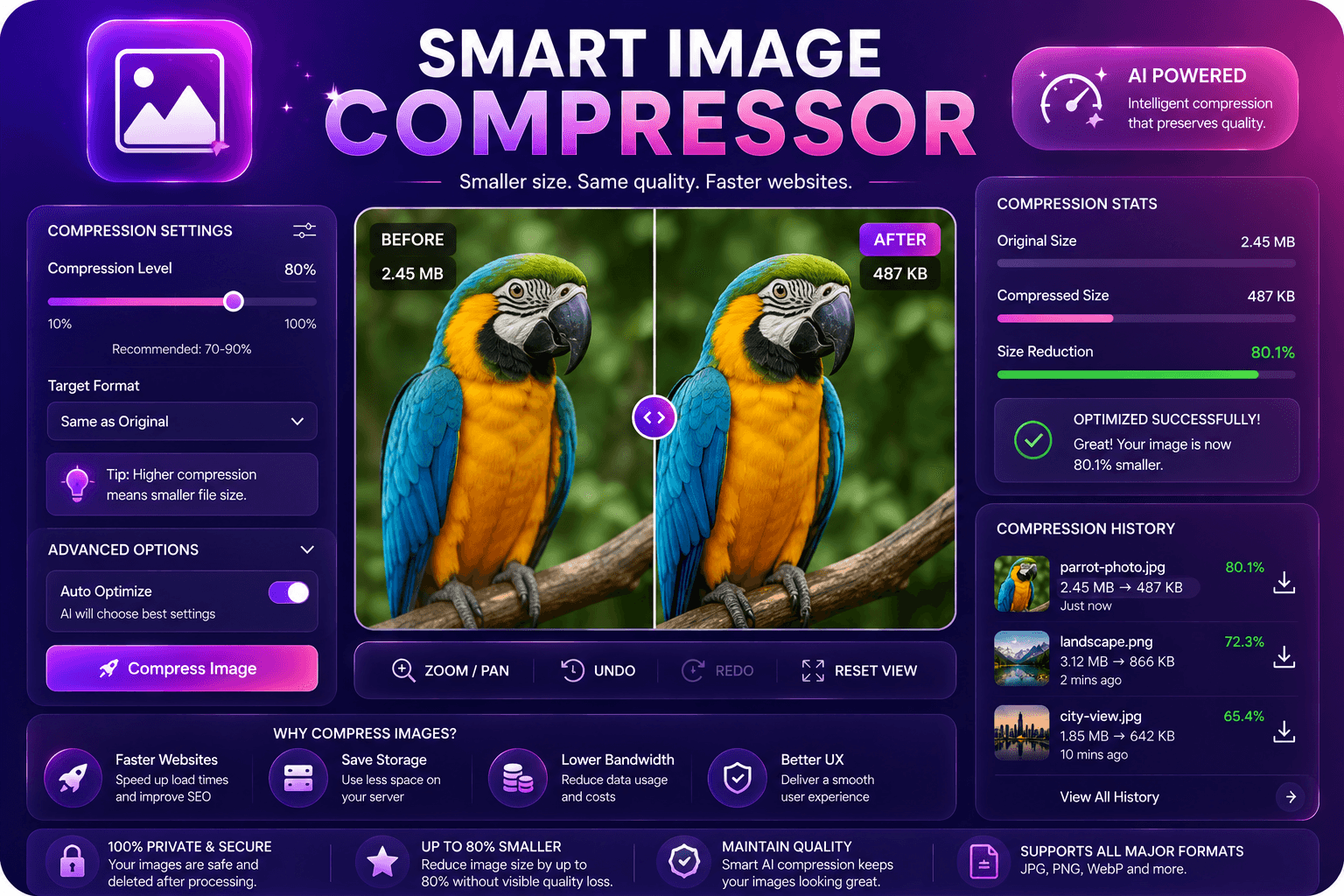
Compressez JPG, PNG et WebP sans perte de qualité visible.
Outil de lancementConvertissez entre PNG, JPG, WebP, HEIC, AVIF et PDF. Rapide, sécurisé et entièrement gratuit — aucune inscription requise.
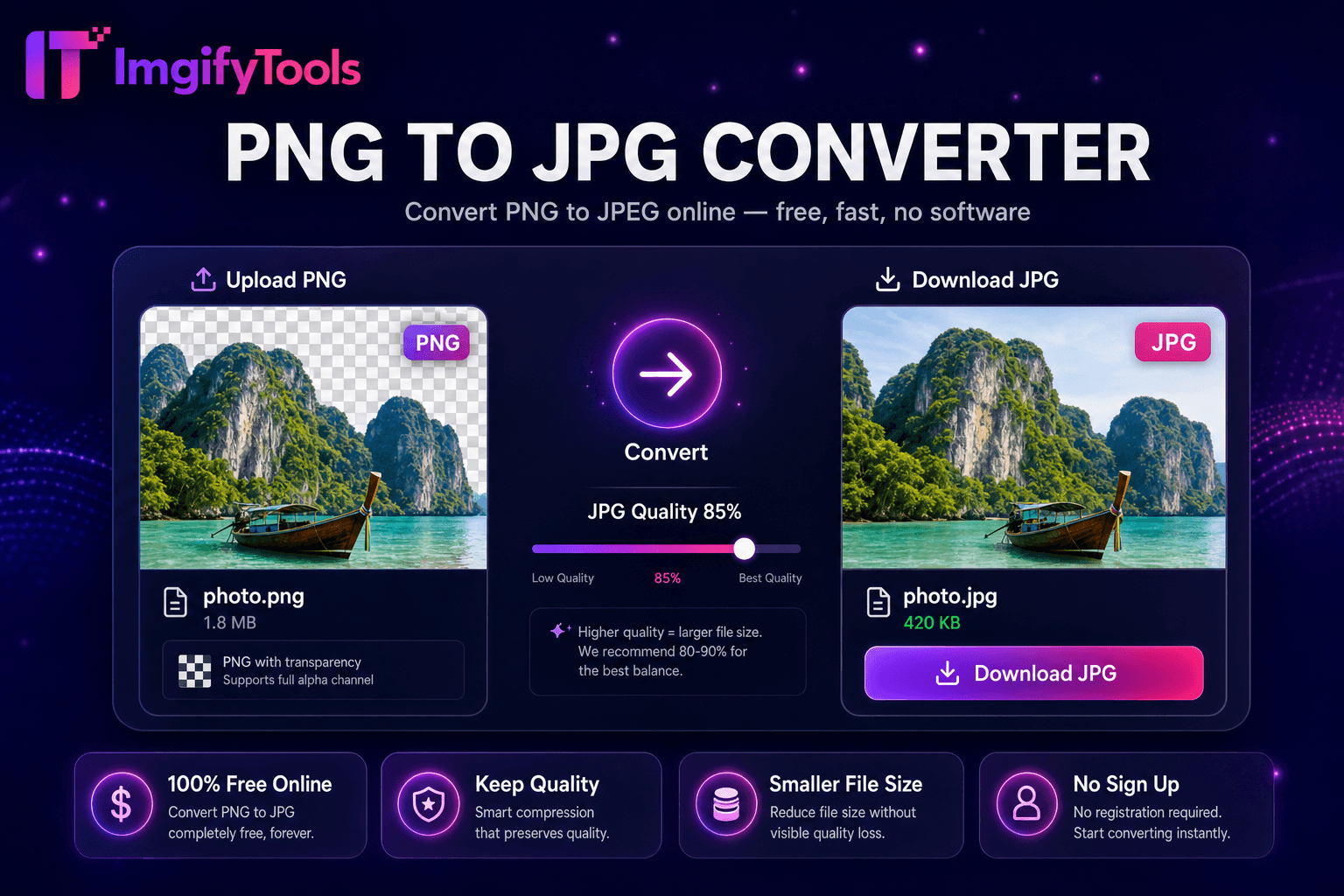
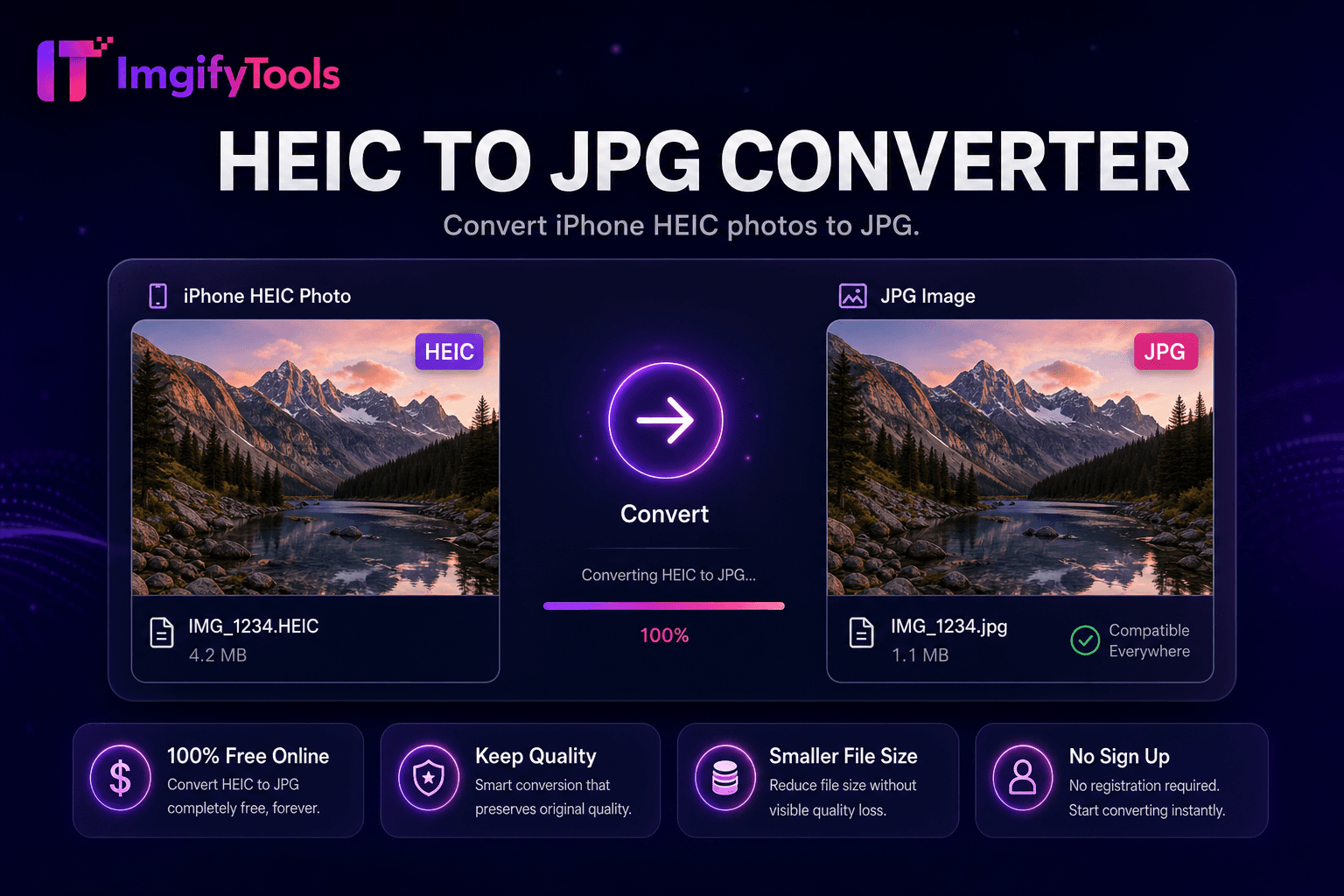
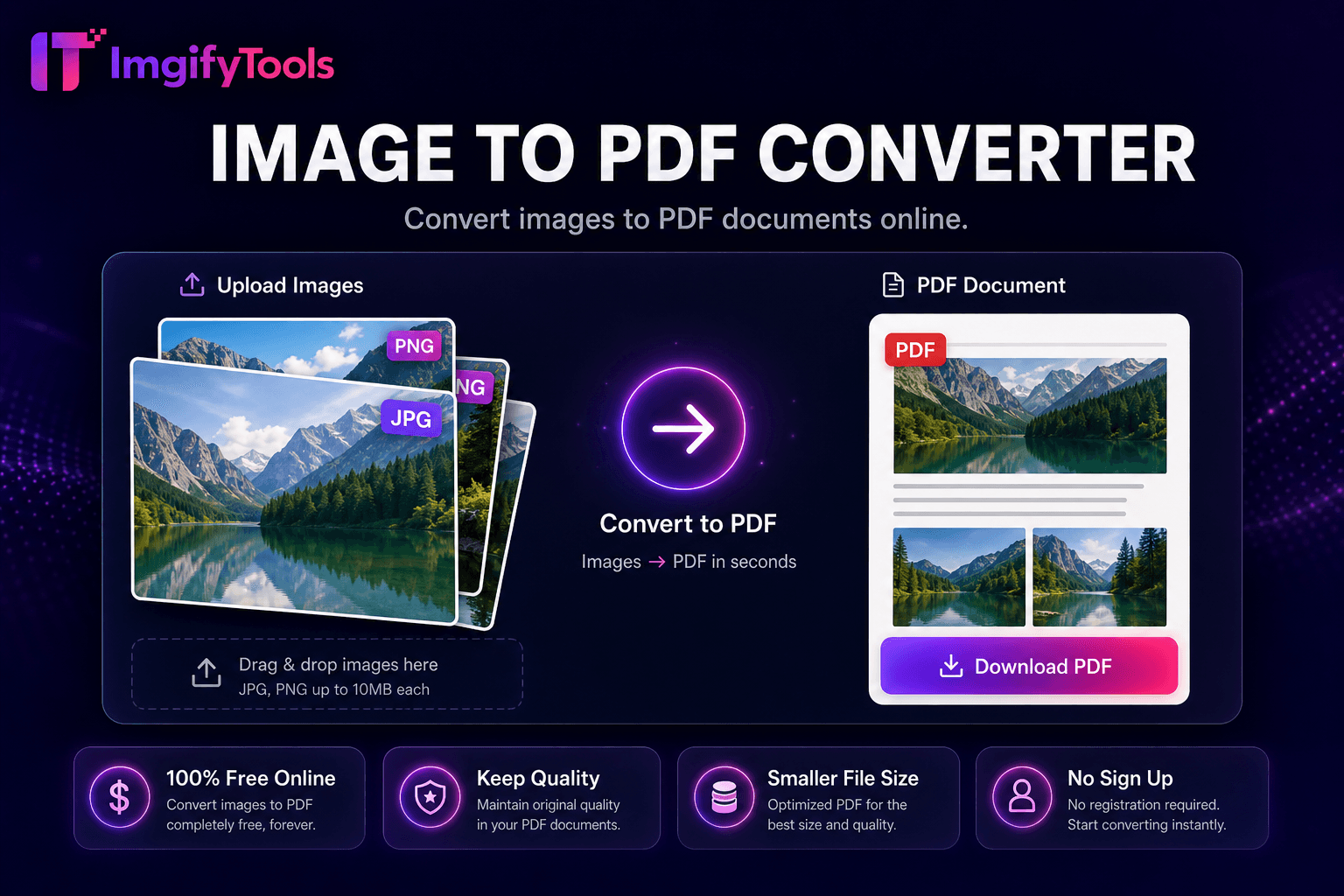
Le hub ImgifyTools Image Format Converter unifie les conversions PNG, JPG, WebP, HEIC, AVIF et PDF dans une seule destination, en changeant de format sans rechercher des pages d'outils distinctes pour chaque combinaison par paire. Les concepteurs migrent les bibliothèques d'actifs lors de la modernisation du site Web. Les développeurs convertissent par lots les téléchargements de clients en JPG sécurisés pour le Web. Les utilisateurs d'iPhone exportent en masse des dossiers HEIC au format PNG pour les équipes de conception Windows. Les services informatiques standardisent les formats d’images intranet à partir d’archives existantes mixtes. Le hub achemine chaque tâche vers des encodeurs optimisés en préservant les paramètres de qualité que vous choisissez une fois dans les lots. Des conversions gratuites et illimitées remplacent les dossiers de signets fragmentés des convertisseurs à usage unique. Des liens profonds vers des outils par paires spécifiques restent disponibles pour le référencement, mais les utilisateurs expérimentés commencent ici pour les sessions au format mixte.
Ouvrez le hub du convertisseur de format et téléchargez les images.
Sélectionnez le format de sortie cible pour chaque fichier ou lot par défaut.
Définissez les options de qualité et d'arrière-plan lors de la conversion en JPG.
Exécutez la conversion et surveillez la progression du lot.
Téléchargez les fichiers convertis ou l'archive ZIP.
Unlike many other platforms that compromise on quality or hide results behind paywalls, ImgifyTools offers high-fidelity output with a focus on speed and user privacy. Aucune création de compte n'est requise pour commencer à transformer vos images.
Le téléchargement détecte automatiquement le format source et présente des cibles de sortie compatibles : raster à raster, image au format PDF, PDF à image. Le pipeline d'encodeur réutilise les backends d'outils dédiés pour le décodage HEIC, le décodage AVIF, la gestion alpha WebP et la rastérisation PDF. La file d'attente par lots traite des entrées hétérogènes en attribuant des sélections de format de sortie par fichier. Les curseurs de qualité se propagent en tant que paramètres par défaut de la session. Le téléchargement fournit un fichier ZIP pour les travaux multi-fichiers ou un fichier unique pour les travaux uniques. Le rapport d'erreurs signale les entrées corrompues non prises en charge sans faire échouer l'ensemble du lot.
Standardisez 200 photos de vacances mixtes HEIC/JPG au format JPG avant le téléchargement alternatif de Google Photos. Convertissez les exportations PNG du concepteur vers WebP pour le déploiement Next.js en une seule fois. Migrez les captures d'écran PNG vers JPG pour les politiques de taille du wiki Confluence. Vérifiez la sortie sur l’exemple de fichier avant de regrouper l’intégralité du dossier. Sortie du hub en chaîne via un compresseur en vrac pour le téléchargement CDN de production.
toolPage.comparisonSubtitle
| Fonctionnalité | - Oui. | iLoveIMG |
|---|---|---|
| Prix | Conversions gratuites et illimitées | Gratuit avec des publicités ; la prime supprime les limites |
| Couverture des formats | C'est ce que j'ai dit. | Prise en charge du grand format |
| Conversion par lots | Hub prend en charge plusieurs outils | Lot en prime |
| Paramètres de qualité | Préserver ou optimiser la qualité | Préréglages de qualité standard |
| Confidentialité | Pas de stockage permanent | Traitement cloud temporaire |
| Vitesse | Conversion rapide côté serveur | Traitement cloud rapide |
| Outils supplémentaires | Suite complète sur une seule plateforme | Pages d'outils séparées |
Outils associés
Plus d'outils
D'autres utilitaires spécialisés pour votre workflow.