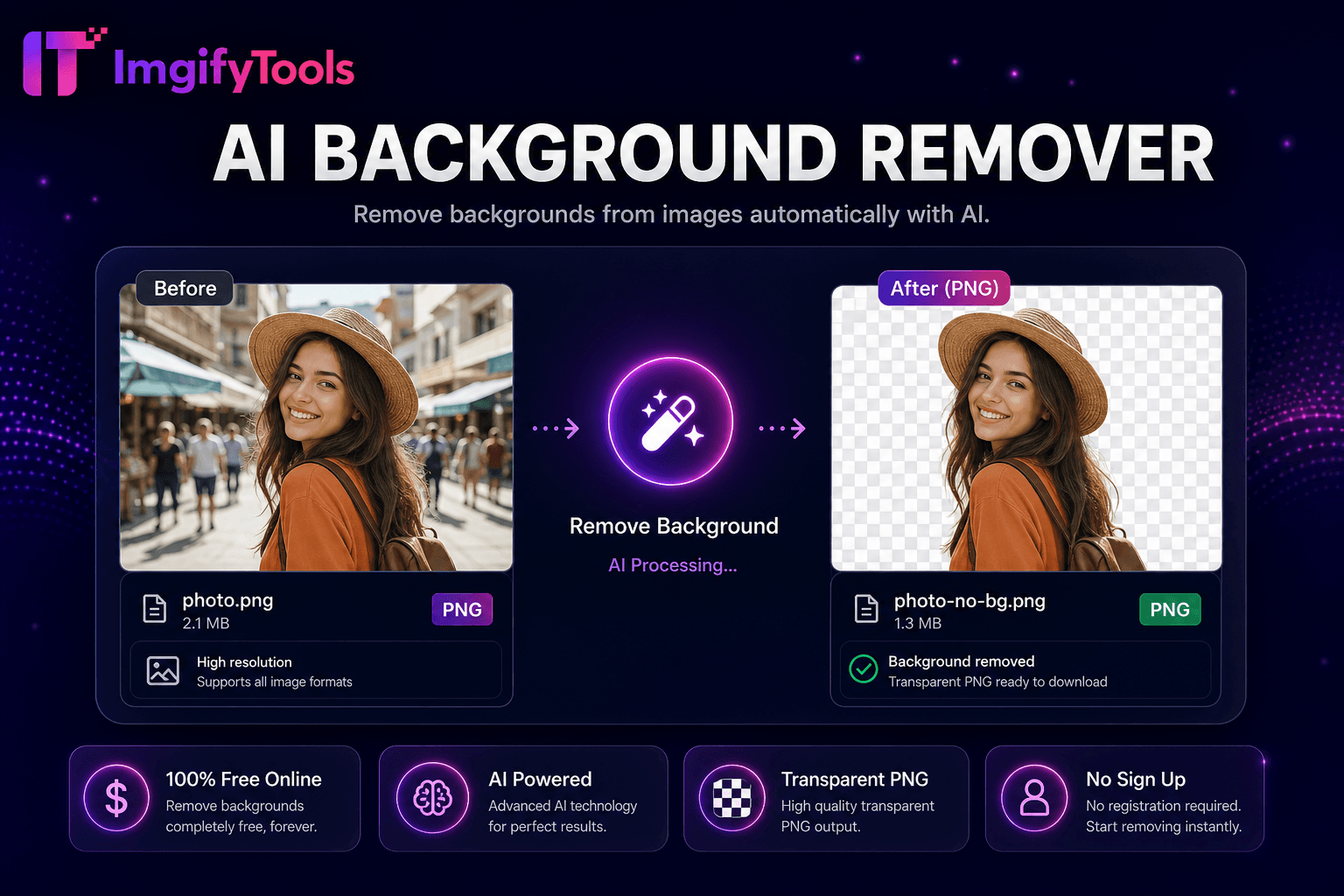
AI Background Remover
Supprimez automatiquement les arrière-plans des images avec l'IA.
Outil de lancementSupprimez les objets indésirables des photos avec l’inpainting AI. Rapide, sécurisé et entièrement gratuit — aucune inscription requise.
ImgifyTools Object Remover efface les éléments indésirables des photos (photobombers, lignes électriques, poubelles, logos, imperfections et objets égarés) à l'aide de l'inpainting AI qui reconstruit l'arrière-plan caché de manière convaincante. Le remplissage sensible au contenu dans les éditeurs de bureau nécessite un brossage minutieux et laisse souvent des textures tachées ; notre modèle prédit ce qui devrait apparaître derrière la région supprimée en fonction des pixels environnants, de la perspective et de la structure de la scène. Les photographes de voyage nettoient les monuments bondés pour réaliser des photos de portfolio. Les agents immobiliers suppriment les voitures garées des photos attrayantes. Les éditeurs de commerce électronique suppriment les autocollants de prix ou l’encombrement des cadres de produits. Les utilisateurs des réseaux sociaux réparent des selfies par ailleurs parfaits gâchés par des distractions en arrière-plan. Marquez la zone pour supprimer ou décrire l'objet, et l'IA synthétise la texture de remplacement (herbe, ciel, mur, trottoir) qui correspond à l'éclairage et au grain. L'outil gère une complexité modérée mais fonctionne mieux lorsque le contexte environnant fournit des modèles clairs. Téléchargez des fichiers JPG ou PNG, examinez l'aperçu peint et téléchargez une image plus propre en quelques secondes sans installer de plugins Photoshop ni payer de crédits par modification.
Téléchargez votre photo au format JPG, PNG ou WebP.
Marquez l'objet ou la zone que vous souhaitez supprimer à l'aide du pinceau de sélection.
Soumettre à l'inpainting IA : le modèle reconstruit l'arrière-plan caché.
Vérifiez l'aperçu et affinez votre masque s'il reste des artefacts.
Téléchargez l'image nettoyée, prête à être partagée ou imprimée.
Unlike many other platforms that compromise on quality or hide results behind paywalls, ImgifyTools offers high-fidelity output with a focus on speed and user privacy. Aucune création de compte n'est requise pour commencer à transformer vos images.
La suppression d'objets combine la segmentation et l'inpainting génératif. Vous indiquez la région indésirable via un masque de pinceau ou un outil de sélection, et le modèle analyse les pixels voisins (dégradés de couleurs, motifs répétitifs, indices de profondeur) pour combler le vide de manière plausible. Les grandes zones uniformes comme le ciel ou l'herbe sont peintes de manière plus fiable ; les motifs complexes tels que les clôtures grillagées nécessitent un contexte plus environnant. Le pipeline peut exécuter plusieurs passes de raffinement pour réduire le flou aux limites de la peinture. La résolution d'origine de l'image est préservée, sauf si vous choisissez la compression en aval. Parce que l'inpainting est génératif, les résultats varient en fonction de la complexité de la scène ; la révision de l'aperçu avant le téléchargement vous permet de réessayer avec un masque ajusté si un bord reste visible. L'inférence GPU côté serveur maintient un traitement rapide, même sur les photos de téléphone à mégapixels élevés.
Supprimez les touristes des photos de vacances, les panneaux de sortie des photos de décoration intérieure et les reflets des images de vitrines en verre. Pour la photographie de produits, effacez les taches de poussière, les traces de doigts sur les tables et l'encombrement des emballages autour de l'article phare. Utilisez un masque précis légèrement à l’intérieur des limites de l’objet pour des mélanges plus nets sur des bords très contrastés. Lorsque vous supprimez des objets volumineux, veillez à ce que l'arrière-plan soit suffisamment visible pour que l'IA puisse apprendre la texture. Un recadrage plus serré avant la suppression est parfois utile. Évitez de supprimer les sujets qui projettent des ombres sur la moitié du cadre, sauf si vous envisagez également de reconstruire les zones d'ombre. Combinez-le avec la restauration de photos pour les rayures chevauchant les objets amovibles, et avec l'upscaler d'image si la résolution de la source est faible.
toolPage.comparisonSubtitle
| Fonctionnalité | - Oui. | Cleanup.pictures |
|---|---|---|
| Fonction principale | Supprimer les objets avec la peinture AI | Nettoyage des objets à base de brosse |
| Prix | Gratuit, aucun crédit requis | Gratuit limité; Pro pour HD |
| Inscription requise | Pas de compte nécessaire | Facultatif; compte Pro pour HD |
| Résolution | Téléchargement web standard | Déverrouillage HD sur les régimes payés |
| Limite de chargement | 10 Mo par fichier | Dépendant du plan |
| Vie privée | Session serveur; non conservé en permanence; non utilisé pour la formation | Traitement en nuage par politique de nettoyage |
| Best for | Bombes photo, accessoires, distractions | Nettoyage rapide de la brosse dans le navigateur |
Outils associés
Supprimez automatiquement les arrière-plans des images avec l'IA.
Outil de lancement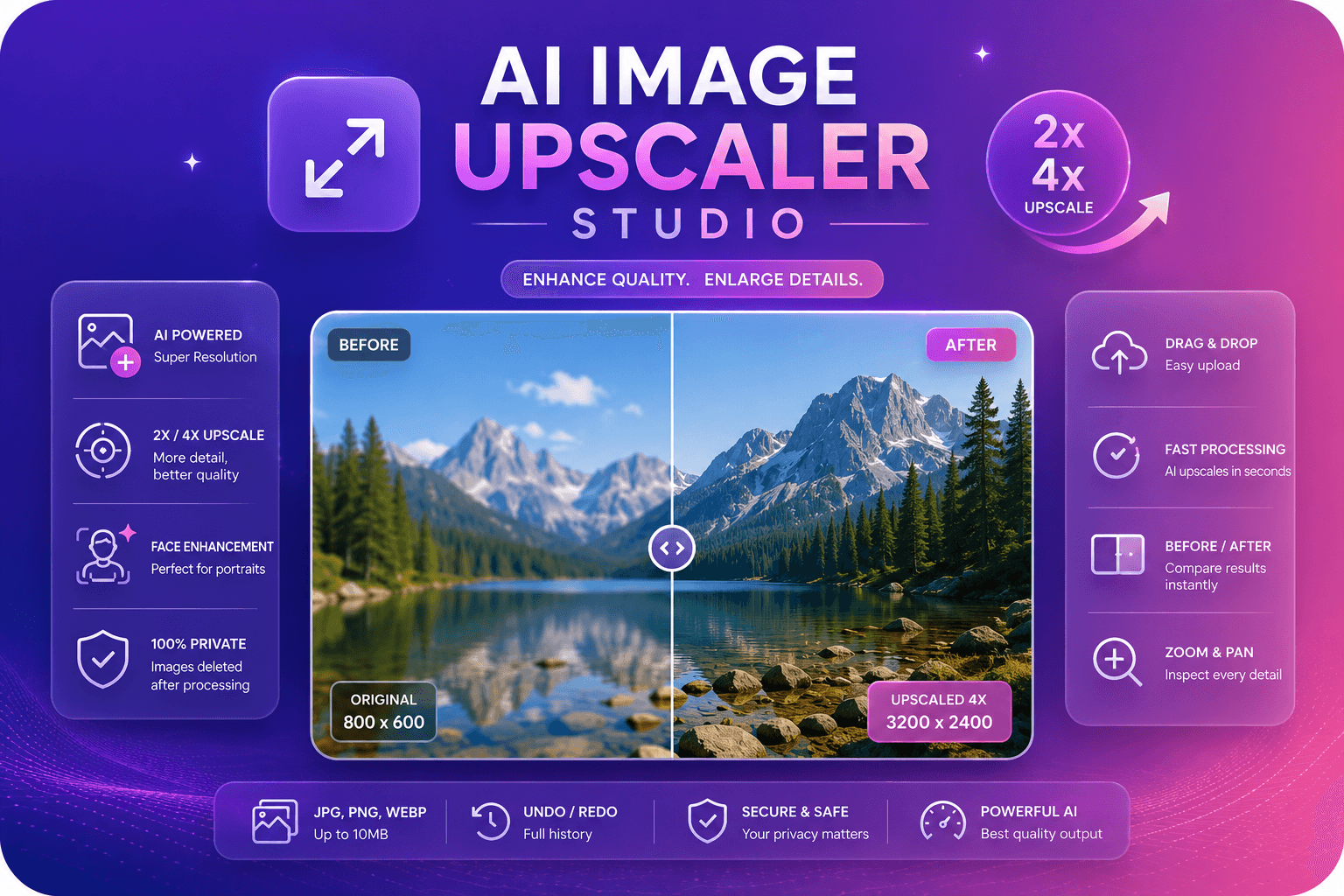
Améliorez et améliorez la qualité de l'image jusqu'à 4x grâce à l'IA.
Outil de lancement
Décrocher et agrandir les images avec le bord miroir remplir pour un espace de toile supplémentaire.
Outil de lancementPlus d'outils
D'autres utilitaires spécialisés pour votre workflow.
Supprimez automatiquement les arrière-plans des images avec l'IA.
Outil de lancementAméliorez et améliorez la qualité de l'image jusqu'à 4x grâce à l'IA.
Outil de lancementDécrocher et agrandir les images avec le bord miroir remplir pour un espace de toile supplémentaire.
Outil de lancement