
Free Online Image Editor — Complete Guide
Looking for a free online image editor that works without downloads or signup? ImgifyTools Image Editor runs entirely in your browser — crop, resize, add text, remove backgrounds, and export PNG, JPG, or WebP in one professional workspace.
Why use a browser-based image editor?
- Privacy: Your photos stay on your device — no server uploads.
- Speed: Open the editor and start immediately.
- Features: Layers, text, shapes, filters, and local AI tools in one screen.
How to edit photos online free
- Open Free Online Image Editor.
- Upload or drag-and-drop your image.
- Use the left toolbar for crop, text, shapes, filters, or background removal.
- Adjust properties in the right panel.
- Export as PNG, JPG, or WebP.
Best for
- Social media graphics
- Product photos and listings
- Quick background removal
- Blog images and thumbnails
Start editing now — Launch the Image Editor.
A reliable editing workflow
Before changing anything, duplicate the source or make sure the original remains available. Set the canvas or crop ratio first when the image is destined for a platform with a fixed shape. Then make global adjustments, add text or shapes, and inspect the result at 100% zoom before exporting. This order reduces the chance that a late crop cuts off a headline or product label.
Use layers when elements need independent movement, such as a logo over a product photo or a caption over a social graphic. Keep text large enough for a phone screen and maintain contrast against the background. For a simple one-off crop, rotation, or format conversion, a focused tool may be faster than opening a full editor workspace.
Export choices
PNG is useful for transparent graphics, logos, and screenshots with sharp text. JPG is usually smaller for photographs and is widely accepted by upload forms. WebP can reduce delivery weight on modern websites, but confirm that the destination accepts it before replacing a JPG asset. Export a copy, not the only master, and reopen the downloaded file to verify that transparency, dimensions, and text survived.
Browser privacy and limits
The ImgifyTools image editor performs primary editing in the browser, so the source image is not automatically sent to the server just because you opened the editor. Other focused AI, convert, and compression routes may use temporary server-side processing; read the Privacy Policy and the individual tool disclosure before uploading sensitive material.
Browser editors also depend on device memory. Very large camera images, many layers, or multiple high-resolution assets can make a phone slow. If the canvas becomes unresponsive, reduce the working dimensions, close other tabs, or use a desktop workflow while preserving the original for a higher-resolution export.
Is this a replacement for Photoshop?
It is useful for common web and social tasks, but it is not a complete replacement for advanced color management, professional retouching, or complex print production.
Will editing improve a blurry source?
Filters can change appearance, but they cannot restore real focus detail. Start with the cleanest source and use sharpening carefully.
You may also like
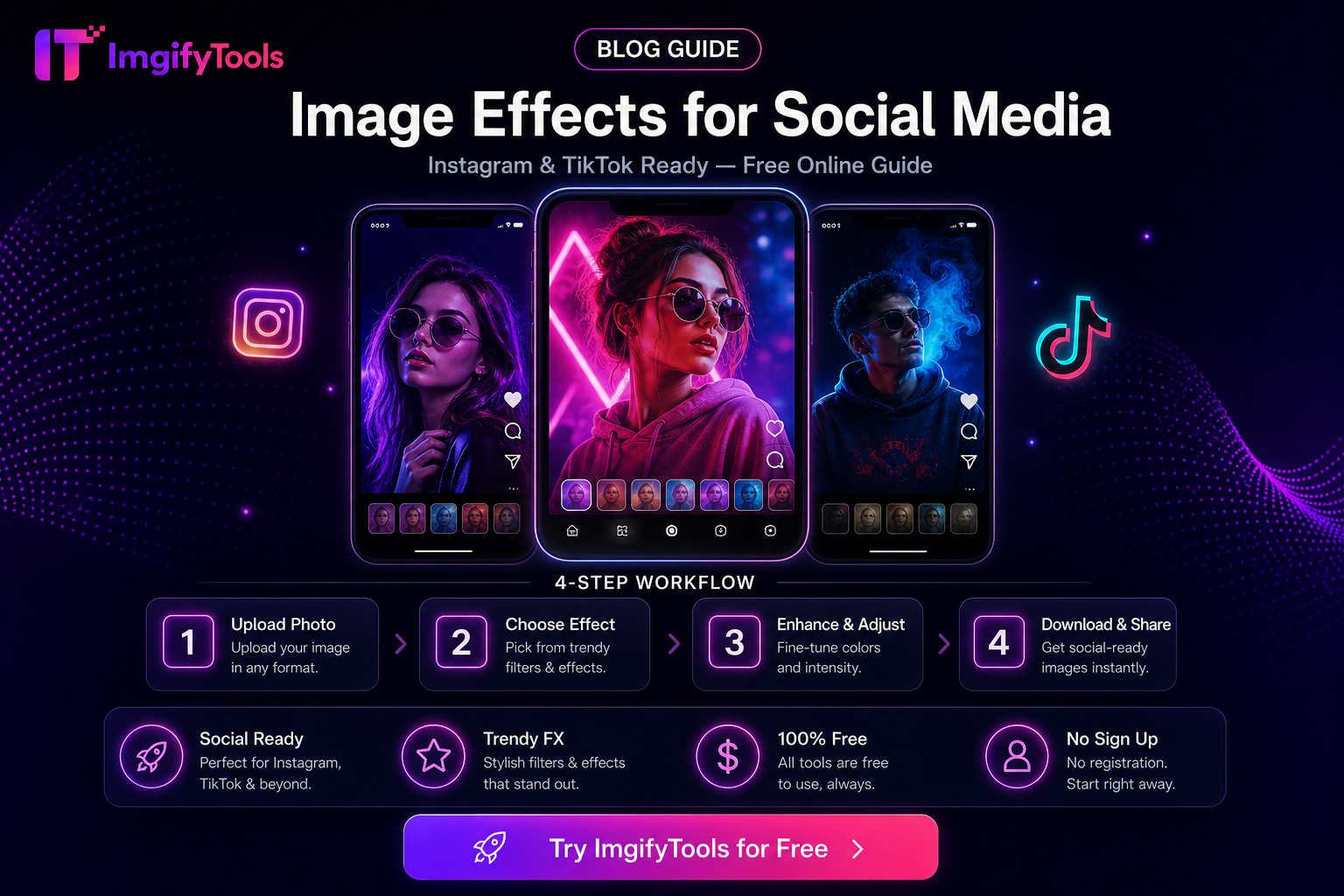
Image Effects for Social Media (Practical Uses)
When to use blur, sharpen, overlays, and effects for social posts—and when to skip them—with free ImgifyTools and honest limits.
Read next →
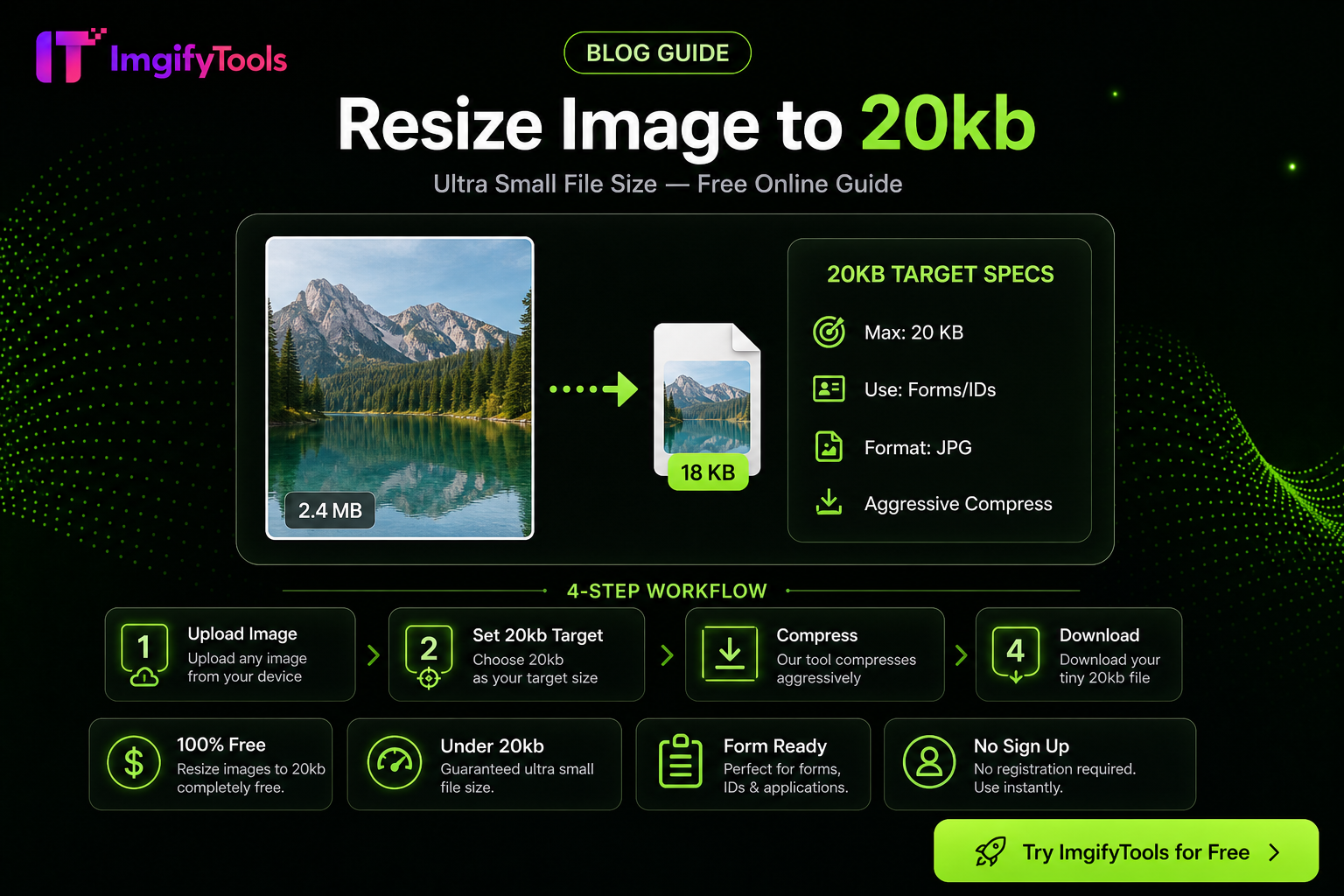
How to Compress an Image to 20KB Without Ruining Quality
Hit a 20KB upload limit with less mush: resize first, pick JPG/WebP wisely, then use target-KB compression—practical steps for portals and forms.
Read next →
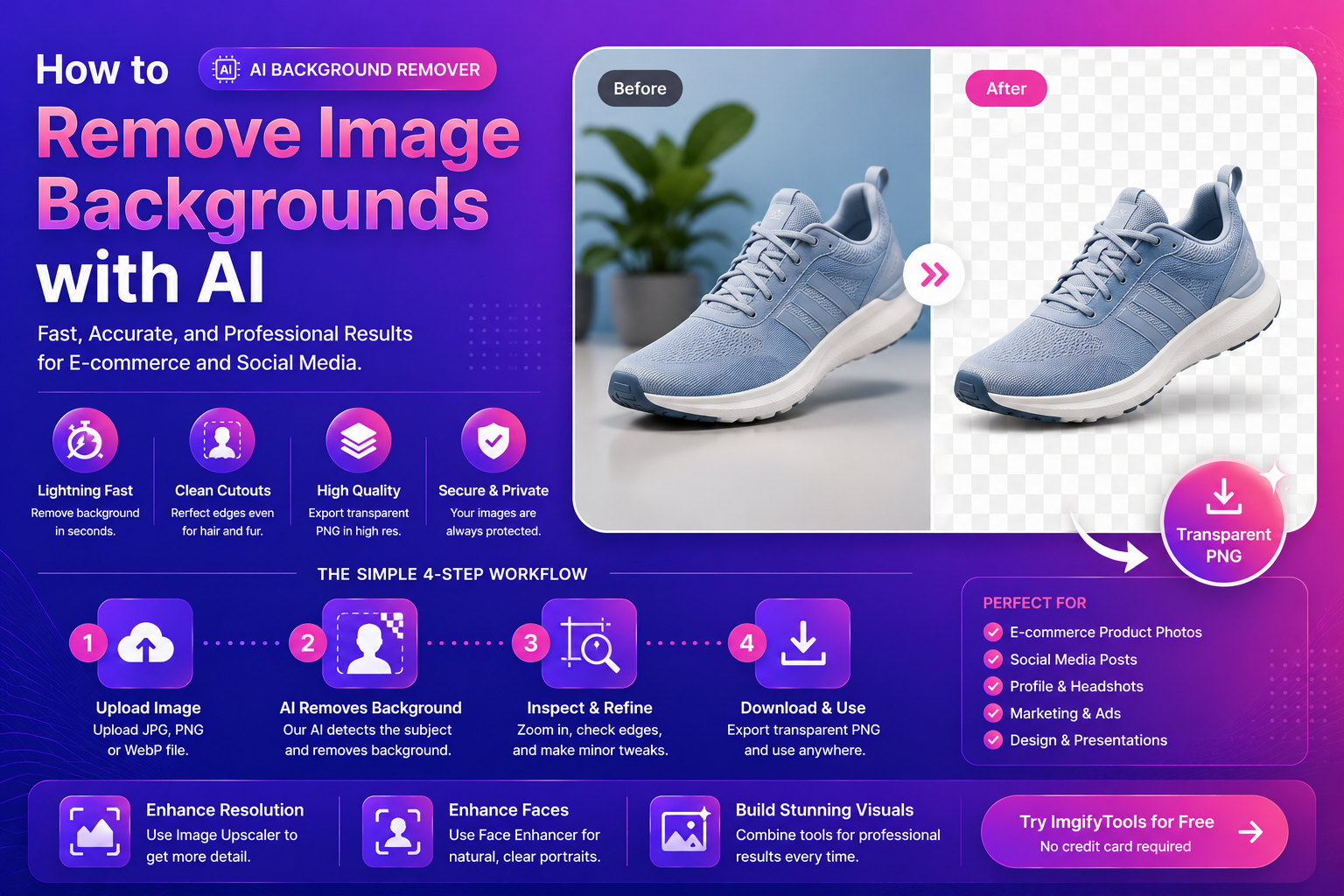
How To Remove Image Backgrounds With AI (Fast, Clean Results)
Learn how AI background removal works, when to use it, and how to get pro cutouts for e‑commerce and social—plus tools to upscale and enhance portraits.
Read next →