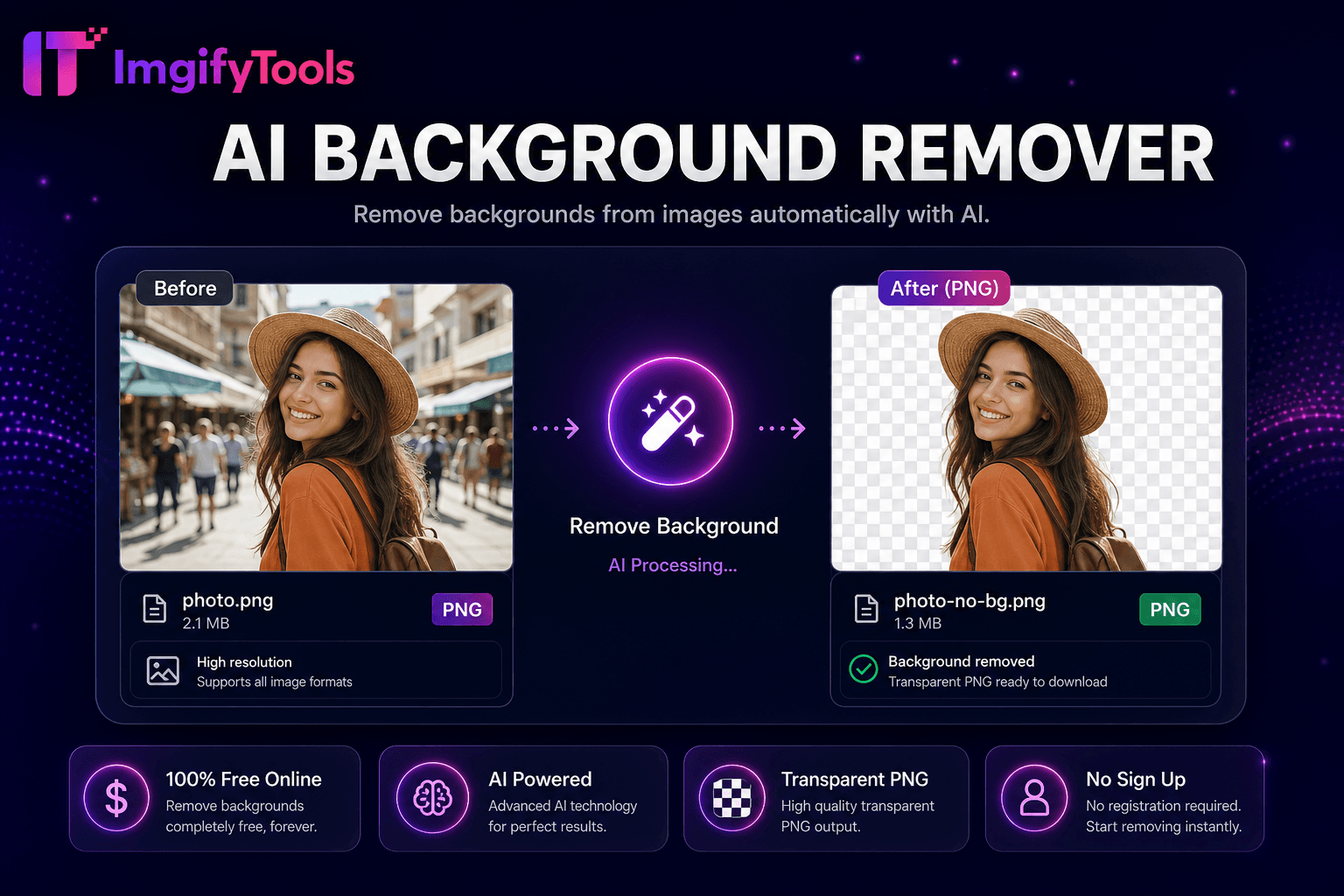
AI Background Remover
Remove backgrounds from images automatically with AI.
Launch ToolAdd color to black-and-white or faded photos. Free for standard use — no signup required.
ImgifyTools Colorize Photo uses AI to add realistic color to black-and-white historical images, faded sepia family portraits, and scanned vintage photographs—breathing life into archives without manual brush coloring in Photoshop. Genealogists share colorized ancestor photos at reunions. Museums and educators illustrate history lessons with relatable color versions alongside originals. Documentary producers reference colorized stills in treatments. The model predicts plausible skin tones, fabric hues, foliage greens, and sky blues from grayscale luminance patterns trained on period photography datasets. Results remain artistic interpretations rather than forensic restorations—disclose when publishing historically sensitive material. Upload scanned TIFF or JPG archives, preview colorization, download share-ready color photos. Pair with photo restoration for scratch removal before colorization. Free online tool democratizes colorization previously requiring skilled retouchers. Uploads are processed on ImgifyTools servers for your session (max 10 MB), are not retained permanently, and are not used to train AI models.
Upload black-and-white or sepia scanned photo.
Wait for AI to analyze regions and apply predicted colors.
Preview colorization and compare to original grayscale.
Download colorized JPG or PNG for sharing or printing.
Optional: run photo restoration first on damaged scans.
Unlike many other platforms that compromise on quality or hide results behind paywalls, ImgifyTools offers high-fidelity output with a focus on speed and user privacy. No account creation is required to start transforming your images.
Grayscale input converts to LAB color space where the model predicts chroma channels from luminance structure and contextual object recognition—detecting faces, vegetation, sky regions, and architecture to assign statistically plausible colors. Skin tone estimation respects diverse ethnic features when facial regions detected. Output blends color saturation conservatively on heavily damaged scans to avoid rainbow artifacts on noise. Users preview before download and may re-run on higher-resolution scans for finer detail. Processing preserves original resolution. Server-side GPU inference handles album scans up to archival megapixel sizes.
Colorize WWII family photos before framing gifts—scan at 600 DPI first for clearer facial detail. Compare colorized output with historical references when accuracy matters; uniforms and flags may need manual correction in editors afterward. Run photo restoration to fix creases before colorization prevents color bleeding into cracks. Desaturate overly vibrant AI output slightly in Lightroom if vintage aesthetic preferred. Label social posts as AI colorization when sharing public history content ethically.
See how our free colorize photo compares to MyHeritage on price, limits, and features.
| Feature | ImgifyTools | MyHeritage |
|---|---|---|
| Primary function | Colorize B&W and faded photos | MyHeritage In Color / photo colorization |
| Price | Free online tool | Free trials; subscription for volume |
| Signup required | No account needed | Account required |
| Genealogy suite | Standalone colorize tool | Part of family-history platform |
| Upload limit | 10 MB per file | Plan-dependent |
| Privacy | Server session; not retained permanently; not used for training | Stored in MyHeritage account |
| Output | Colorized JPG/PNG | Colorized photo in project library |
More tools
Other specialized utilities for your workflow.