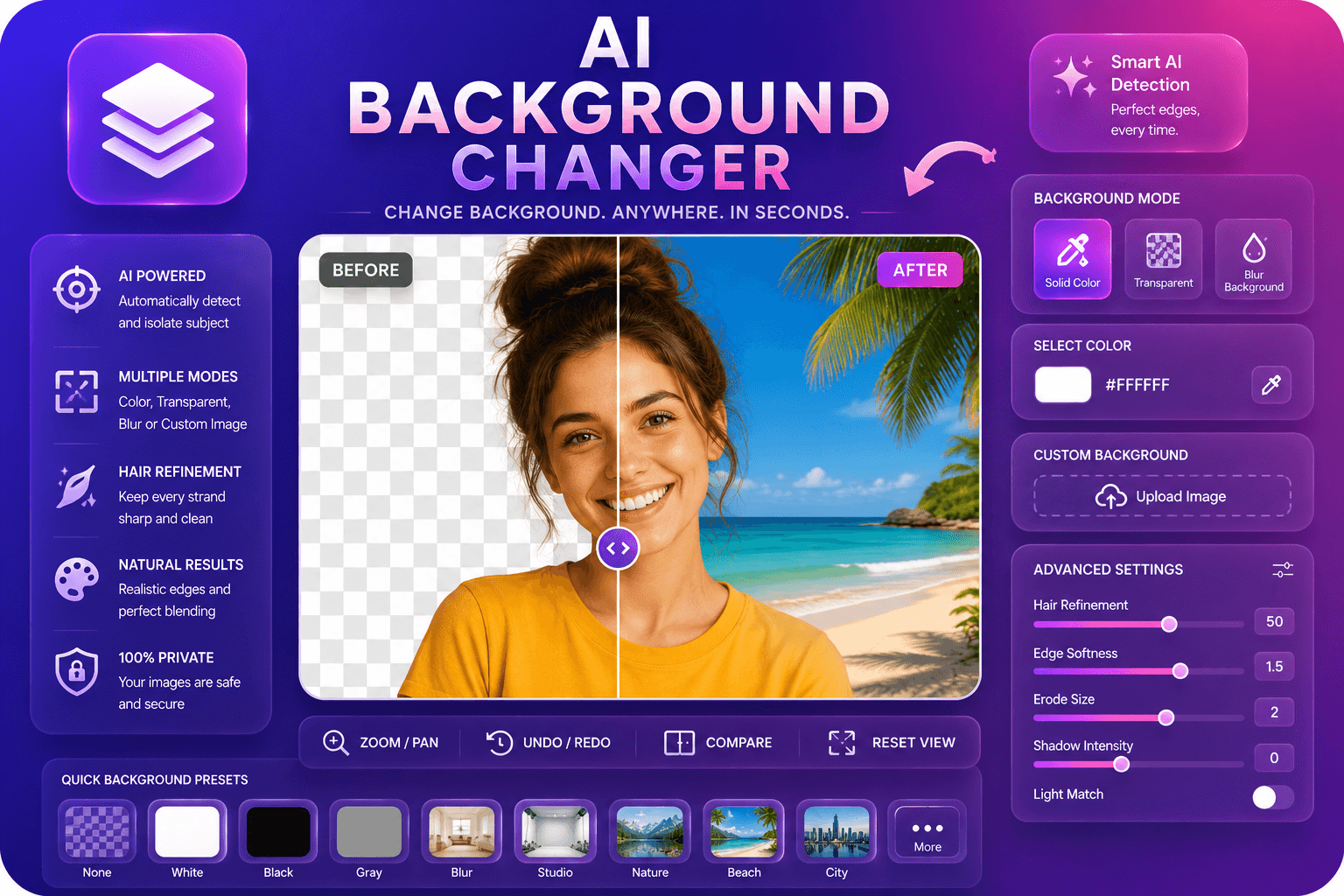
AI Background Changer
Replace image backgrounds with colors, blur, or custom images.
Launch ToolRemove backgrounds from images automatically with AI. Free for standard use — no signup required.
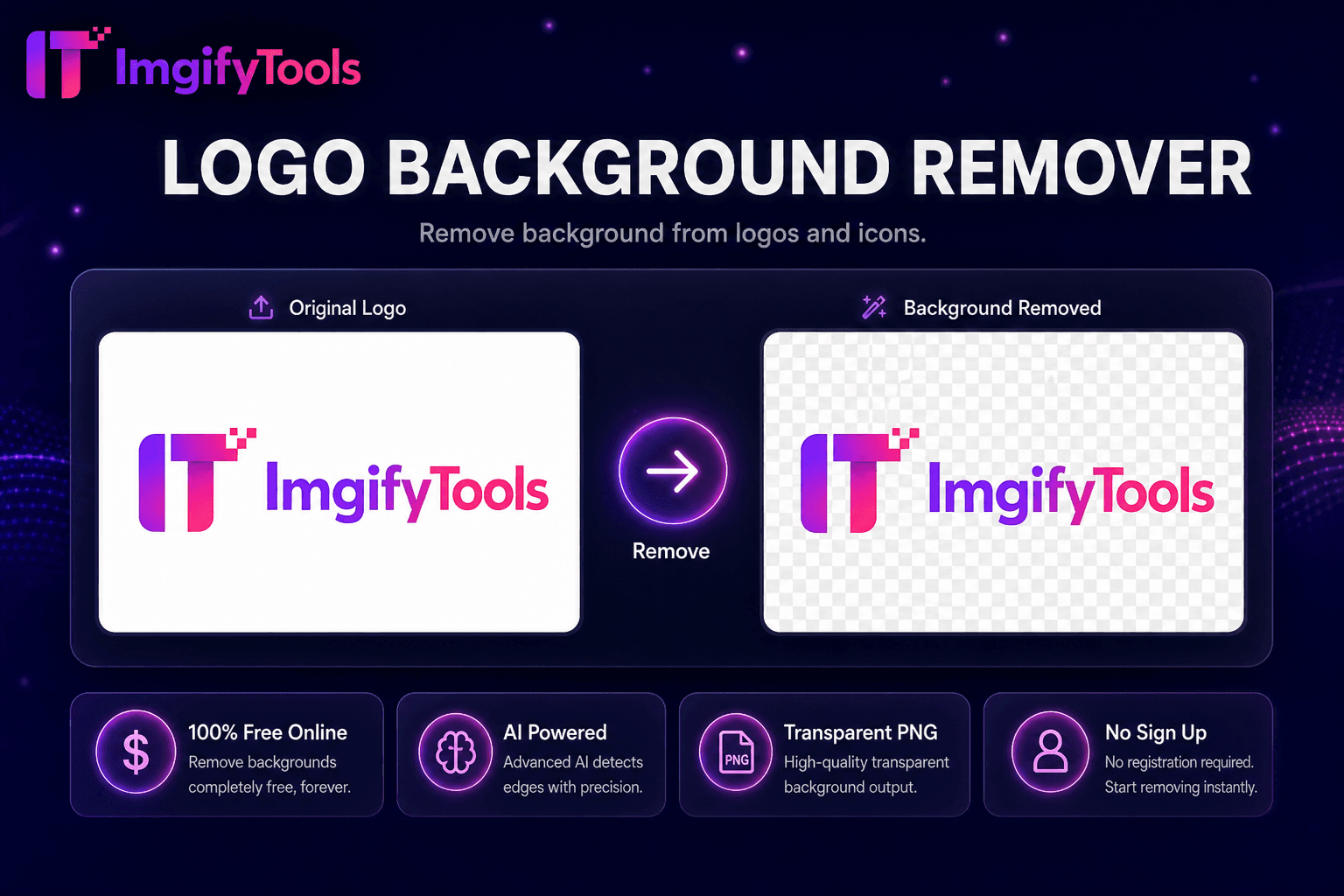
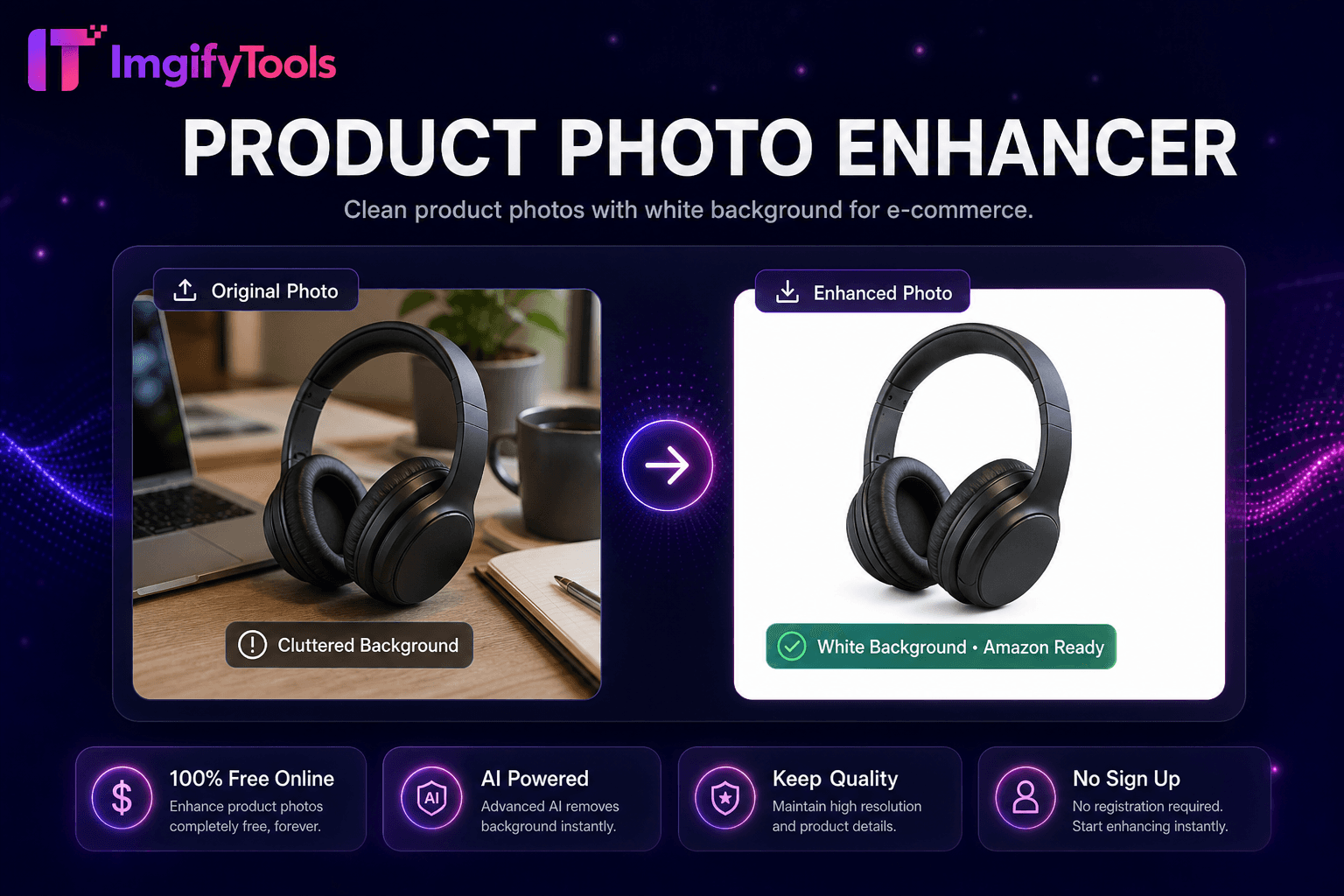
Remove photo backgrounds automatically with ImgifyTools—no signup, no watermarks. Download a transparent PNG ready for products, portraits, logos, and social posts. ImgifyTools AI Background Remover creates cutouts without Photoshop skills or manual masking. The model analyzes color contrast, depth cues, and edge patterns to separate subjects from common backdrops—busy streets, gradient studios, cluttered rooms, or solid colors. It often handles fine details that trip up older tools: flyaway hair strands, semi-transparent fabric, glass reflections, and soft shadows around product edges—results vary with contrast and lighting. Upload a product shot, portrait, logo, or pet photo and receive a PNG with a transparent alpha channel ready for marketplaces, presentations, or compositing. E-commerce sellers use it to meet Amazon and Shopify white-background requirements. Creators swap backgrounds for YouTube thumbnails and Instagram stories. Designers drop isolated subjects into brochures without re-shooting. Uploads are processed on ImgifyTools servers for your session (max 10 MB), are not retained permanently, and are not used for AI training. Whether you need one hero image or dozens of catalog photos, the workflow stays the same: upload, preview, download. No subscriptions, no watermarks, no credit counters (standard 10 MB upload limit)—just practical background removal for everyday workflows.
Upload your photo in JPG, PNG, or WebP format—drag and drop or click to browse.
Wait a few seconds while the AI detects the subject and generates a transparent cutout.
Preview the result and choose PNG (transparent) or JPG (white background) output.
Click download to save your isolated image ready for e-commerce, design, or social media.
Optional: open the background changer tool to place your cutout on a new scene.
Unlike many other platforms that compromise on quality or hide results behind paywalls, ImgifyTools offers high-fidelity output with a focus on speed and user privacy. No account creation is required to start transforming your images.
When you upload an image, our AI segments the scene into foreground and background layers. The pipeline first detects the primary subject—person, product, animal, or object—and builds an alpha matte that defines which pixels stay opaque and which become transparent. Edge refinement runs as a second pass, improving boundaries around hair, fur, lace, and other low-contrast regions where simple color-keying fails. You can export as PNG to preserve transparency or choose JPG with a white fill for platforms that reject alpha channels. Processing completes on ImgifyTools servers for your session, and the result displays for review. If the automatic cutout misses a small area, re-uploading a higher-contrast version or cropping tighter often improves accuracy. The tool accepts JPG, PNG, and WebP uploads (max 10 MB) and returns files sized for web and print use.
Online sellers remove backgrounds from product photos to meet marketplace guidelines—Amazon requires pure white backdrops for main listings, and clean cutouts increase click-through rates on Etsy and eBay. Portrait photographers deliver LinkedIn headshots with neutral or custom backgrounds without a green screen. Social media managers isolate subjects for meme templates, reaction stickers, and branded story frames. For best results, shoot against a background that contrasts with your subject: a dark jacket against a light wall cuts cleaner than similar tones. Avoid motion blur at edges, and use even lighting to reduce color spill onto hair and skin. If you plan to composite onto a new background, export PNG and feather edges slightly in your editor. Batch workflows pair well with our logo background remover for brand assets and the background changer when you want a new scene instead of transparency.
See how our free ai background remover compares to remove.bg on price, limits, and features.
| Feature | ImgifyTools | remove.bg |
|---|---|---|
| Price | Free, no credits required | Free tier limited; paid plans from $0.20/image |
| Signup required | No account needed | Account required for API; web has limits |
| Output formats | PNG with transparency, JPG option | PNG, JPG, and API formats |
| Batch processing | Single image, instant results | Bulk available on paid plans |
| Hair and edge detail | AI-optimized edge detection | Industry-leading edge quality |
| Privacy | Server session processing; not retained permanently; not used for training | Images may be retained per policy |
| Upload limit | 10 MB per file | Free tier caps resolution |
More tools
Other specialized utilities for your workflow.