Best Background Remover For Shopify
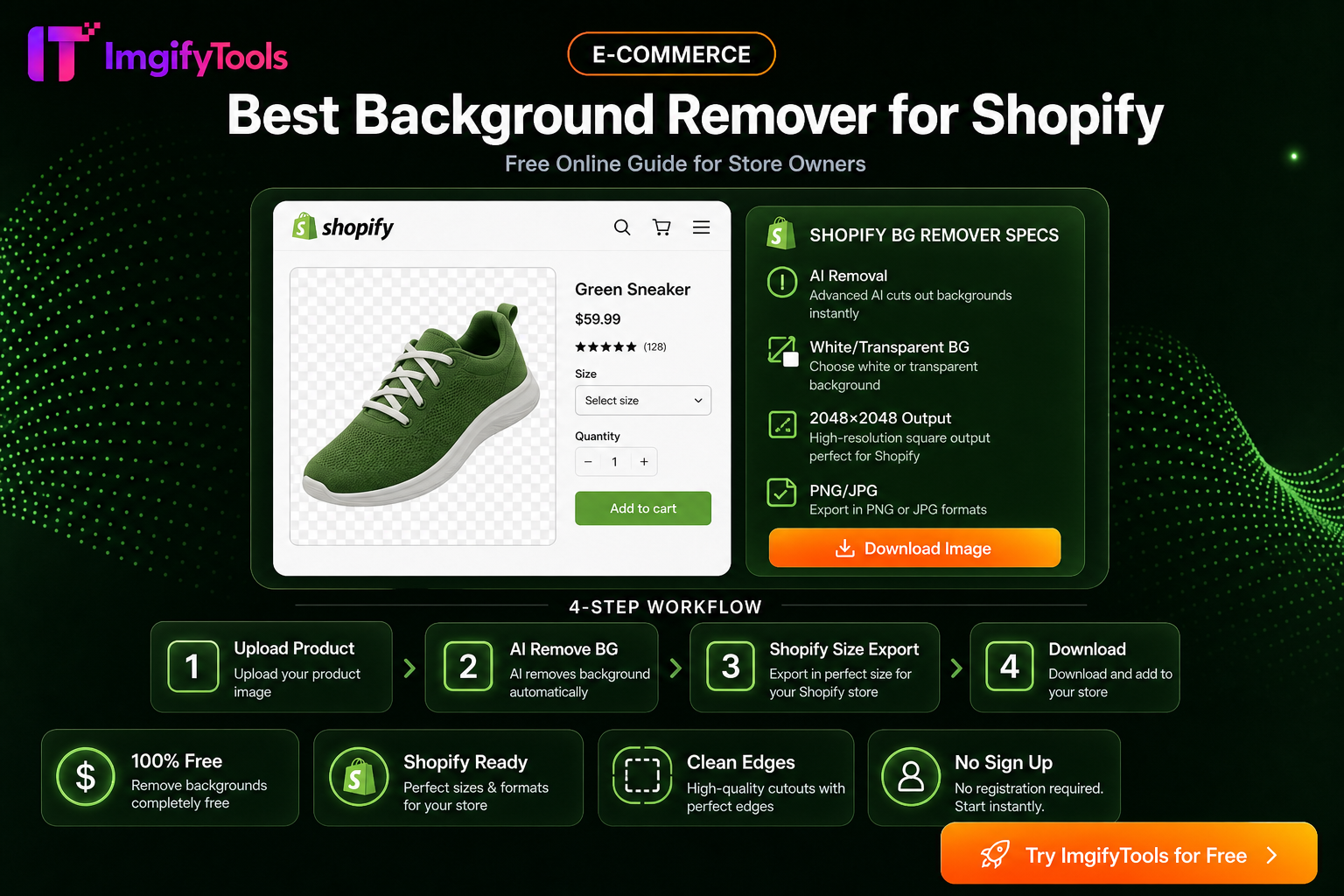
Shopify recommends high-resolution square images (up to 2048×2048 px). Clean backgrounds help your store look trustworthy and cohesive.
Quick workflow for Shopify sellers
- Upload product photos to our Shopify product photo editor
- Download transparent PNGs or white-background versions
- Resize to 2048×2048 with our image resizer
- Compress for faster page loads with image compressor
Why AI beats manual editing
Manual clipping in Photoshop takes minutes per SKU. AI background removal takes seconds — critical when you have dozens or hundreds of products.
Canonical tool
All Shopify-focused pages use the same engine as our main AI background remover — professional quality, zero cost.
Prepare a consistent product set
The best background remover is only one part of a Shopify image workflow. Start with a high-resolution master for each SKU and decide on a repeatable framing rule: product centered, enough breathing room for the theme crop, and a consistent visual scale across variants. If one item fills 90% of the canvas while another occupies 45%, the collection can feel uneven even when every file has a white background.
Use transparent PNG while you are testing layouts or adding a custom store background. For a finished catalog image, a solid background can reduce file size and prevent transparent pixels from displaying unexpectedly in older theme components. Keep the original and the transparent working file separate from the final compressed derivative.
Shopify workflow checklist
- Photograph or select the sharpest source image for the SKU.
- Remove the background and inspect handles, hair, glass, and thin packaging edges.
- Place the cutout on the background required by your brand and theme.
- Resize the canvas consistently, leaving room for Shopify's responsive crops.
- Compress the final derivative and compare it on desktop and mobile.
- Upload one sample product first, then review the collection grid before processing the full catalog.
Do not treat a fixed pixel size as a universal Shopify rule. Theme sections, zoom behavior, and product type affect the best canvas. The store's live theme preview is the final check for cropping and readability. For large catalogs, use a predictable filename scheme and retain a master-to-derivative mapping so future updates do not require starting over.
Common mistakes
Over-cleaning can remove transparent packaging, white products, or intentional shadows. A pure white background can also make white products disappear unless the edge and shadow are preserved carefully. Avoid adding promotional text to a product image unless your theme and the channel using that image permit it. Marketplace feeds may apply additional restrictions even when the Shopify storefront looks correct.
Does Shopify require a white background?
Shopify itself supports many visual styles. A white or neutral background is a brand choice and may be required by a sales channel, so follow the destination channel's current rules.
Should I upload PNG or JPG?
Keep PNG for transparency and working composites. Use a well-compressed JPG for ordinary photographic catalog images when transparency is not needed.
You may also like
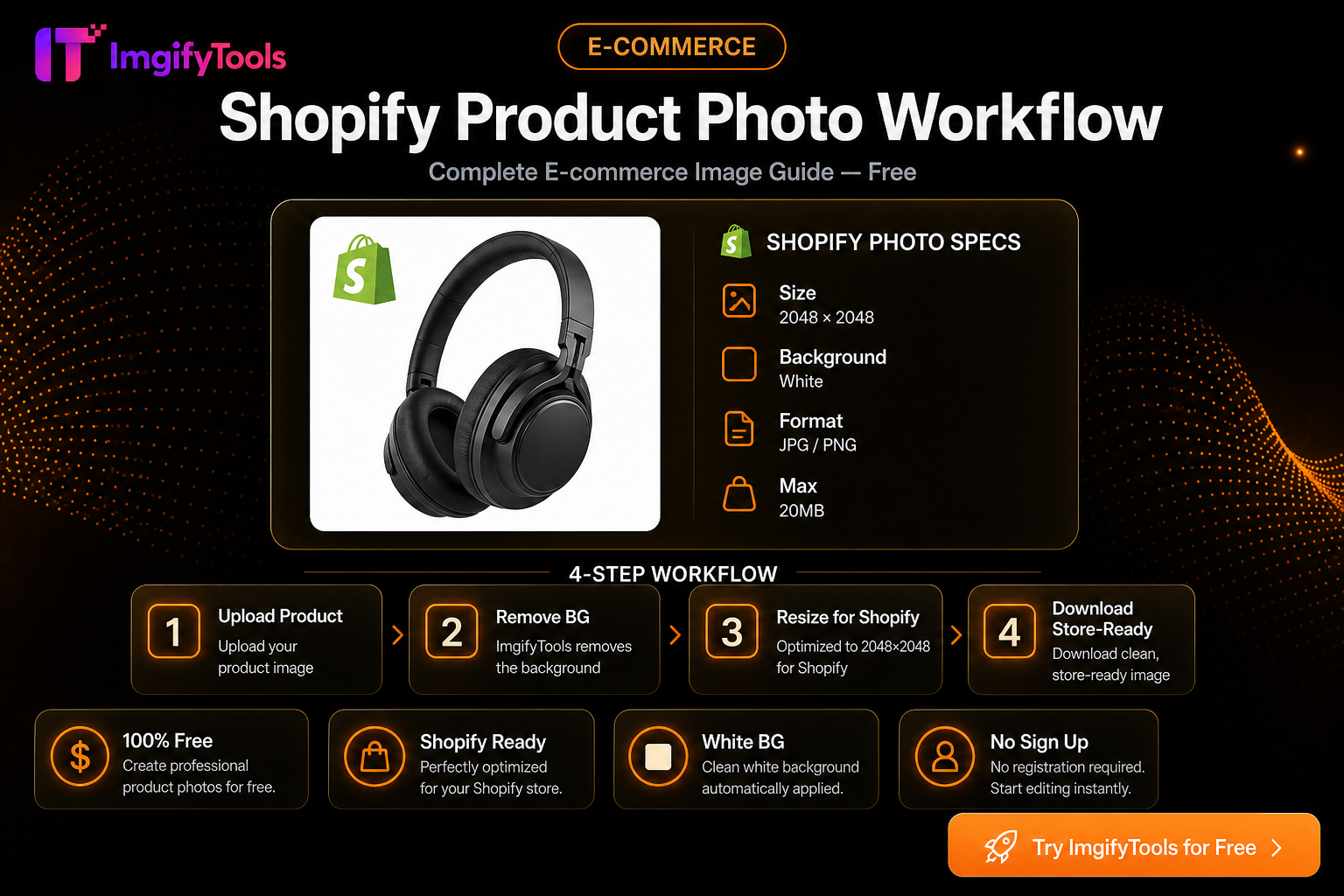
Shopify Product Photo Workflow (Free)
Prep Shopify listing images: consistent squares, clean backgrounds, and storefront-friendly file sizes with free ImgifyTools—no monthly photo app.
Read next →
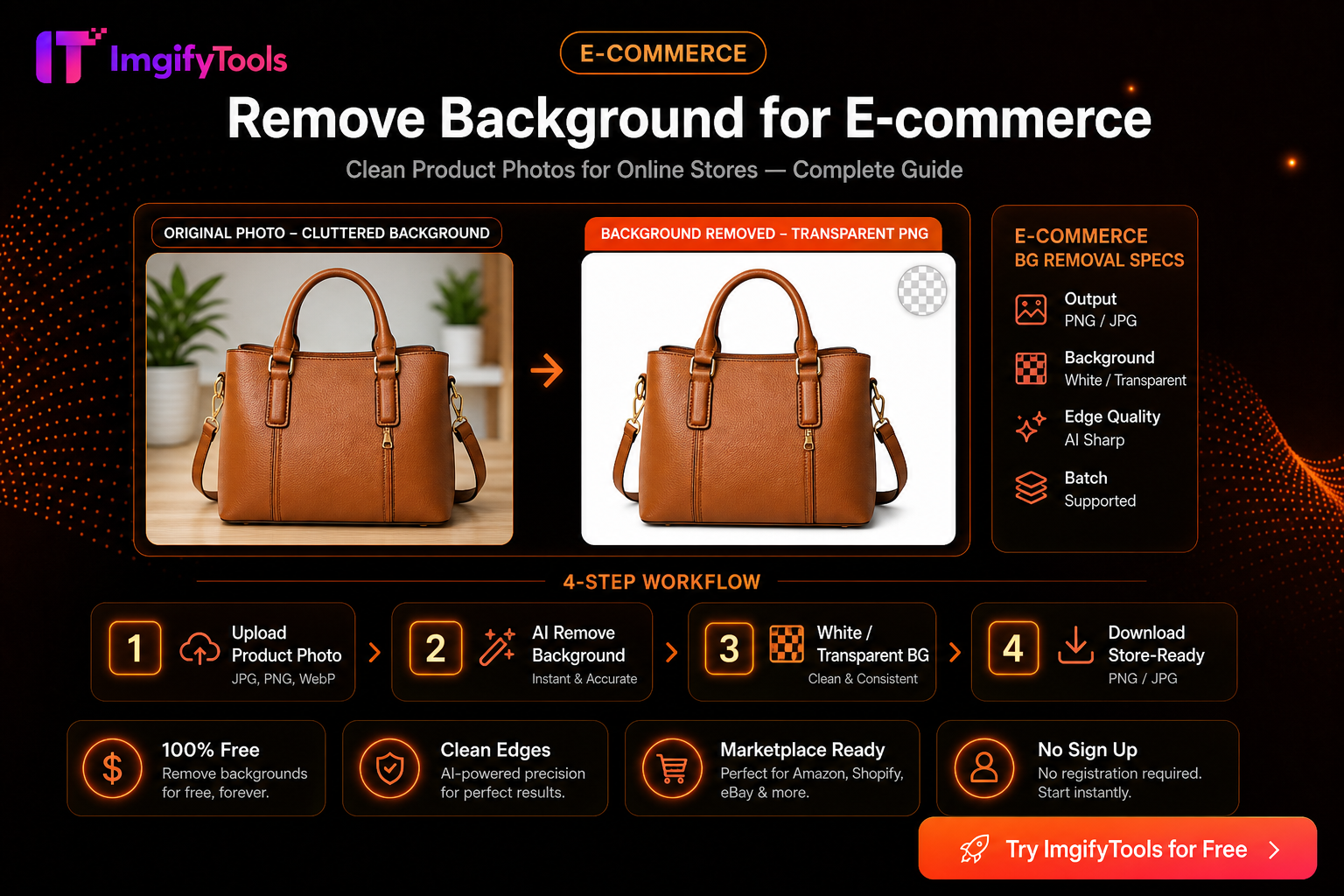
Remove Background for E-Commerce — Product Photo Checklist
Prepare marketplace-ready product cutouts: lighting, edge quality, white backgrounds, file formats, and an honest ImgifyTools workflow with privacy notes.
Read next →
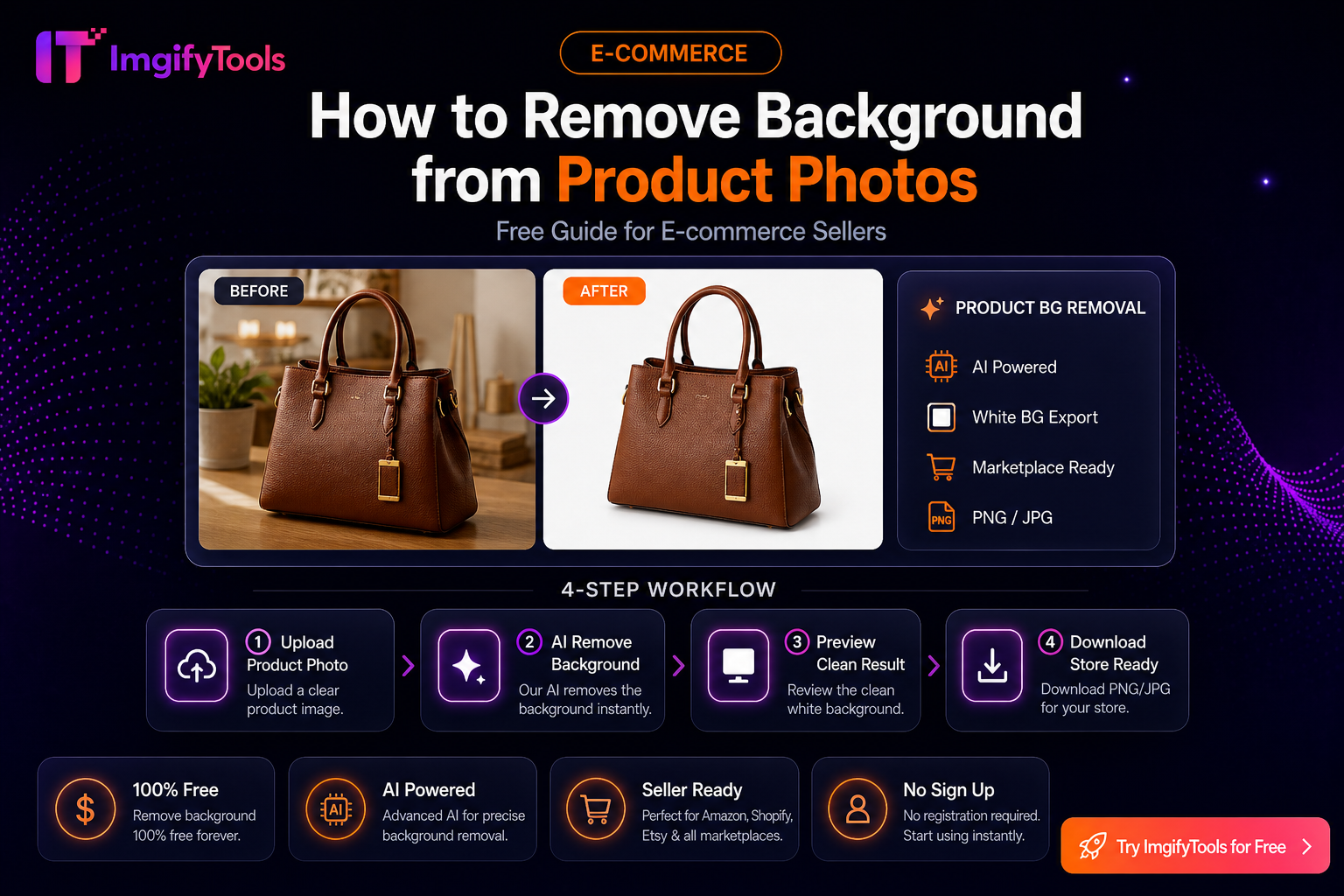
How To Remove Background From Product Photos (Free Guide)
Learn how to remove background from product photos for Amazon, Shopify, and e-commerce listings using free AI tools.
Read next →