Remove Background Without Losing Quality
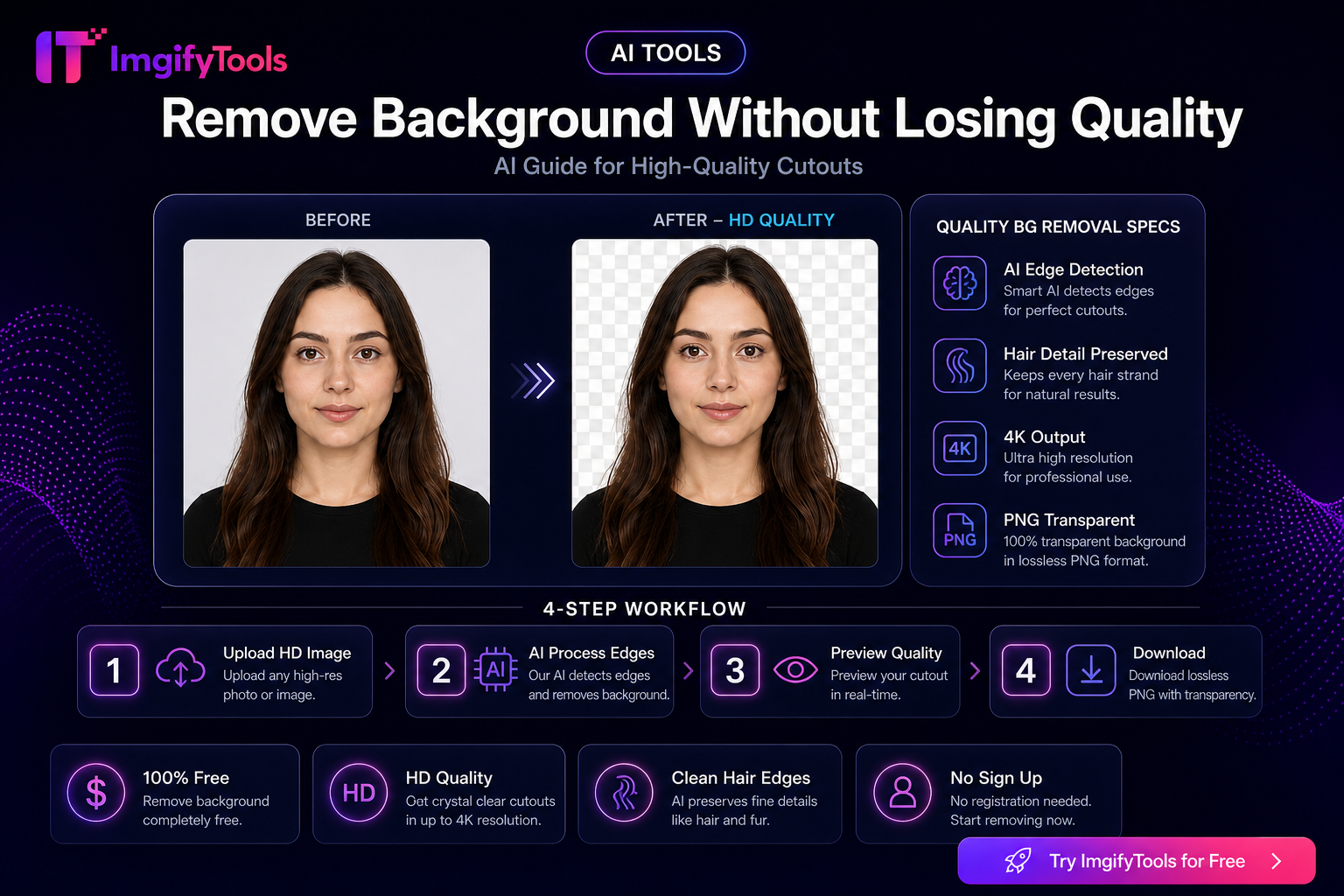
Worried that automatic background removal will butcher your edges? Modern AI handles hair, fur, and product outlines far better than older tools.
Get the best quality cutouts
- Start with our AI background remover — upload and auto-process
- Click Refine for advanced settings: ISNET model, alpha matting for hair
- Export as PNG to preserve transparency
When to use alpha matting
Enable alpha matting in Refine mode when your subject has:
- Flyaway hair
- Fur or feathers
- Semi-transparent edges (glass, lace)
Compare before you export
Use the before/after toggle to verify edge quality before downloading.
The source photo matters more than the tool
Background removal works best when the subject and background have different colors and the subject is in focus. Use even light, avoid strong color spill, and leave a small margin around hair, hands, and product edges. A busy background is acceptable, but motion blur and a subject wearing the same color as the wall make any segmentation model less certain.
If the first result is weak, crop closer around the subject, use a sharper original, or simplify the background before trying again. Do not repeatedly process an already-compressed cutout: each lossy export can soften fine edges and introduce halos. Keep the original JPG or camera file as your source of truth.
Choosing an output format
PNG is the safest intermediate format when you need transparency or plan to place the cutout on a new background. JPG is useful for a finished image with a solid background, but it cannot preserve transparent pixels. If you see a white fringe after exporting, inspect whether the subject was composited on white before the JPG conversion rather than assuming the mask itself is wrong.
For products, review the shadow separately from the object boundary. A soft natural shadow can make a cutout look grounded; an unwanted gray patch can look like leftover background. For hair and fur, zoom to 100% and check several regions instead of judging only the thumbnail preview.
Privacy and practical limits
AI background removal uploads the image for temporary server processing. Do not submit confidential documents or sensitive client work unless the published Privacy Policy and your own data requirements allow that workflow. The browser-based image editor is a better fit when you need primary editing to stay on the device.
Can background removal preserve every hair?
No tool can recover detail that is absent or completely blended into the background. Use a high-contrast, well-lit source and inspect the result before delivery.
Why is there a halo around my subject?
Color spill, blur, and similar foreground/background tones can confuse edge detection. Try a cleaner crop or source image and compare the edge at full size.
You may also like

Remove Background for E-Commerce — Product Photo Checklist
Prepare marketplace-ready product cutouts: lighting, edge quality, white backgrounds, file formats, and an honest ImgifyTools workflow with privacy notes.
Read next →

How To Remove Background From Product Photos (Free Guide)
Learn how to remove background from product photos for Amazon, Shopify, and e-commerce listings using free AI tools.
Read next →
Best Background Remover For Shopify — Free Online Guide
Remove backgrounds from Shopify product photos for free. Fast AI cutouts for consistent storefront images.
Read next →