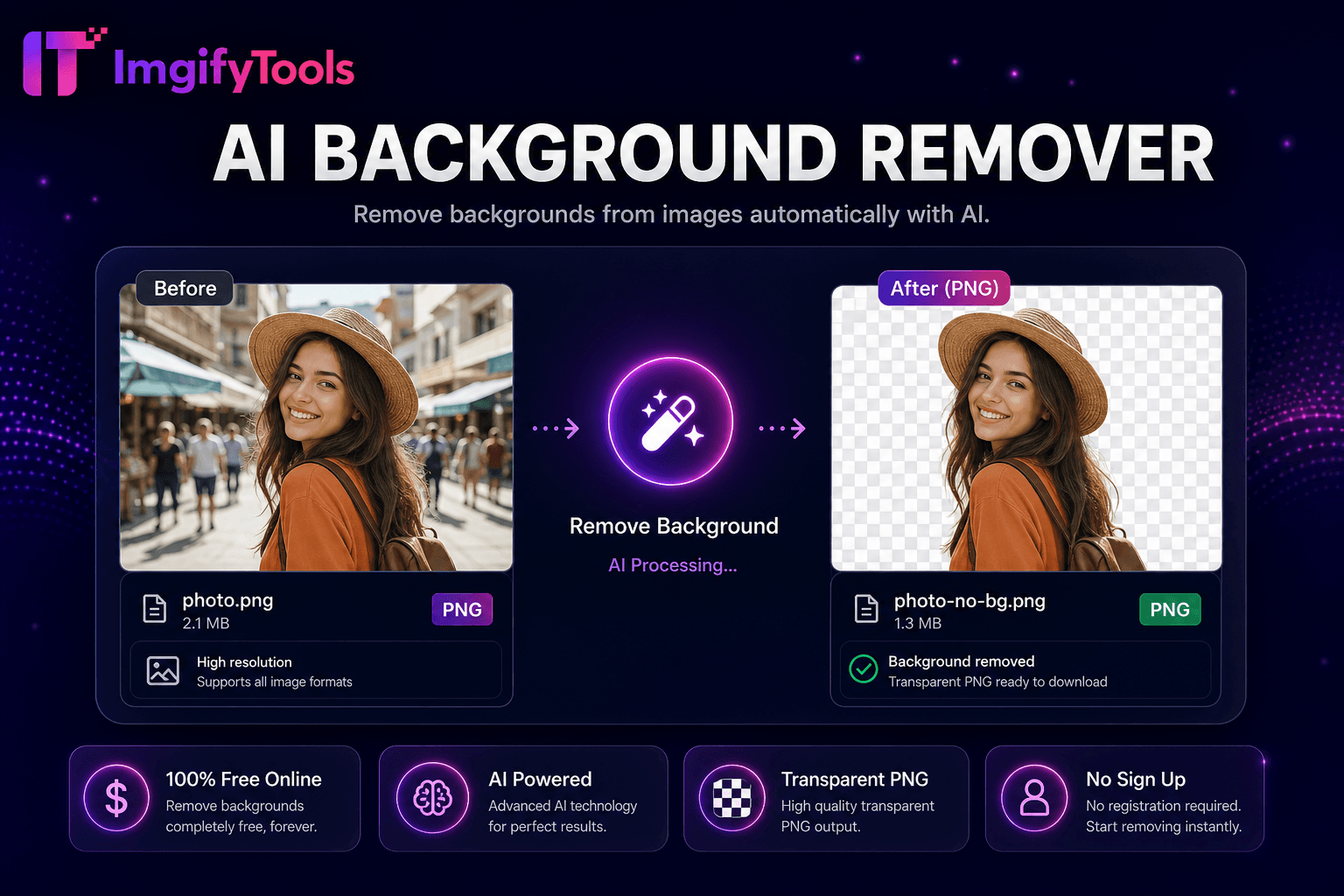
AI Background Remover
Entfernen Sie mit KI automatisch Hintergründe aus Bildern.
Tool startenKombinieren Sie zwei Bilder nebeneinander oder übereinander. Schnell, sicher und völlig kostenlos — keine Anmeldung erforderlich.
ImgifyTools Merge Images kombiniert zwei Fotos auf einer einzigen Leinwand – horizontal nebeneinander oder vertikal gestapelt – für Vergleichscollagen, Vorher-Nachher-Schaufenster, Doppelproduktlisten und Social-Carousel-Ersatz in einem statischen Rahmen. Immobilienmakler platzieren Räume vor der Renovierung neben Nachher-Aufnahmen. Fitness-Ersteller zeigen Fortschrittsfotos, die auf einheitlichen Hintergründen ausgerichtet sind. E-Commerce-Verkäufer zeigen Farbvarianten an, ohne vollständige Collagenvorlagen in Canva zu erstellen. Entwickler dokumentieren UI-Fehlervergleiche mit gepaarten Screenshots. Laden Sie zwei JPG-, PNG- oder WebP-Dateien hoch, wählen Sie die Layoutrichtung, zeigen Sie eine Vorschau der Ausrichtung an und laden Sie ein einheitliches Bild mit kombinierten Abmessungen herunter. Das Werkzeug behebt nicht übereinstimmende Höhen durch Auffüllen oder Skalieren bei der Belichtung und sorgt dafür, dass Motive ohne manuelle Größenanpassung der Leinwand in Photoshop lesbar bleiben. Kostenlose, unbegrenzte Zusammenführungen ergänzen die Tools zum Zuschneiden, Spiegeln und Komprimieren für vollständige Veröffentlichungspipelines. Keine Wasserzeichen, keine Account-Gates – nur schnelle Doppelbildkomposition für Marketing, Dokumentation und persönliche Projekte, die zwei Momente in einer gemeinsam nutzbaren Datei benötigen.
Laden Sie zwei Bilder im JPG-, PNG- oder WebP-Format hoch.
Wählen Sie zwischen horizontalem (nebeneinander) oder vertikalem (gestapeltem) Layout.
Vorschau der Ausrichtung und Skalierung, wenn Höhen oder Breiten unterschiedlich sind.
Wählen Sie das Ausgabeformat – PNG für Transparenz, JPG für kleinere Größe.
Laden Sie das zusammengeführte zusammengesetzte Bild herunter.
Im Gegensatz zu vielen anderen Plattformen, die Kompromisse bei der Qualität eingehen oder Ergebnisse hinter Paywalls verbergen, bietet ImgifyTools eine High-Fidelity-Ausgabe mit Fokus auf Geschwindigkeit und Benutzerschutz. Es ist keine Kontoerstellung erforderlich, um mit der Transformation Ihrer Bilder zu beginnen.
Jedes hochgeladene Bild wird in eine Bitmap dekodiert. Durch die Zusammenführung entsteht eine neue Leinwand, deren Breite der Summe beider Breiten (horizontales Layout) oder deren Höhe der Summe der Höhen (vertikales Layout) entspricht. Bilder werden auf der orthogonalen Achse ausgerichtet – oben ausgerichtet für horizontale Zusammenführungen, linksbündig für vertikale Stapel, sofern keine Mittenausrichtung angeboten wird. Bei der Hintergrundfüllung wird für die PNG-Ausgabe normalerweise Weiß oder Transparent verwendet, wenn sich die Abmessungen geringfügig unterscheiden. Die optionale Skalierung normalisiert nicht übereinstimmende Höhen im horizontalen Modus, sodass direkte Vergleiche ausgeglichen aussehen. Der Verbund wird einmal als JPG oder PNG mit voller kombinierter Auflösung kodiert. Die Verarbeitung erfolgt serverseitig, um die Geschwindigkeit bei großen Telefonfotos zu erhöhen. Der Download liefert eine einzelne Datei, die für Instagram-Posts, Slack-Updates, PDF-Einbettung oder weitere Komprimierung bereit ist.
Passen Sie die Abmessungen vor dem Zusammenführen an, um sauberste Ergebnisse zu erzielen. Schneiden Sie beide Quellen auf die gleiche Höhe zu, wenn Sie horizontale Vorher-/Nachher-Fitnesspfosten erstellen. Verwenden Sie die PNG-Ausgabe, wenn eine der Quellen Transparenz aus Hintergrundentfernungs-Workflows enthält. Fotografieren Sie bei Produktfarbvarianten die Artikel im gleichen Maßstab und bei identischer Beleuchtung, damit zusammengefügte Paare professionell aussehen. Entwickler, die Screenshots zusammenführen, sollten Unterschiede bei der Skalierung der Benutzeroberfläche zwischen den Aufnahmen deaktivieren. Führen Sie nach dem Zusammenführen den Bildkompressor aus, wenn die kombinierte Datei die E-Mail- oder CMS-Grenzwerte überschreitet. Vertikale Stapel eignen sich für mobile Story-Dimensionen; Horizontale Paare zeichnen sich durch Twitter- und Blog-Inhalte aus. Fügen Sie Beschriftungen extern in Design-Tools hinzu, wenn Textanmerkungen erforderlich sind – dieses Tool konzentriert sich auf die reine Bildkombination.
Sehen Sie, wie unser kostenloses merge images in Bezug auf Preis, Limits und Funktionen im Vergleich zu iloveimg abschneidet.
| Funktion | ImgifyTools� | iloveimg |
|---|---|---|
| Preis | Kostenloses Merge-Tool, unbegrenzt | Kostenlos mit Werbung; Premium-Charge |
| Layoutoptionen | Horizontaler und vertikaler Stapel | Nebeneinander- und Rasteroptionen |
| Anzahl der Eingaben | Zwei Bilder pro Zusammenführung | Mehrere Bilder auf Premium |
| Ausgabequalität | Vollaufgelöstes Komposit | Standard-Merge-Export |
| Transparenz | PNG-Merge mit Alpha-Unterstützung | PNG verfügbar |
| Geschwindigkeit | Schnelles serverseitiges Compositing | Cloud-Merge-Verarbeitung |
| Suite | Dieselbe Plattform zuschneiden, umdrehen und komprimieren | Separate Collage-Tools |
Verwandte Tools
Weitere Tools
Weitere spezialisierte Hilfsmittel für Ihren Workflow.