Image Extender vs Image Resizer — When to Expand the Canvas
Expand canvas with mirrored edge fill when you need more margin; use a resizer when you only need exact pixels. Clear decision guide for stories, banners, and marketplaces.
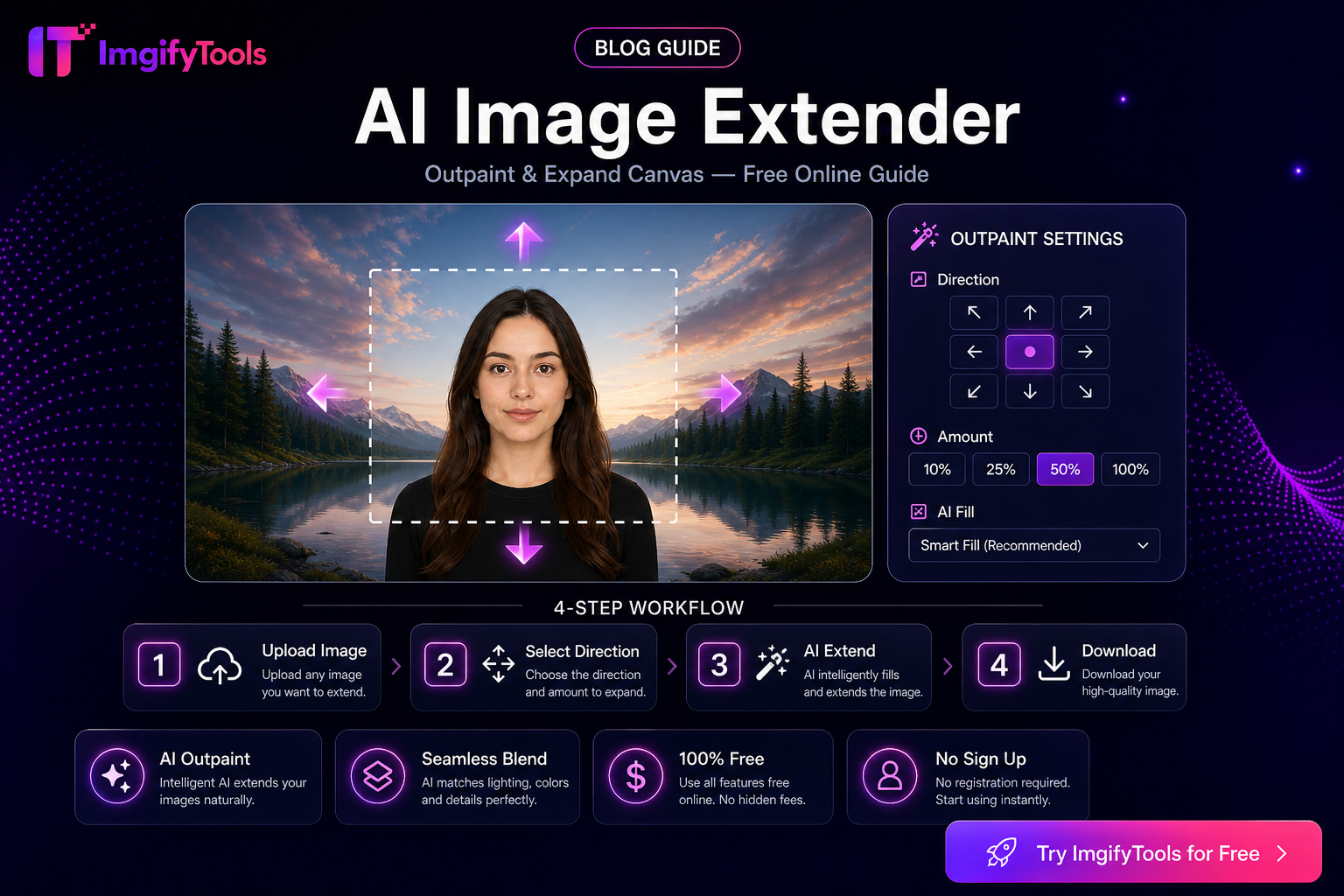
Image Extender vs Image Resizer — When to Expand the Canvas
Creators often search “uncrop” when a square photo must become a 16:9 YouTube thumbnail or a 9:16 story. Two different tools answer that job:
- Image Resizer — changes pixel dimensions (and can crop). It does not invent missing scenery.
- Image Extender — grows the canvas beyond the original frame using mirrored edge fill (reflected border pixels). It does not run generative outpainting.
Pick wrong and you either stretch faces or add mirrored seams you did not want.
Quick decision
| Situation | Use |
|---|---|
| You already have enough subject in frame; you only need exact width×height | Resizer (and crop if needed) |
| You need extra margin for text, safe zones, or banners and the background is soft (sky, wall, studio) | Extender (mirrored fill), then optionally resize |
| Platform needs a new aspect ratio and empty white margins look wrong | Extender to add canvas, then resizer to exact pixels |
| You must not alter pixels (compliance, evidence photos) | Resizer/crop only—avoid any extend |
| You need invented scenery (new sky, objects, generative fill) | Use a dedicated generative expand tool—not ImgifyTools Extender |
What resizing actually does
Resizing scales or crops existing pixels. Upscaling without AI can look soft; downscaling is usually safe. Marketplace and social presets (1080×1080, 1280×720, Amazon 2000×2000) are resizer jobs when the composition already fits.
Tools: Image Resizer, Platform Image Resizer.
What mirrored extend does
The extender pads the canvas outside the original borders by reflecting edge pixels outward (BORDER_REFLECT-style). Soft skies, walls, and studio backdrops usually look natural; busy patterns, text, or limbs at the crop edge can show obvious mirror seams. Use it when:
- A vertical selfie needs a little headroom for story safe zones
- A product shot needs breathing room for text overlays
- A thumbnail safe area (see YouTube safe-area SVG) needs more background margin than the crop allows

After extending, still resize to the platform’s exact dimensions—extend fixes composition margin; pixel specs are a second step.
Workflow: story or thumbnail from a tight crop
- Open Image Extender and expand toward the target aspect (e.g. add sides for 16:9).
- Preview seams—busy patterns and text near borders may need a tighter source crop first.
- Send the result through Platform Image Resizer for YouTube 1280×720 or Instagram story sizes.
- Optional: compress if the upload form has a file-size cap (ImgifyTools AI uploads are generally 10 MB max).
When not to extend
- Government ID / passport photos with strict framing rules—use passport makers instead
- Legal or medical images where any border manipulation is inappropriate
- Logos that must stay vector-sharp—prefer redesign on a larger canvas
- Scenes where you need new content beyond the frame (true generative outpainting)
Honest comparison notes
We are not publishing fake side-by-side “quality scores” against generative uncrop tools here. Qualitative difference that is accurate today: resizers never invent pixels; ImgifyTools Extender mirrors existing edge pixels; generative expand tools invent new scenery. Quality depends on source resolution, background softness, and how far you push the canvas. Re-test and date any future numeric benchmarks.
Related
- Increase image resolution online with AI
- YouTube thumbnail size guide
- WhatsApp circular safe-zone template

Try extender → /ai/image-extender · Try resizer → /resize/image-resizer
Related tools
You may also like

Free Online Image Editor — Complete Guide
Free Online Image Editor — Complete Guide: practical steps, common pitfalls, and when to use ImgifyTools free browser tools—no signup, no watermark.
Read next →
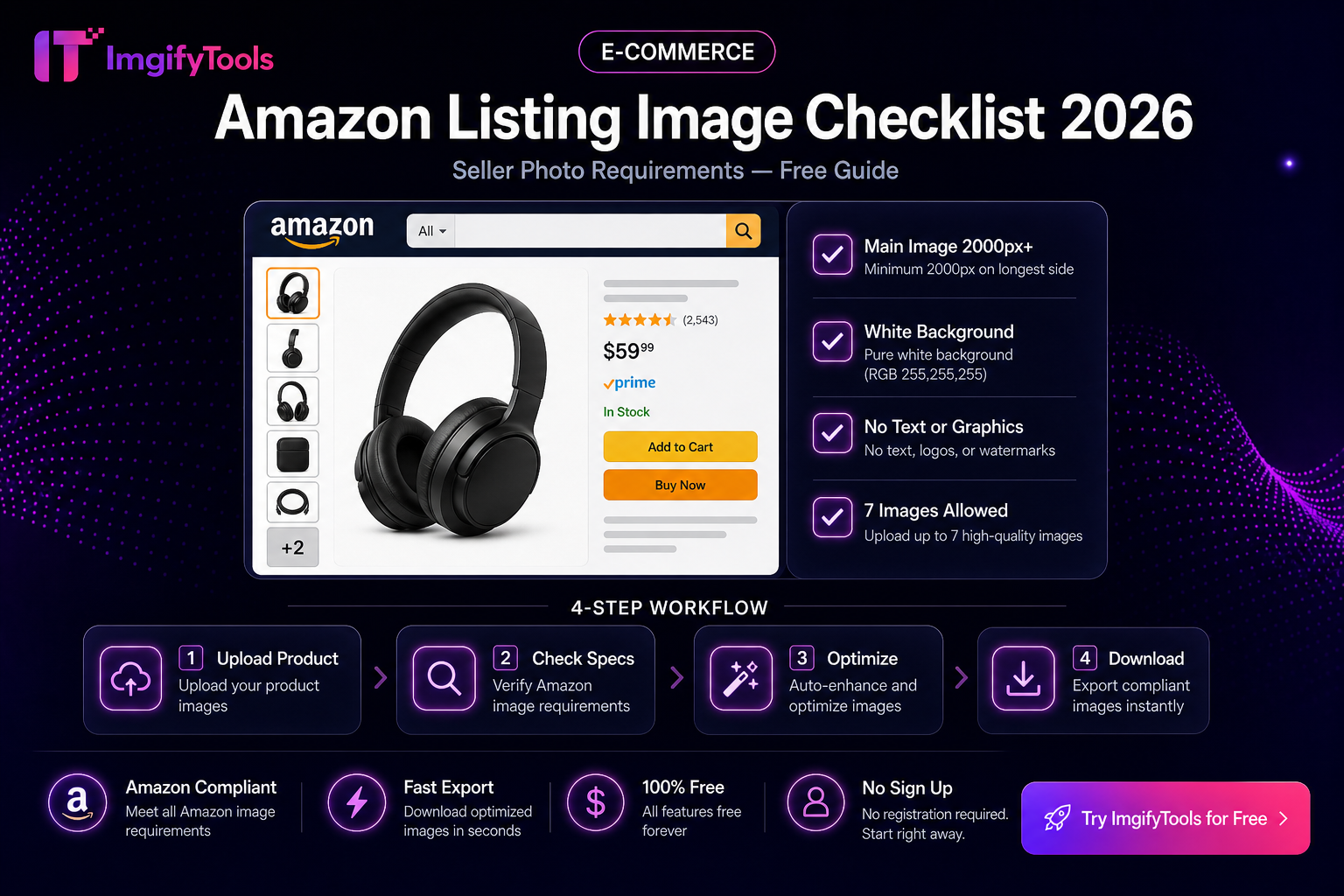
Amazon Listing Image Checklist
Practical Amazon main and secondary image checklist—white background, fill, pixels, and a free ImgifyTools prep flow. Verify rules in Seller Central.
Read next →
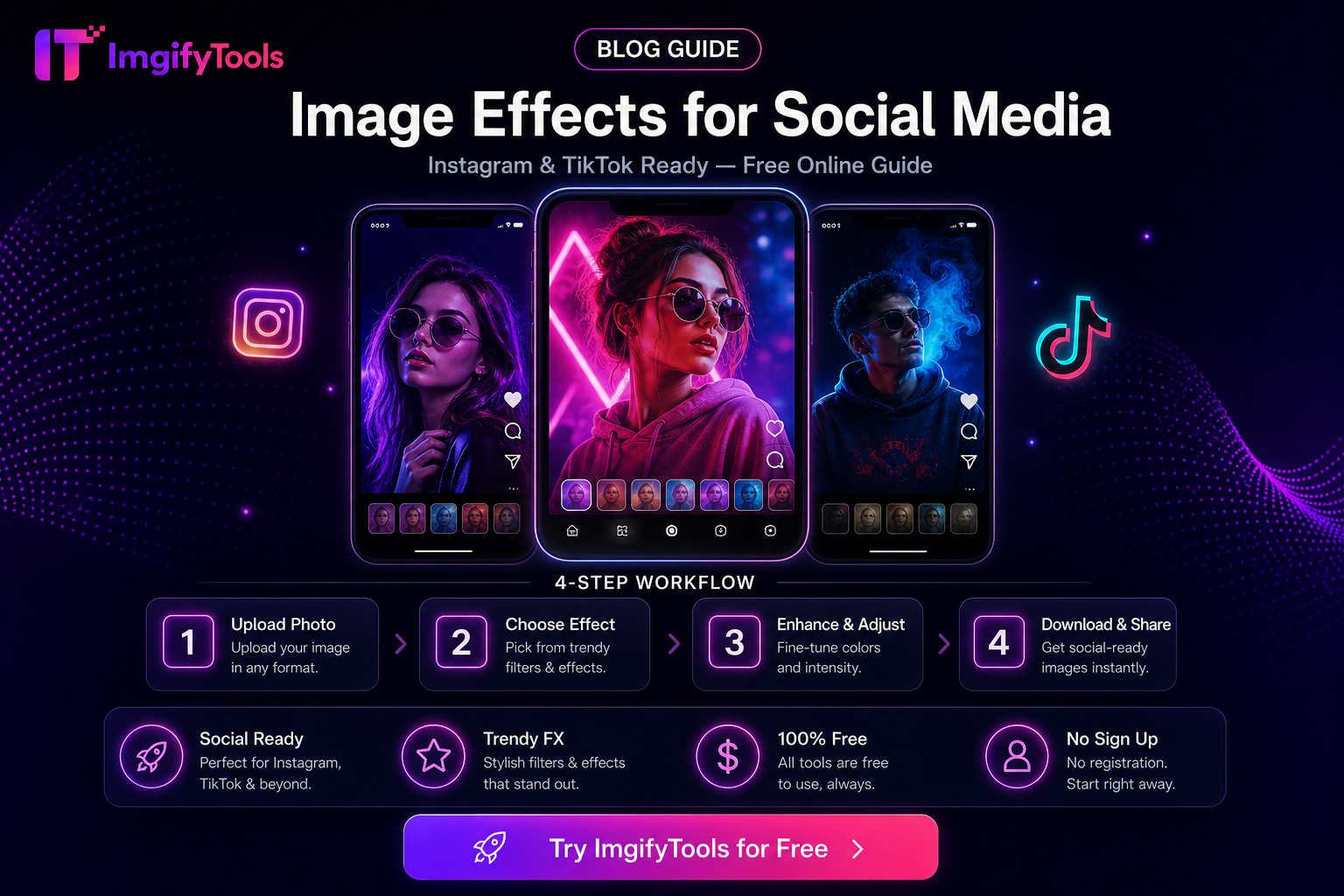
Image Effects for Social Media (Practical Uses)
When to use blur, sharpen, overlays, and effects for social posts—and when to skip them—with free ImgifyTools and honest limits.
Read next →