Comparisons

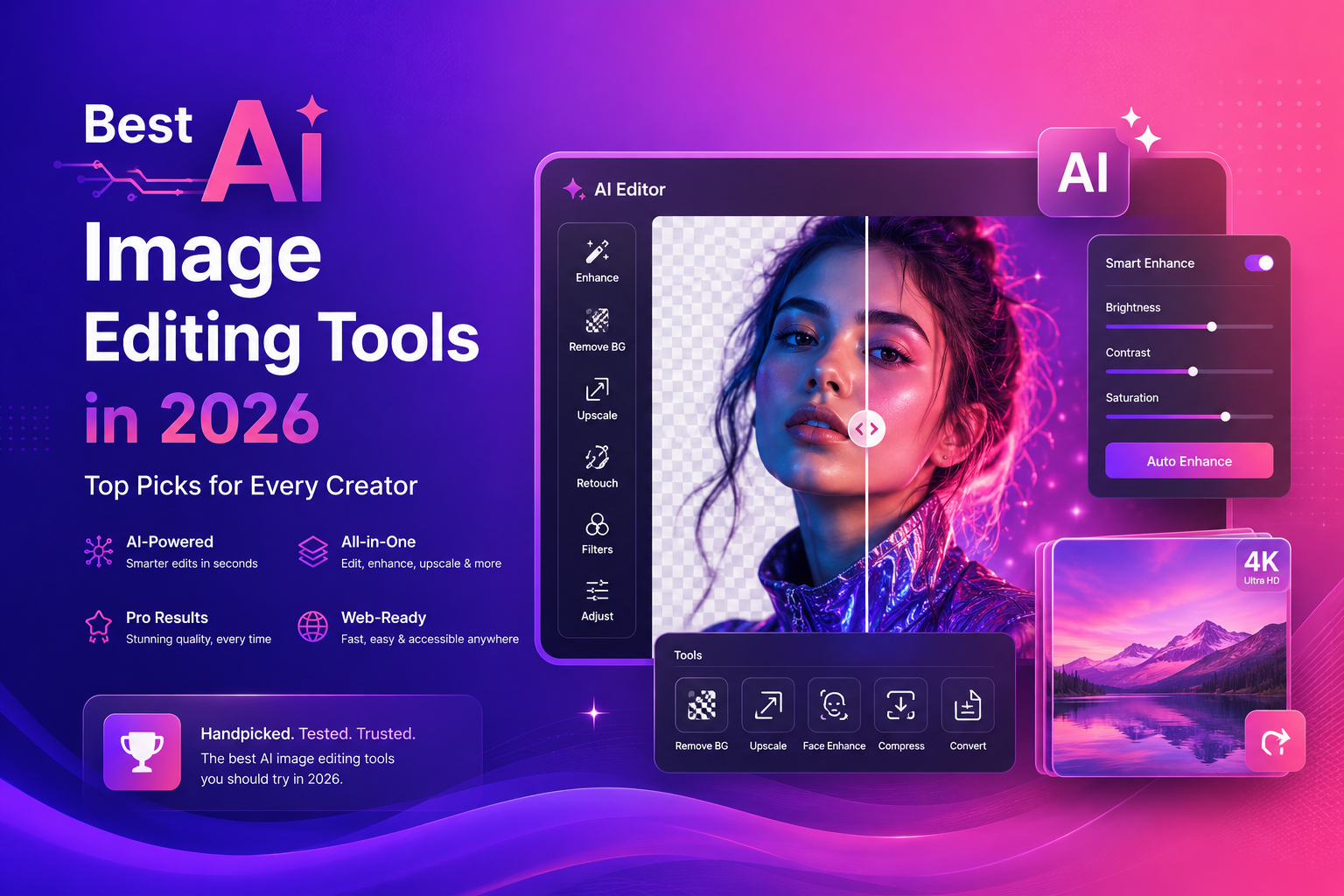
Best AI Image Editing Tools in 2026 (Top Picks)

Discover the best AI image editing tools in 2026. Compare background removal, upscaling, face enhancement, and workflows that save time for creators and sellers.

By ImgifyTools TeamApril 9, 202612 min read
Best AI Image Editing Tools in 2026 (Top Picks)

Best AI Image Editing Tools in 2026 (Top Picks)

Searching for the best AI image editing tools in 2026 is overwhelming. Every tool promises “one‑click magic,” but real users care about outcomes: clean background edges, natural faces, sharp upscales, and exports that don’t look fake.

This post breaks down what to look for, how to compare tools fairly, and which categories of tools matter most for beginners, freelancers, and e-commerce teams.

What “best” means in 2026 (a practical definition)

The best AI image editing tools usually share four qualities:

  • Quality: edges, texture, and realism hold up at 100% zoom
  • Speed: you can complete the task quickly without complex settings
  • Workflow fit: exports match your needs (transparent PNG, high-res, etc.)
  • Trust: clear privacy, predictable results, and no hidden friction

If you create visuals weekly, the “core stack” is:

  1. Background removal
  2. Image upscaling
  3. Face enhancement
  4. Resizing + compression for publishing

That stack covers 80% of modern content needs.

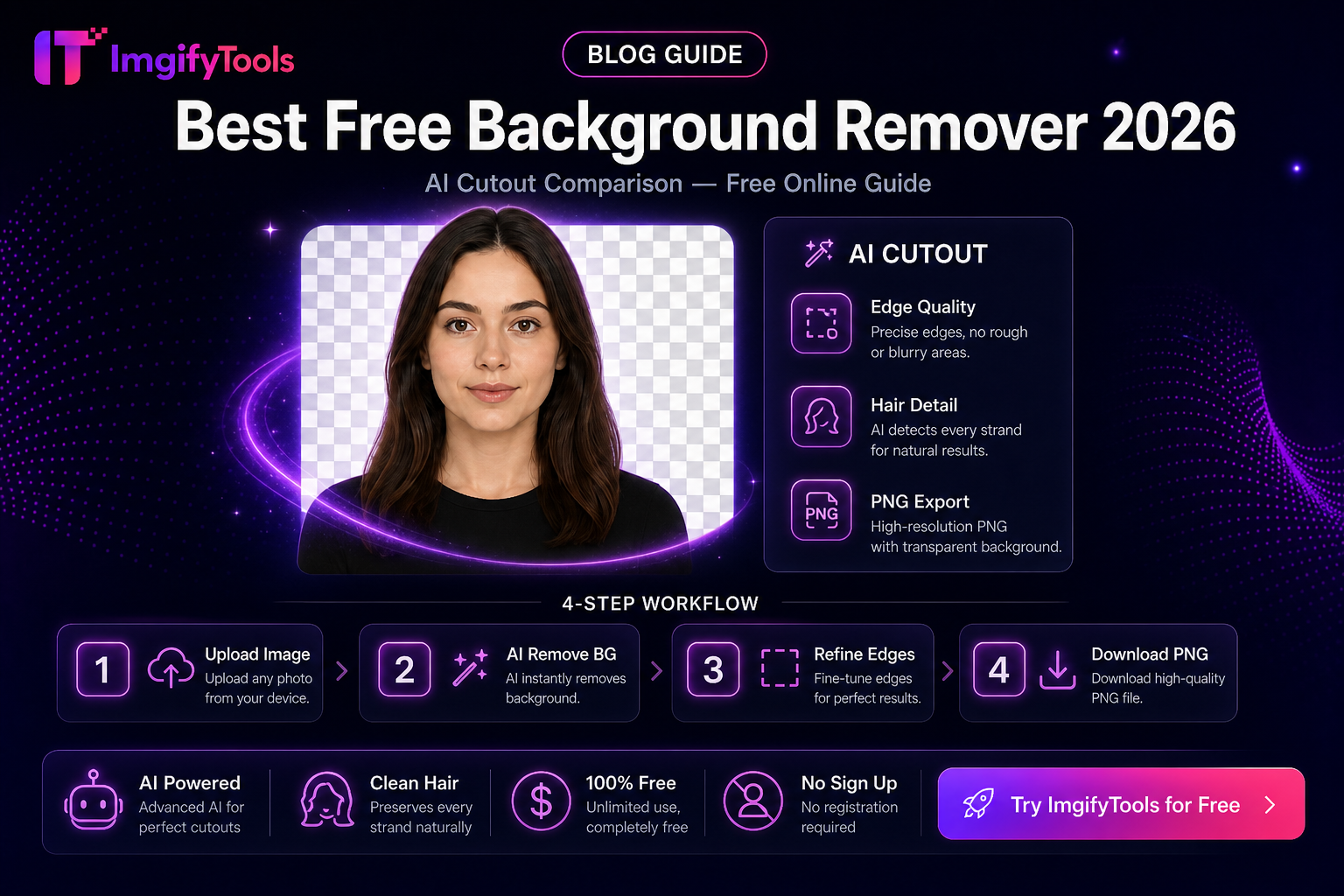
Category 1: AI background removers (the #1 time saver)

Background removal is the most common reason people search for AI editing. A good background remover should:

  • handle hair and fur reasonably well
  • keep product borders crisp
  • export a clean transparent PNG

If you want to test the workflow in seconds, try our free AI background remover and evaluate the cutout on a real image, not a demo.

H3: how to compare background removers

Use this mini checklist:

  • Test on hair + busy background
  • Test on a product with sharp edges (bottle, shoe)
  • Check for jagged halos around the subject

Category 2: AI image upscalers (resolution that looks real)

Upscalers are essential for banners, product zoom, and “tiny file rescue.” A strong AI upscaler:

  • improves edges without halos
  • adds clarity without plastic texture
  • handles text and labels reasonably well

If resolution is your problem, use our image upscaler and compare the result at 100% zoom.

H3: upscaling vs simple resizing

Resizing guesses intermediate pixels. AI upscaling predicts detail based on learned patterns. It’s not perfect, but it’s often far better than stretching a small image.

Category 3: face enhancement (the “trust” category)

Face tools are sensitive. Overdone enhancement harms trust because people notice unnatural skin and eyes instantly.

A good face enhancer should:

  • preserve skin texture
  • improve clarity in eyes and features
  • avoid heavy beauty-filter results

For portraits, enhance a photo with our face enhancer after upscaling to keep it natural.

Category 4: resize + compress (the publishing layer)

Even the best AI edit fails if you publish a 6MB image or the wrong aspect ratio.

Good tools make it easy to:

  • resize for social platforms
  • compress without visible artifacts
  • export modern formats where appropriate

Google’s and web.dev’s guidance on images is worth knowing because it impacts load speed and SEO:

How to evaluate AI tools in 10 minutes (a fair test)

Most “top picks” lists are biased because they test only perfect demo images. Here’s a quick test that works for real users:

H3: Test image #1 — hair + busy background

Use a portrait with flyaway hair and a textured backdrop. Grade tools on:

  • haloing around hair
  • missing strands vs harsh cut lines
  • natural edge softness

H3: Test image #2 — product with sharp geometry

Use a bottle, shoe, or box. Grade on:

  • crisp borders
  • logo readability
  • no weird warping on straight lines

H3: Test image #3 — small image that must be enlarged

Use a low-res image and upscale it. Grade on:

  • texture realism (not plastic)
  • readable text and labels
  • minimal artifacts

If you want to run these tests quickly, start with the core stack inside ImgifyTools:

  • Try our free AI background remover for cutouts
  • Use our image upscaler for low-res recovery
  • Use our face enhancer for portraits and headshots

Top picks: which tools to choose based on your use case

Instead of naming dozens of tools, here’s the smarter approach: pick by workflow.

For beginners and creators

Look for:

  • simple UI
  • fast results
  • clean exports

Recommended workflow:

  • Try our free AI background remover for cutouts
  • Use the image upscaler when files are too small
  • Use the face enhancer for portraits

For freelancers and agencies

Look for:

  • consistent results across many images
  • exports that fit client requirements
  • speed + repeatability

Recommended workflow:

  • remove background → upscale → finalize + compress

For e-commerce sellers

Look for:

  • consistent cutouts
  • fast batch-ready processing
  • high-res images for zoom and marketplaces

Recommended workflow:

  • background removal for every product
  • standard background style
  • upscale only when needed for close-up detail

What competitors get wrong (and how to avoid it)

Many AI tools look impressive on demos but fail in real usage because:

  • they hide exports behind paywalls
  • the UI is cluttered and slow
  • results are inconsistent across different images

H3: The hidden cost is switching tools

In practice, teams lose time when they bounce between apps for each step. A simpler path is to keep common steps in one workflow:

  1. Remove background
  2. Upscale if needed
  3. Enhance faces for portraits
  4. Resize + export for publishing

That’s why “best tool” often means “best workflow,” not best feature list.

The best approach is to test with your real images and judge by edge quality and realism.

FAQs

What are the best AI image editing tools in 2026 for free?

Many tools offer free tiers for core workflows. The key is whether the free experience is usable for real projects, not just a demo.

Which AI tool is best for removing backgrounds?

Choose one that handles hair, edges, and transparent PNG exports well. Test with your own images.

Is AI upscaling good enough for professional use?

Often yes, especially for web and marketing assets. For critical print work, verify at full resolution and avoid over-processing.

Do AI face enhancers look fake?

They can if the tool over-smooths. Use face enhancement for clarity, not perfection.

How do I choose the right image format?

Use a trusted reference like MDN when deciding between PNG, JPEG, WebP, and AVIF:
MDN: Image formats

CTA: Build your AI editing workflow with ImgifyTools

If you want a simple toolset that covers the essentials:

  • Try our free AI background remover for instant cutouts
  • Upscale images with our AI upscaler to improve resolution
  • Enhance portraits with our face enhancer for natural clarity

Try ImgifyTools for free and ship your next visual faster.

Conclusion

The best AI image editing tools in 2026 aren’t the ones with the loudest marketing. They’re the ones that fit real workflows: clean background removal, believable upscaling, natural face enhancement, and exports you can publish immediately. Start with the core stack, test with your own images, and build a repeatable process that saves time every week.

Remove backgrounds in seconds

Upload your image and let AI handle the cutout instantly. Then upscale for banners or enhance portraits when you need extra polish.