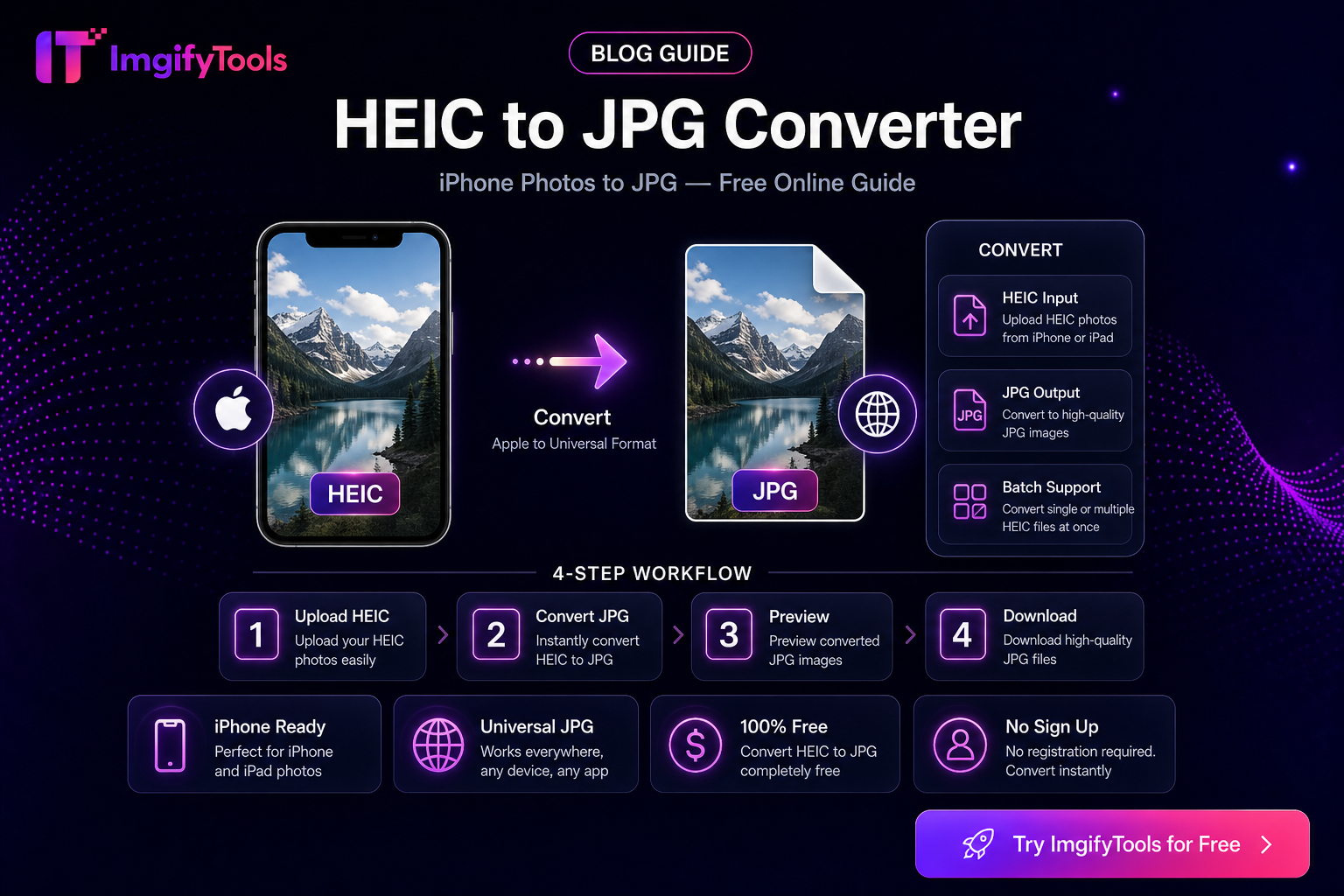
Best Free HEIC Converters in 2026: How to Compare Options
iPhone photos arrive as HEIC and break older Windows viewers and many upload forms. This roundup focuses on free, no-install paths. Primary tool: HEIC to JPG. Guide: HEIC to JPG on Windows without software.
What we valued
- No mandatory account for a single conversion
- Reasonable color fidelity
- Works in a modern browser on Windows
Practical comparison notes
- ImgifyTools HEIC to JPG — a fast no-install path for one-off shares and portal uploads.
- OS / Photos apps — useful when already installed and local processing is preferred.
- Desktop batch suites — better for large archives, with a heavier installation footprint.
These are workflow categories rather than a lab ranking. Results depend on the source phone, browser, color profile, quality setting, and destination application. Test a representative sample before standardizing a large conversion job.
Pair with Image Compressor when the portal also enforces a KB limit.
What a useful HEIC comparison should measure
“Best” depends on the job. For a one-off Windows attachment, no-install access and a predictable JPG download may matter most. For a camera-roll migration, batch support, color handling, metadata behavior, and repeatable quality settings matter more. A browser converter should also explain whether files are processed locally or uploaded to a server; privacy is part of the comparison, not an afterthought.
HEIC files can contain wide-gamut color, orientation metadata, and high-efficiency compression that ordinary JPG workflows do not preserve as editable features. After conversion, open the result in the application that will receive it. Check orientation, skin tones, transparency expectations, and the final dimensions. If the image will be printed, keep the original HEIC and treat the JPG as a delivery copy.
Windows and phone workflows
For a Windows upload form, copy the HEIC from your phone, open the HEIC to JPG converter, choose a quality setting, and download the JPG. Confirm the file extension and size before attaching it. If the form has a strict byte limit, compress the JPG as a separate step rather than repeatedly converting the original.
For a large phone archive, test five representative files first: a portrait, a night photo, a bright outdoor scene, a screenshot, and an image with rotated orientation. Compare the outputs at 100% zoom and in the destination app. One successful test image does not prove that every HEIC variant in the archive will behave the same way.
Privacy and limitations
ImgifyTools' HEIC converter uploads files for temporary session processing. Do not use an online service for confidential images unless its policy meets your requirements. The converter also cannot restore detail lost by an out-of-focus source, and JPG conversion is lossy, so keep the original HEIC as your archive copy.
Does conversion make HEIC higher quality?
No. It improves compatibility. The JPG may look very similar, but it cannot contain more genuine detail than the source.
Is an online converter better than a desktop app?
For a single file on a locked-down computer, a browser workflow is convenient. Desktop or local tools are often better for private files, repeatable batch jobs, or offline requirements.
You may also like
How to Choose a Free Background Remover (2026 Evaluation Criteria)
Soft-recommendation guide: evaluate free background removers on edges, limits, privacy, exports, and workflow fit—without a fake ranked “best of” list.
Read next →
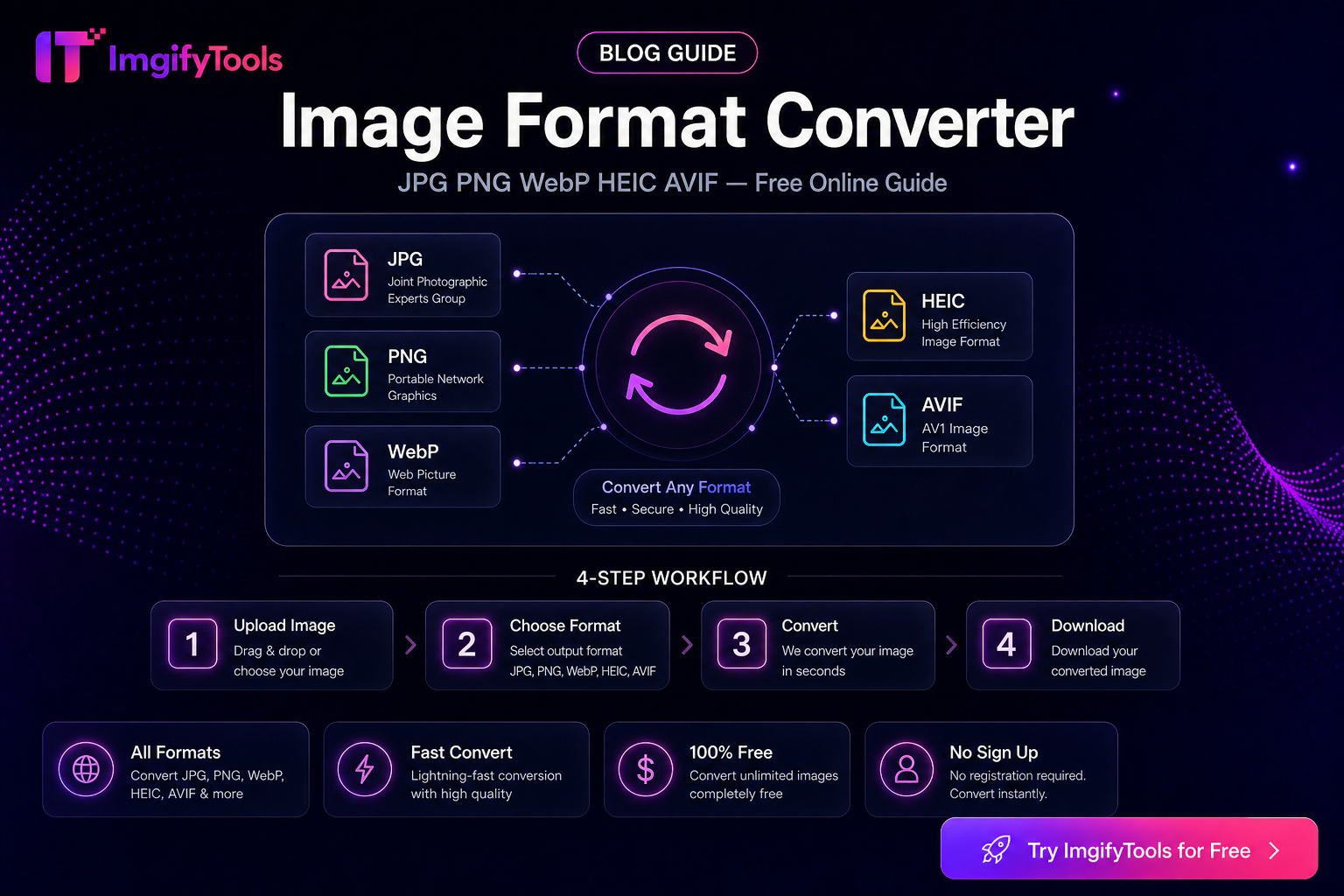
Image Format Converter — When to Use JPG, PNG, WebP, HEIC, AVIF, and PDF
Choose the right image format for web, print, portals, and phone photos. Practical conversion guidance with ImgifyTools—limitations and privacy included.
Read next →
How to Choose AI Image Editing Tools (Practical Criteria)
Criteria for choosing AI image tools—background removal, upscaling, face enhancement, and export fit—without fake rankings. Includes ImgifyTools options.
Read next →