Image Format Converter — When to Use JPG, PNG, WebP, HEIC, AVIF, and PDF
Choose the right image format for web, print, portals, and phone photos. Practical conversion guidance with ImgifyTools—limitations and privacy included.
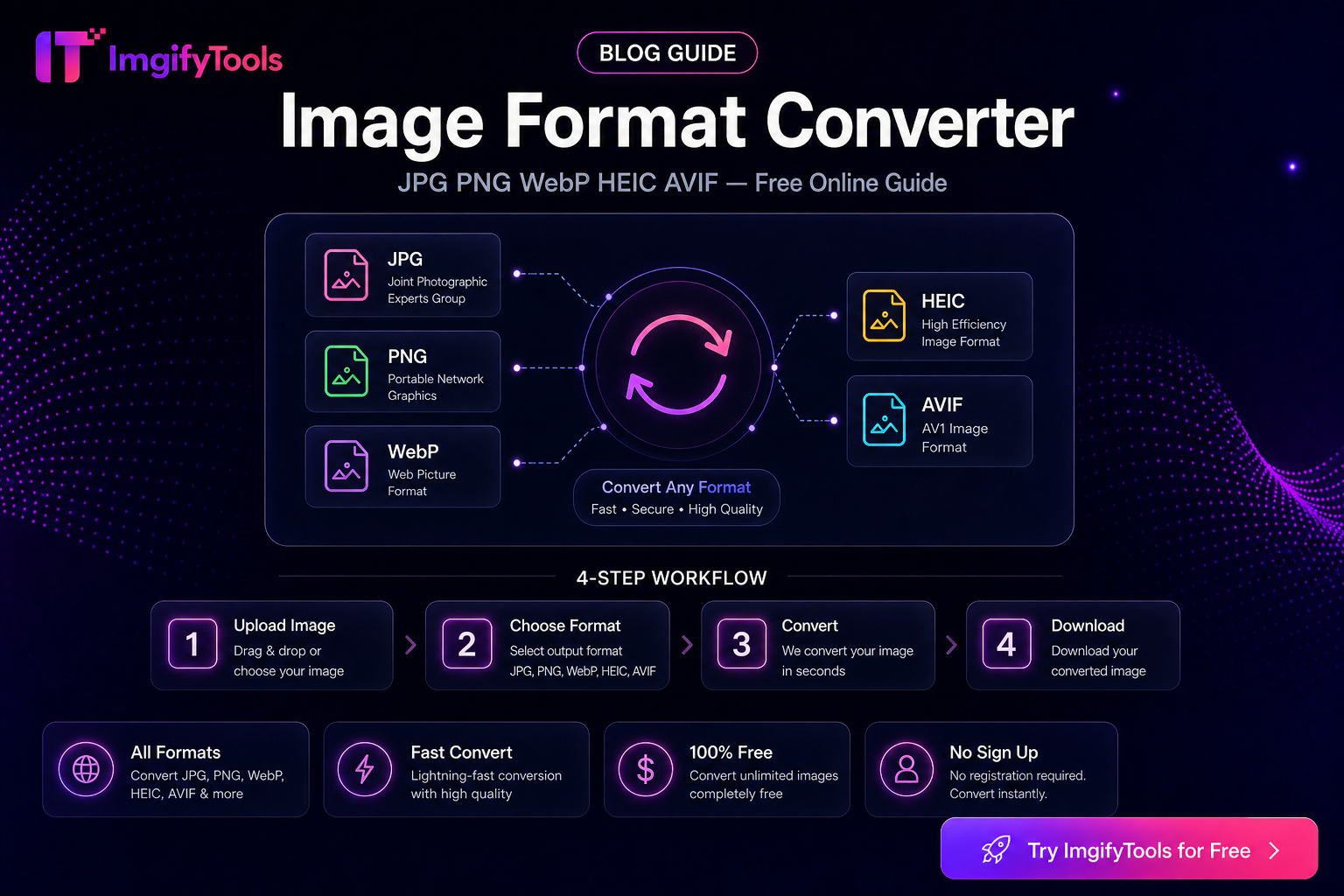
Image Format Converter — When to Use JPG, PNG, WebP, HEIC, AVIF, and PDF
Picking a format is not a vanity SEO choice. Portals reject HEIC from iPhones, marketplaces prefer JPG for photos, logos need PNG transparency, and modern sites lean on WebP or AVIF for smaller downloads. This guide explains when each format fits, how to convert with ImgifyTools, and what usually goes wrong.
Primary tool: Image Format Converter. Related: HEIC to JPG on Windows, exact file-size limits.
What this guide covers (and what it does not)
Covers: format trade-offs, conversion steps, common rejection reasons, and honest tool limits.
Does not cover: fabricated size benchmarks, claims that one format is always “best,” or promises that every government portal accepts WebP/AVIF.
Quick decision table
| Need | Prefer | Avoid by default |
|---|---|---|
| Photos for forms / marketplaces | JPG (or WebP if allowed) | PNG for large photos |
| Logo / UI with transparency | PNG (or WebP with alpha) | JPG |
| Smaller web delivery | WebP or AVIF | Uncompressed PNG |
| iPhone camera share to Windows/office | JPG or PNG via HEIC convert | Sending raw HEIC blindly |
| Multi-page or “print as document” | PDF from images | Expecting editable layers in PDF |
| Rasterize a PDF page to edit pixels | PDF → image | Confusing with vector editing |
Format notes that change your workflow
JPG
Good default for photographs and scanned docs without transparency. Each save can add compression artifacts—convert from the best master you have, not from a already-crushed WhatsApp export.
PNG
Keeps sharp edges and alpha. File size balloons on photos. Use for screenshots, graphics, and cutouts—not as a “quality forever” photo archive for upload portals with KB caps.
WebP
Often smaller than JPG/PNG at similar visual quality. Check the destination: many social and e-commerce stacks accept it; many government forms still do not.
AVIF
Strong compression, weaker universal support on older portals and some email clients. Convert to JPG when the recipient software is unknown.
HEIC / HEIF
Common on iPhone. Windows apps and upload forms frequently reject it until you convert—see HEIC on Windows and HEIC to JPG.
Use when a process wants a document container (applications, multi-page scans). Converting image → PDF is different from PDF → image (rasterizing pages for editing). Pick the direction that matches the task: Image to PDF, PDF to image.
How to convert with ImgifyTools
- Open Image Format Converter (or a dedicated pair tool such as JPG to PNG when you already know the pair).
- Upload a supported file. Standard upload limits are about 10MB per file unless the tool panel states otherwise.
- Choose the output format that the destination accepts—not only the format that looks nicest on your laptop.
- Download and verify: open the file, check transparency if you need it, and confirm the extension matches what the portal lists.
Dedicated pair tools (same suite): PNG to JPG, JPG to WebP, WebP to JPG, AVIF to JPG, HEIC to PNG, JPG to PDF.
Privacy and processing (accurate)
Convert tools upload your file to ImgifyTools servers for temporary session processing. They are not a permanent public library of uploads by default. The in-browser image editor is different—it primarily processes on your device. Details: Privacy Policy.
Common failures and fixes
| Problem | Likely cause | Fix |
|---|---|---|
| Portal still rejects file | Wrong format or HEIC leftover | Convert to the format named in the instructions; rename carefully after download |
| “Transparent” logo has a white box | Saved as JPG | Use PNG/WebP with alpha |
| Colors look dull after JPG | Wide-gamut HEIC/PNG → JPG | Soft proof on sRGB; accept that JPG is narrower |
| File still too large | Format alone is not enough | Compress or hit an exact KB target after converting |
| PDF looks blurry when opened as image | Low raster DPI / small page render | Re-export PDF→image at a higher resolution if the tool allows |
Limitations
- Conversion does not magically restore detail lost in a prior heavy compression.
- Not every output format is accepted everywhere—always read the destination’s rules.
- Animated formats, CMYK print pipelines, and professional color-managed workflows are out of scope for these browser tools.
FAQs
Do I need the format converter or a specific pair tool?
Either works. Use the hub converter when you switch formats often; use a pair tool when you repeat one conversion (for example HEIC→JPG from a phone dump).
Will WebP always be smaller than JPG?
Often, not always. Highly detailed photos and already-optimized JPGs can be close. Compare when size matters.
Can I convert without installing software?
Yes—ImgifyTools runs in the browser. Convert paths still upload temporarily for server-side processing as described above.
What if my upload limit is in kilobytes, not format?
Fix format first if required, then use Image Compressor or the exact file-size guide.
Related reading
- Compress without losing usable quality
- PNG vs JPG vs WebP vs AVIF methodology (indexed only when results are complete)
- Convert tools directory
You may also like
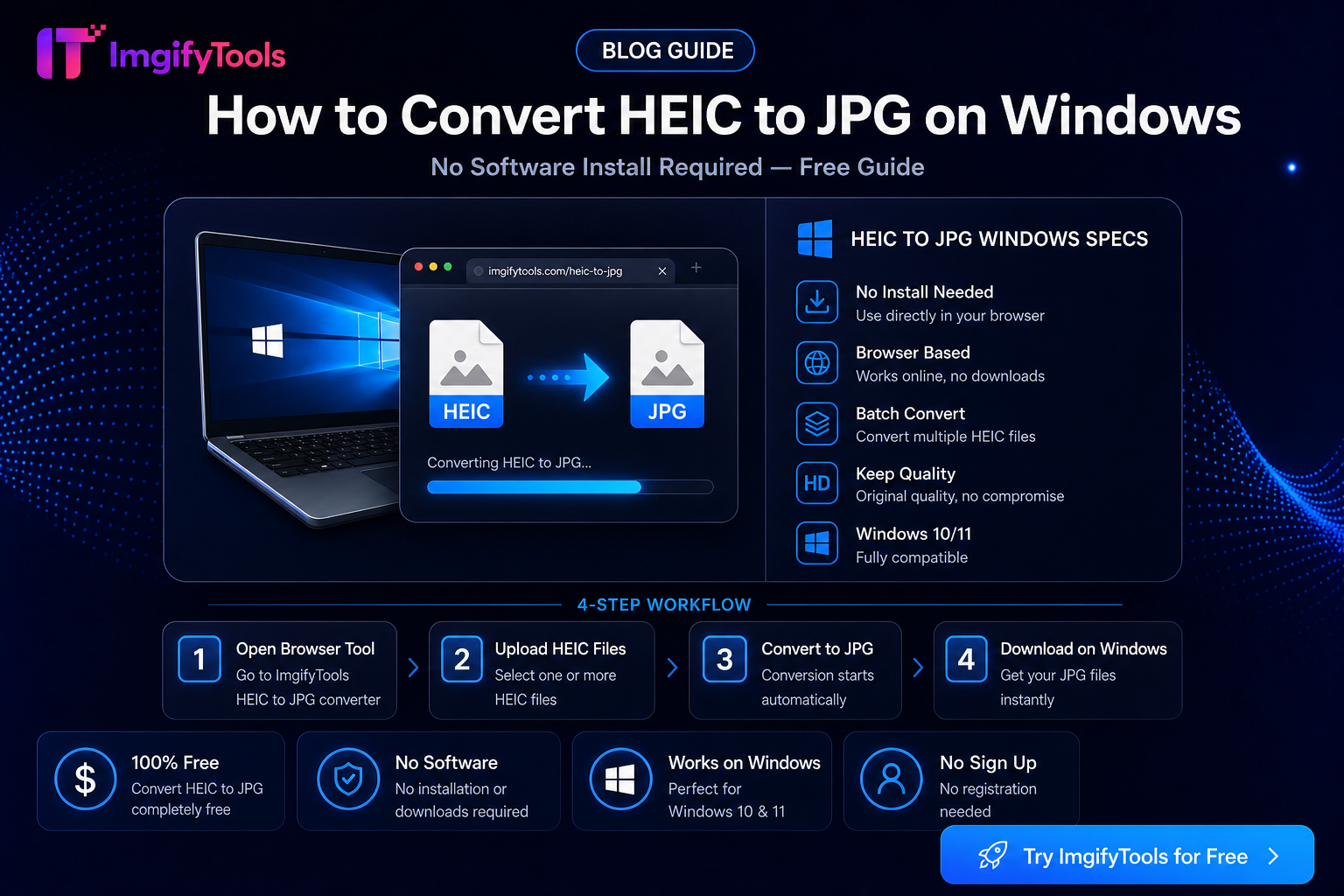
How To Convert HEIC To JPG On Windows Without Software
Open iPhone HEIC photos on Windows 10 and 11 without Microsoft Store codecs. USB, iCloud, and browser conversion steps plus limits and privacy notes.
Read next →
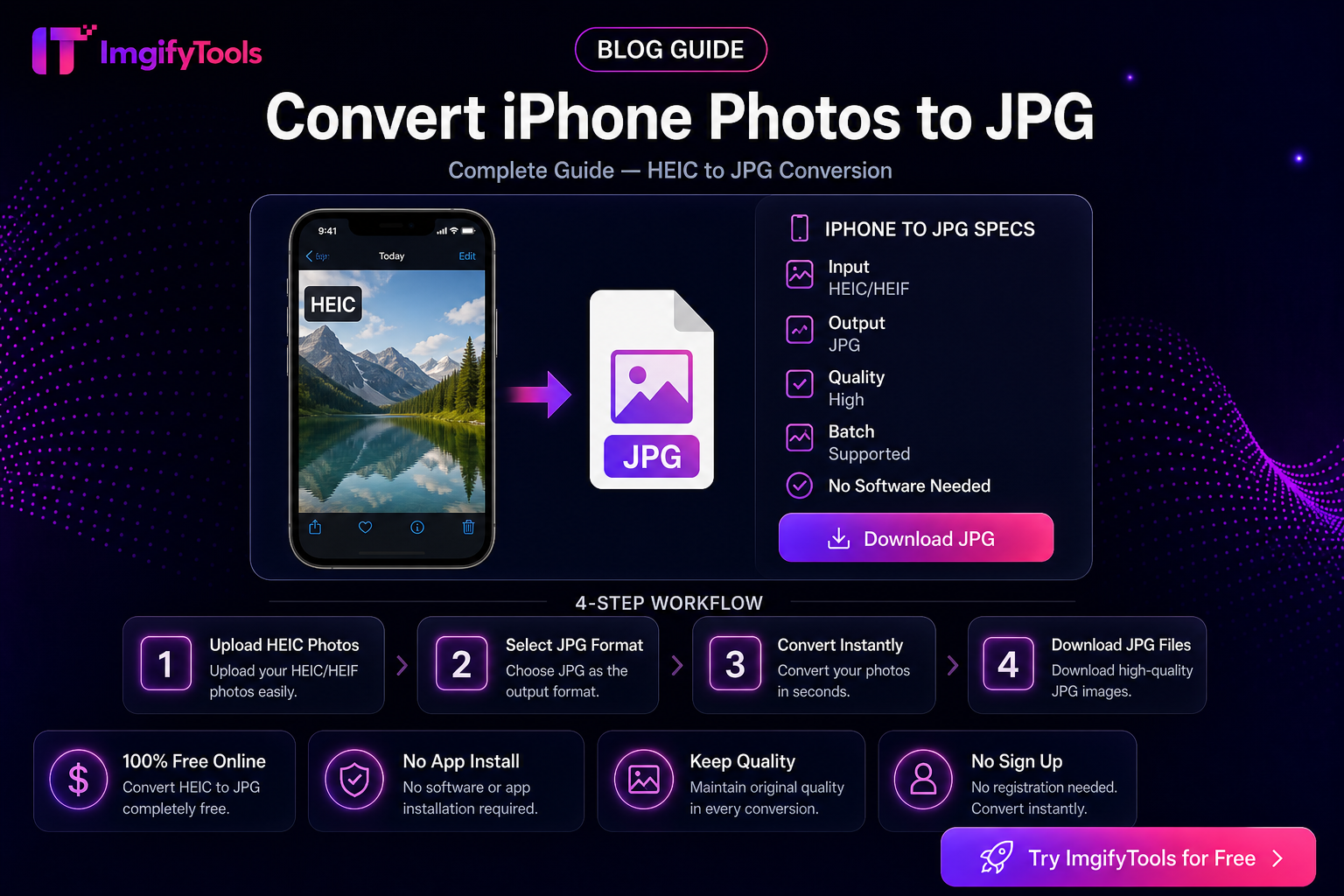
Convert iPhone Photos to JPG — Complete Guide
Export or convert iPhone HEIC photos to JPG from the Photos app, Share Sheet, Mail, and ImgifyTools—without cloning the Windows-only workflow.
Read next →
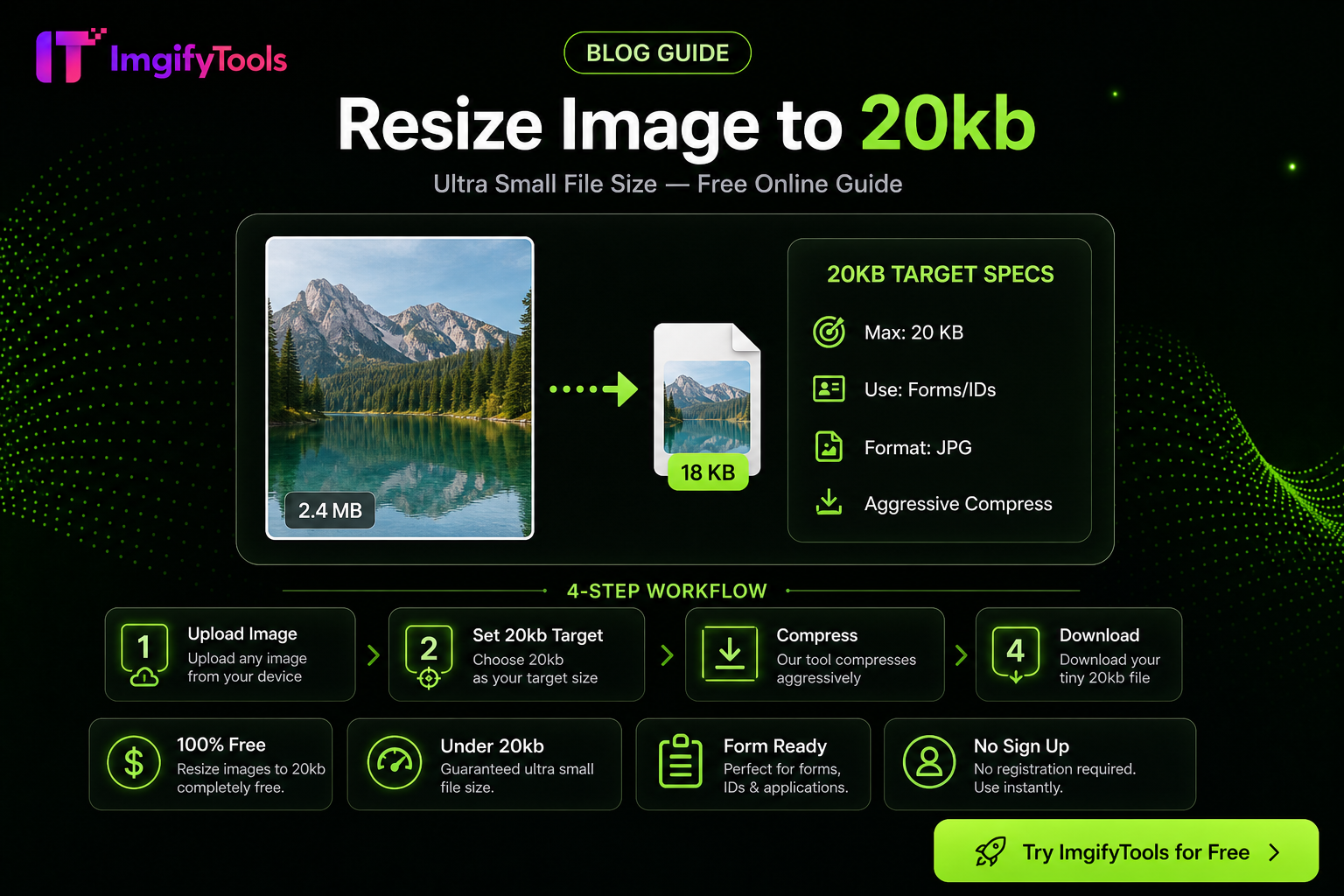
How to Compress an Image to 20KB Without Ruining Quality
Hit a 20KB upload limit with less mush: resize first, pick JPG/WebP wisely, then use target-KB compression—practical steps for portals and forms.
Read next →