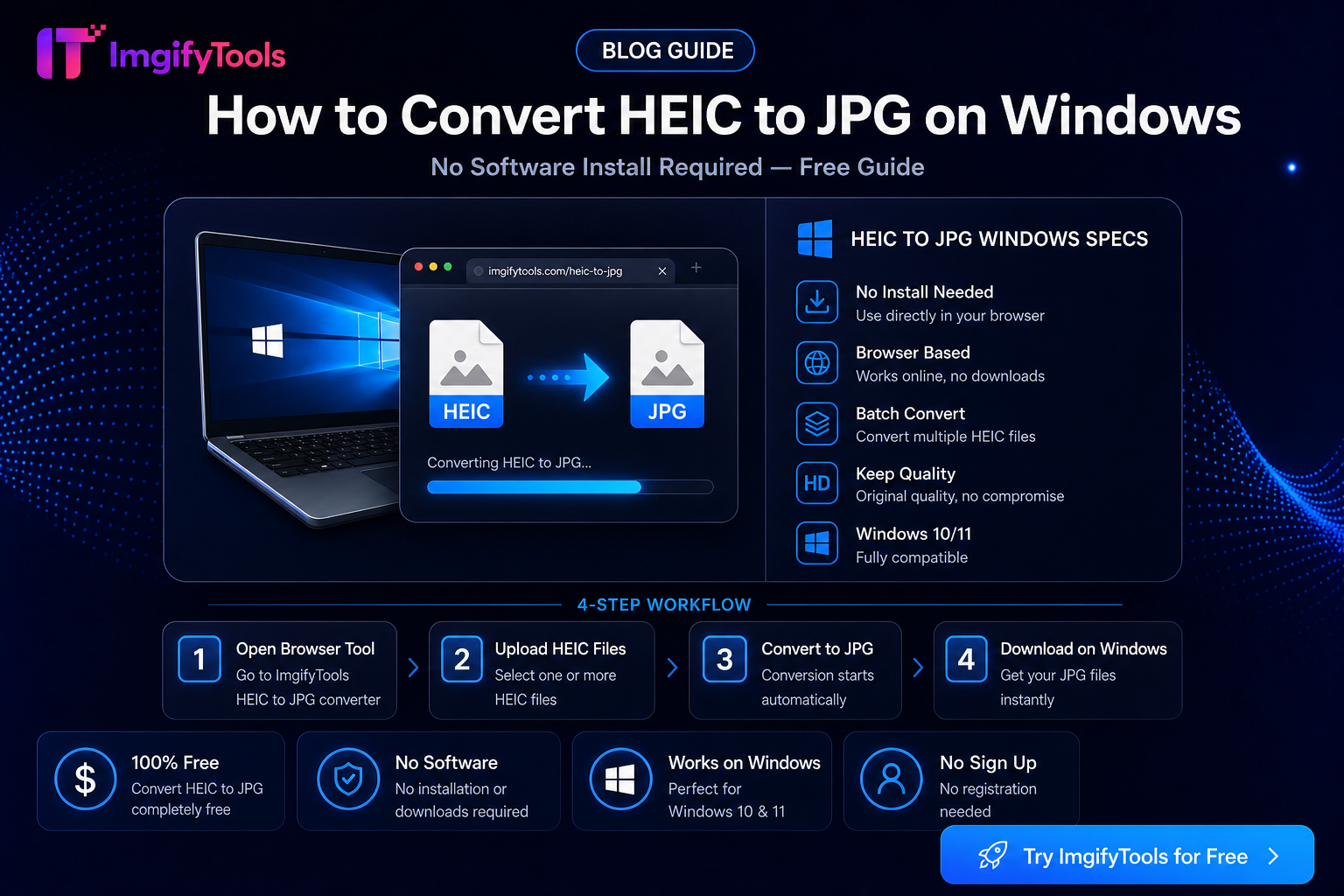
How To Convert HEIC To JPG On Windows Without Software
iPhone photos often land on a Windows PC as .heic files. File Explorer shows a blank thumbnail, Photos may refuse to open them, and Outlook or a web form rejects the upload. You do not need to install HEIF codecs from the Microsoft Store—especially on a locked-down work laptop. Convert to JPG in the browser, then use the file like any other Windows photo.
Primary tools: HEIC to JPG, HEIC to JPG on Windows. Companion guide for phone-side export: iPhone photo to JPG.
Why Windows struggles with HEIC
HEIC (High Efficiency Image Container) is Apple’s default camera format on many iPhones. It stores more detail per megabyte than older JPEG, but Windows apps, email clients, printers, and older upload portals still expect JPG or PNG.
Typical Windows symptoms:
- Thumbnail icons missing or generic in File Explorer
- “Can’t open this file” in legacy Photo Viewer or third-party viewers
- Attachments renamed or blocked when a recipient’s mail client does not support HEIC
- Web portals that only list
.jpg/.pngin the file picker
Installing HEIF Image Extensions from the Microsoft Store can fix viewing on some PCs. Online conversion is the better path when Store installs are blocked, you lack admin rights, or you only need a one-off JPG for a form.
Get the HEIC file onto the PC first
Pick the transfer method that matches your setup:
- USB (Photos / File Explorer) — Connect the iPhone, unlock it, tap Trust if prompted, then copy
.heicfiles from the DCIM folders to a folder on the PC (for exampleC:\Users\You\Pictures\iphone-import). - iCloud.com in Edge or Chrome — Sign in, open Photos, download the originals. iCloud may offer JPEG depending on settings; if you still get HEIC, convert after download.
- Email or chat to yourself — Quick for one or two shots, but large Live Photos or bursts can hit attachment limits. Prefer USB or iCloud for dozens of files.
- OneDrive / Google Drive — Useful when the phone and PC already sync the same folder.
Do not rename .heic to .jpg. That does not convert the file; Windows and portals will still fail.
Convert HEIC to JPG in the browser (no install)
- Open HEIC to JPG in Chrome or Edge on Windows.
- Upload one
.heicfile (stay within the tool’s upload size limit—commonly around 10 MB). - Wait for processing, then download the
.jpg. - Open the JPG in Photos, Paint, Word, or your upload form to confirm it works.
For a Windows-focused landing path with the same converter, use HEIC to JPG on Windows.
Example: one photo for an HR portal
You copied IMG_2041.HEIC (about 2.4 MB) from USB. The careers site only accepts JPG under 2 MB. Convert with HEIC to JPG, check file size in File Explorer → Properties, then—if still over the portal cap—run Image Compressor or Resize to 100KB only if the portal’s KB limit requires it. Prefer the highest quality that still passes the rule.
Example: print shop rejects HEIC
A local print kiosk refuses HEIC. Convert the selected shots to JPG first, keep the longest side at least as large as the print size needs (for a 4×6 print, a few thousand pixels on the long edge is usually enough), then bring the JPGs on a USB stick.
When Store codecs are still useful
Install HEIF extensions only if you want Windows to preview and open HEIC natively every day. Conversion is still required when:
- A website rejects HEIC even though Windows can open it
- You email colleagues who use older Outlook builds
- You hand files to a designer or printer that mandates JPG
Online conversion and codecs solve different problems: viewing locally vs. producing a compatible export.
Batch and large libraries
Browser conversion is best for single files or small sets. For dozens of vacation photos:
- On the iPhone, change Settings → Camera → Formats to Most Compatible before a trip if you know the shots will go to Windows (future photos become JPG).
- Or export from Mac Photos / iCloud as JPG when you have access to a Mac.
- On Windows, convert the files you actually need for forms, email, and print—not every HEIC in the dump—unless a project requires all of them.
Very large HEIC files may exceed the upload cap. Compress or crop first only when necessary; aggressive recompression before conversion can already soft-look soft.
Limitations (honest)
- Conversion is not a lossless archive of every HEIC feature (depth data, some Live Photo motion). You get a standard still JPG for everyday Windows use.
- Color and dynamic range can shift slightly versus Apple’s Photos app rendering.
- Upload size caps apply; huge ProRAW / HEIC masters may need a smaller export from the phone first.
- We do not claim “perfect pixel match” to Apple’s encoder.
Privacy and file handling
HEIC to JPG is a convert tool: the file is uploaded to ImgifyTools servers for temporary session processing and is not kept as a permanent public library of uploads by default. The image editor is different—it works primarily in your browser. Details: Privacy Policy.
Troubleshooting
| Problem | What to try |
|---|---|
| Upload fails | Check file size (~10 MB common limit); try a smaller export from the phone |
| Download is blank / won’t open | Re-download; confirm the extension is .jpg; try Edge if a corporate filter interferes |
| Colors look dull vs iPhone | Normal variance across apps; avoid stacking multiple compressions |
| Portal still rejects | Confirm it wants JPG not PNG; check maximum dimensions and KB |
| Live Photo | You convert the still frame; motion is not preserved as a JPG |
FAQs
Do I need admin rights on Windows?
No for browser conversion. You only need admin or Store access if you choose to install HEIF codecs.
Is HEIC to JPG free on ImgifyTools?
Core conversion is free to use in the browser without creating an account. Practical limits such as upload size still apply.
Should I convert HEIC to PNG instead?
Use JPG for photos going to email, print, and most forms. Use PNG when you need transparency (rare for camera stills). See HEIC to PNG if you specifically need PNG.
Can Windows 11 open HEIC without any conversion?
Sometimes, after HEIF extensions are installed. Many websites and recipients still need JPG, so conversion remains useful even when local viewing works.
Related guides
- iPhone photo to JPG complete guide — share and export from the phone
- Image format converter guide
- Compress images for email
You may also like
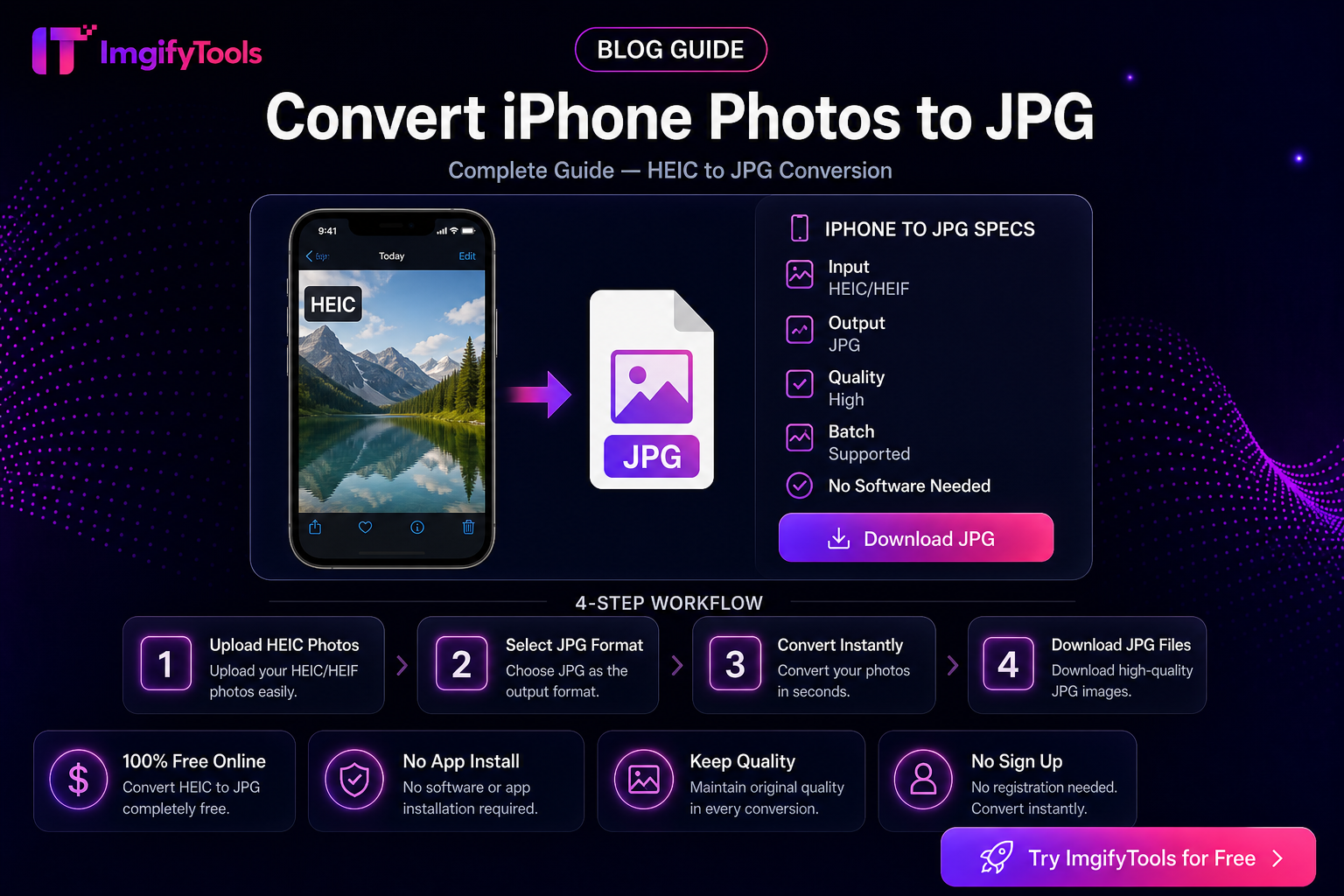
Convert iPhone Photos to JPG — Complete Guide
Export or convert iPhone HEIC photos to JPG from the Photos app, Share Sheet, Mail, and ImgifyTools—without cloning the Windows-only workflow.
Read next →
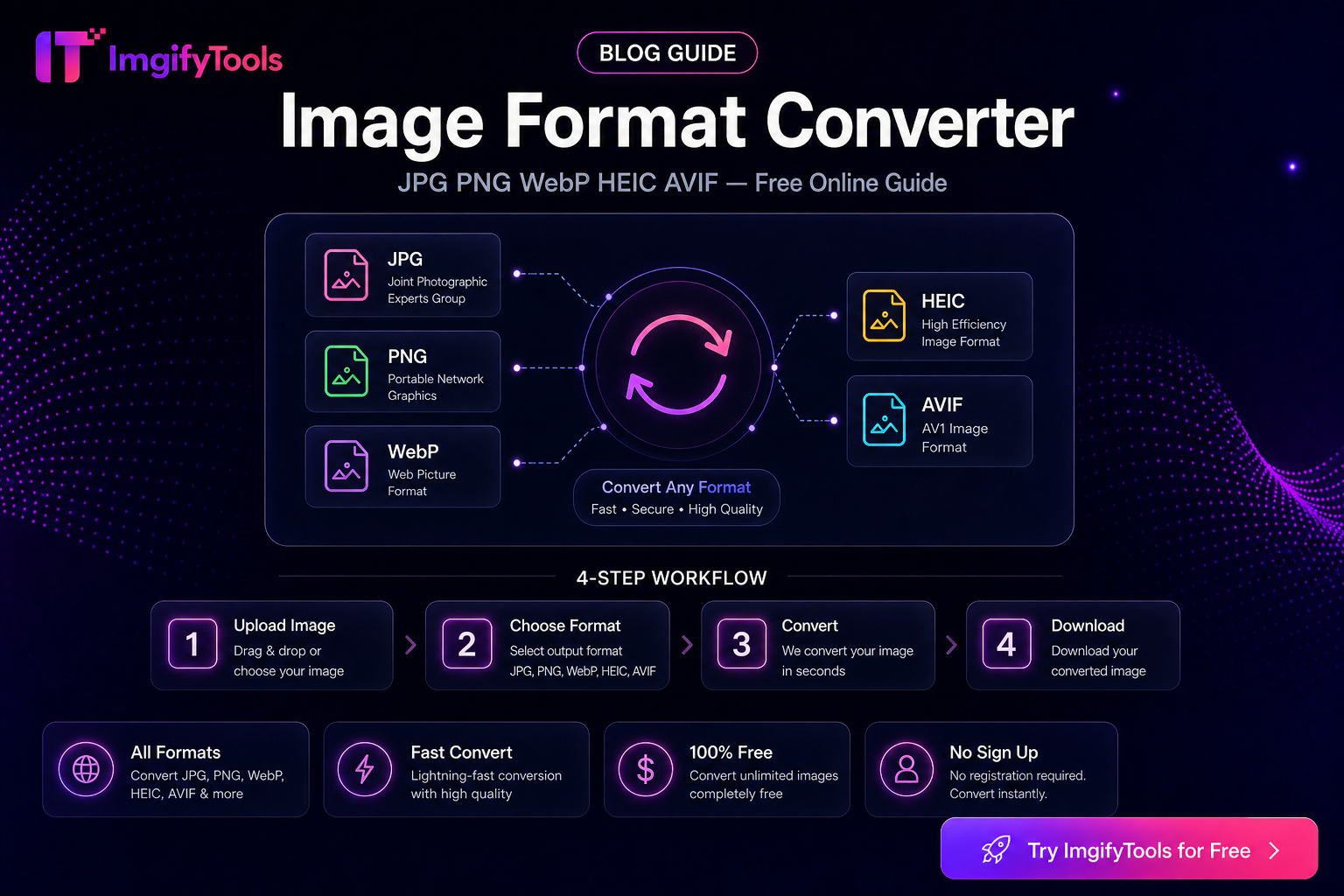
Image Format Converter — When to Use JPG, PNG, WebP, HEIC, AVIF, and PDF
Choose the right image format for web, print, portals, and phone photos. Practical conversion guidance with ImgifyTools—limitations and privacy included.
Read next →
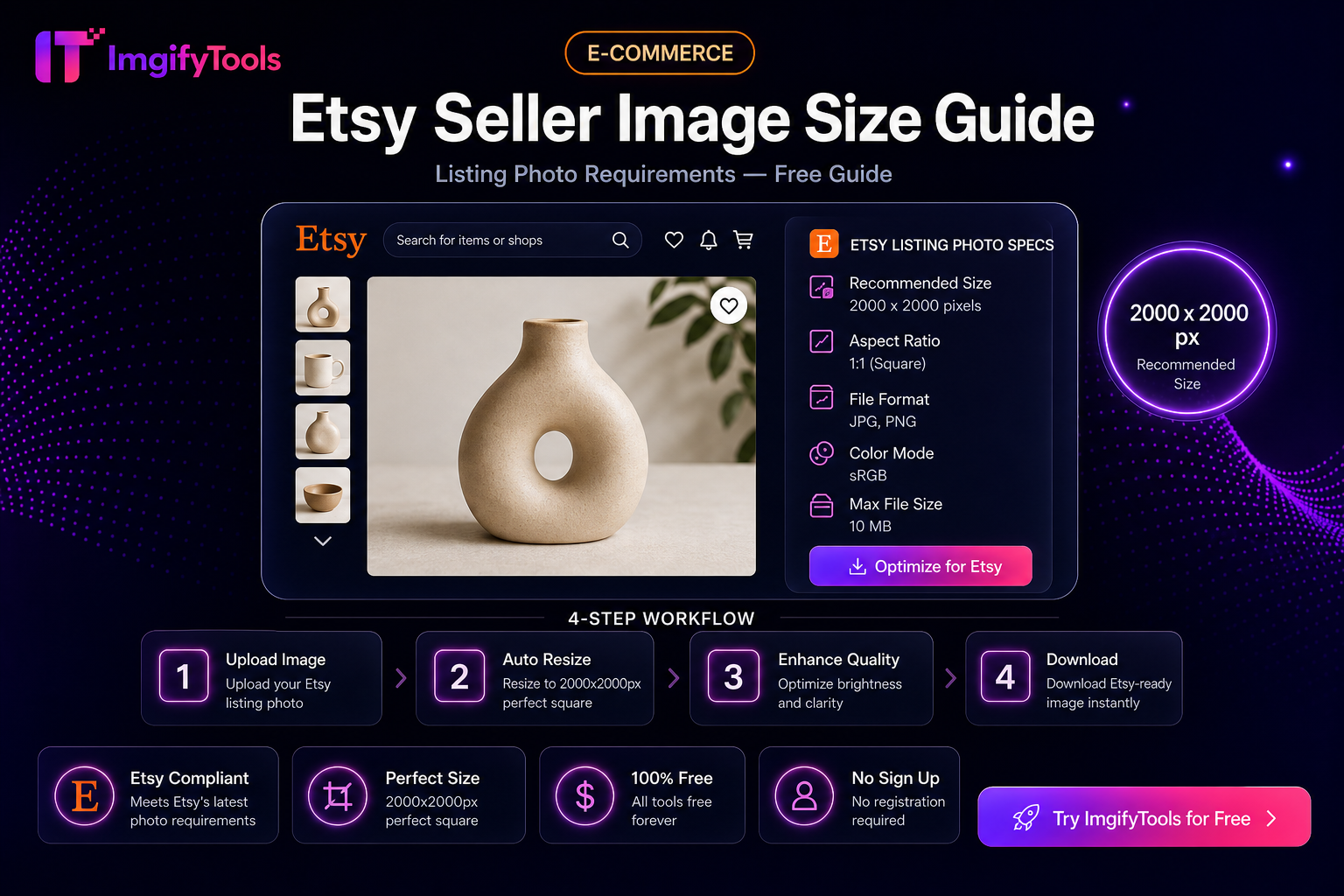
Etsy Seller Image Size Guide (Practical Listing Prep)
Prep Etsy listing photos: square crops, clean backgrounds, and sensible file sizes with free ImgifyTools—plus limits and privacy notes.
Read next →