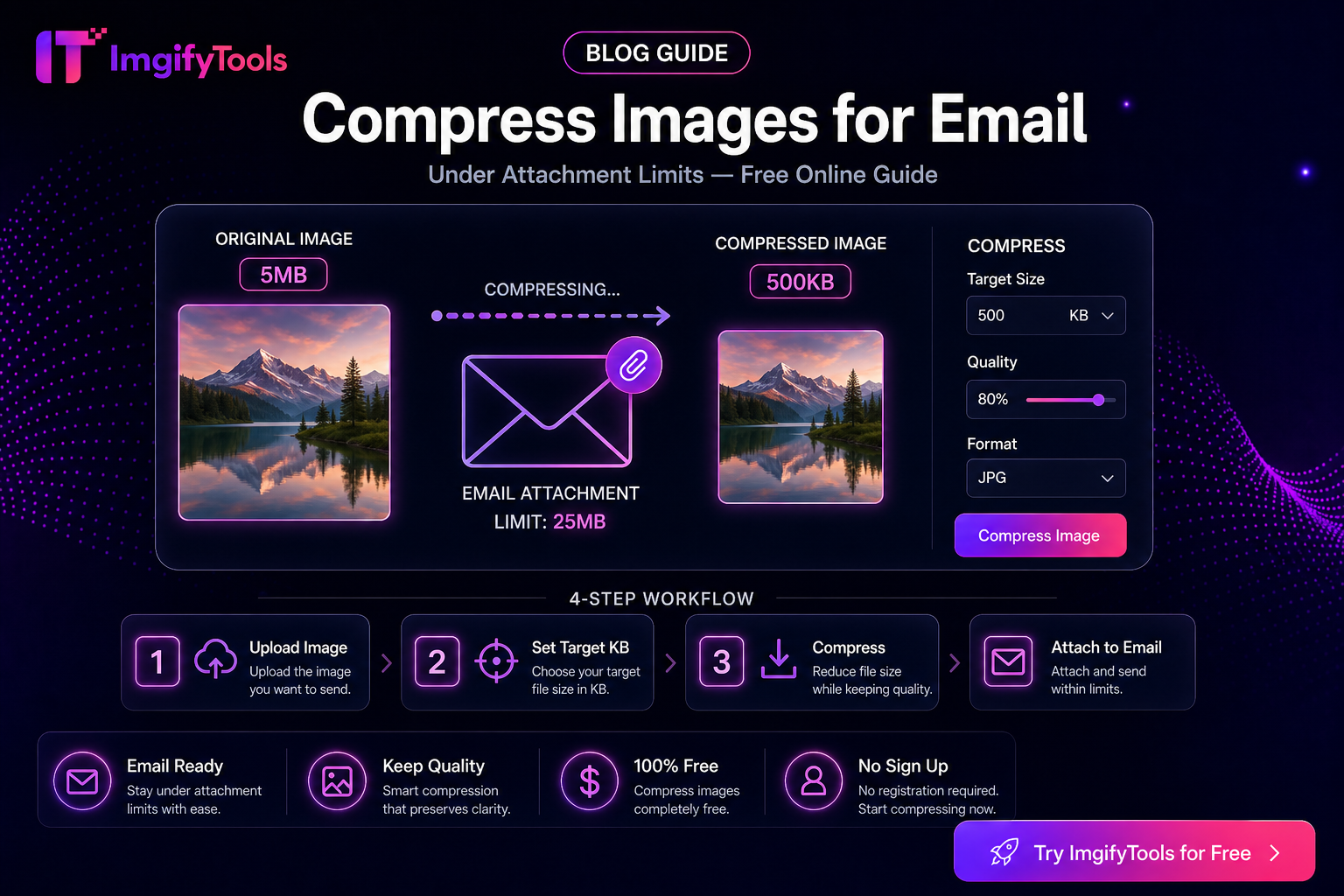
Compress Images for Email Attachments
Email fails on photos more often because of total message size than because of megapixels. A single phone HEIC/JPG can be several megabytes; three of them plus a PDF can exceed Gmail or Outlook caps, bounce silently, or force the provider to strip attachments into a link. This guide is about attachment-ready file weight, not generic “make images small for the web.”
Primary tools: Image Compressor, Resize to 100KB, Bulk Image Compressor. Convert HEIC first if needed: HEIC to JPG.
Know the real limit you are hitting
Providers change policies, so treat these as practical planning ranges, not guarantees. Always check your client’s error text.
| Context | What usually bites you |
|---|---|
| Gmail / Google Workspace | Large total message size (attachments + body); very large single files |
| Outlook.com / Microsoft 365 | Similar total-size ceilings; some orgs set stricter rules |
| Corporate mail | IT may cap far below consumer limits (for example 5–10 MB total) |
| Recipient’s server | Your send succeeds; their server rejects the inbound message |
Rule of thumb: for a short email with a few photos, aim for each image under ~1 MB, and keep the sum of attachments comfortably under your org’s known cap. When a form or HR portal (not email) demands a hard KB limit, use a target-size tool instead of guessing quality sliders.
Workflow: email-safe photos in minutes
- Start from the best reasonable original — Prefer the camera or scanner file over a WhatsApp forward.
- Convert format if needed — HEIC → HEIC to JPG before compressing for Windows/Outlook recipients.
- Resize dimensions when the photo is huge — A 4000×3000 phone shot emailed at full size wastes bytes. Use Image Resizer or Platform Image Resizer to something like 1600–2000 px on the long edge for on-screen viewing (print jobs need more—say so in the email and use a cloud link instead).
- Compress — Run Image Compressor. Check the output file size in your OS before attaching.
- Hard KB caps only when required — Job portals and some ticket systems want ≤100 KB or ≤200 KB. Use Resize to 100KB (or sibling target tools) when the limit is explicit—not for casual family photos.
- Attach and verify — Send a test to yourself if the message is important.
Example: three product photos to a buyer
You have three 4 MB JPGs. Resize long edge to ~1800 px, compress each to roughly 400–700 KB, attach all three. Total stays far safer than sending 12 MB raw.
Example: one headshot for an HR email that “must be under 100 KB”
Do not crush a portfolio print. Crop to head-and-shoulders in the image editor (browser-side) or a crop tool, then Resize to 100KB. Expect softer detail—that is the trade-off the portal asked for.
Example: 20 photos from a site visit
Email is the wrong carrier. Compress a representative subset for a preview, and put the full set on a shared drive or ZIP download link. Use Bulk Image Compressor when you prepare that preview set.
Quality vs size — what to preserve
- Faces and text on labels — Stop compressing when type becomes blocky.
- Screenshots of UI — Prefer PNG until size forces JPG; heavy JPG on UI screenshots looks muddy.
- Documents — A photographed page often needs crop + straighten first; blind compression keeps the clutter and still looks soft.
Limitations
- Compression cannot invent detail that was never in the file.
- Stacking compress → share → compress again destroys quality. Keep one master.
- ImgifyTools upload limits (commonly around 10 MB) apply before compression; extremely large masters may need a phone/export resize first.
- We do not claim any provider will “always” accept a given MB number—org policies differ.
Privacy
Compress and convert tools upload files to ImgifyTools servers for temporary session processing and are not kept as a permanent upload library by default. Primary editing in the image editor stays largely in the browser. Privacy Policy.
Troubleshooting
| Symptom | Likely cause | Fix |
|---|---|---|
| Send fails / bounce | Total message too large | Fewer attachments; more compression; use a link |
| Recipient sees blank / blocked | Their security filter | PDF package or approved file share |
| Soft faces | Over-compression | Higher quality setting; smaller dimensions instead of extreme JPG quality drop |
| HEIC attachment chaos | Recipient on Windows | Convert to JPG first |
FAQs
Should every email photo be under 100 KB?
No. Use 100 KB tools when a stated limit requires it. For normal email viewing, a few hundred KB per photo is usually enough after a sensible resize.
JPG or PDF for scanned papers?
One or two pages as compressed JPG can work. Multi-page packets are often clearer as a single PDF—still watch total size.
Can I compress on my phone before sending?
Yes. Open Image Compressor in the mobile browser, download, then attach from Files.
Is this free?
Core ImgifyTools compress tools are free to use in the browser without an account, subject to upload and product limits.
Related
You may also like
eBay Photo Requirements — Size, Background, and File Tips
eBay listing photo expectations for sellers—background, clarity, and a free ImgifyTools workflow to prep gallery images that load fast.
Read next →
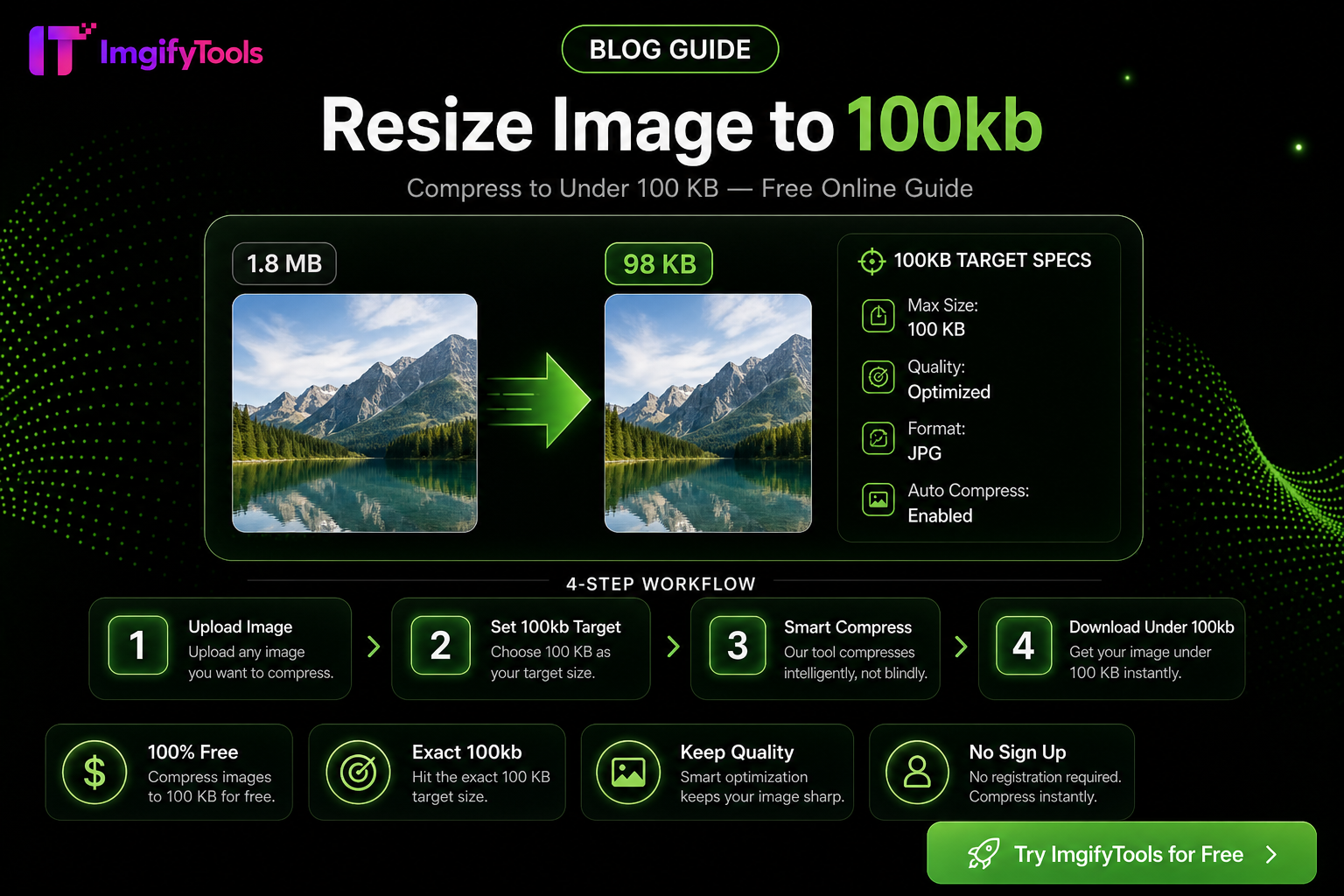
How To Resize Any Image To An Exact File Size
Hit exact KB targets (20KB–200KB) for portals and marketplaces with one free browser workflow—quality tips, pitfalls, and ImgifyTools compressor steps.
Read next →
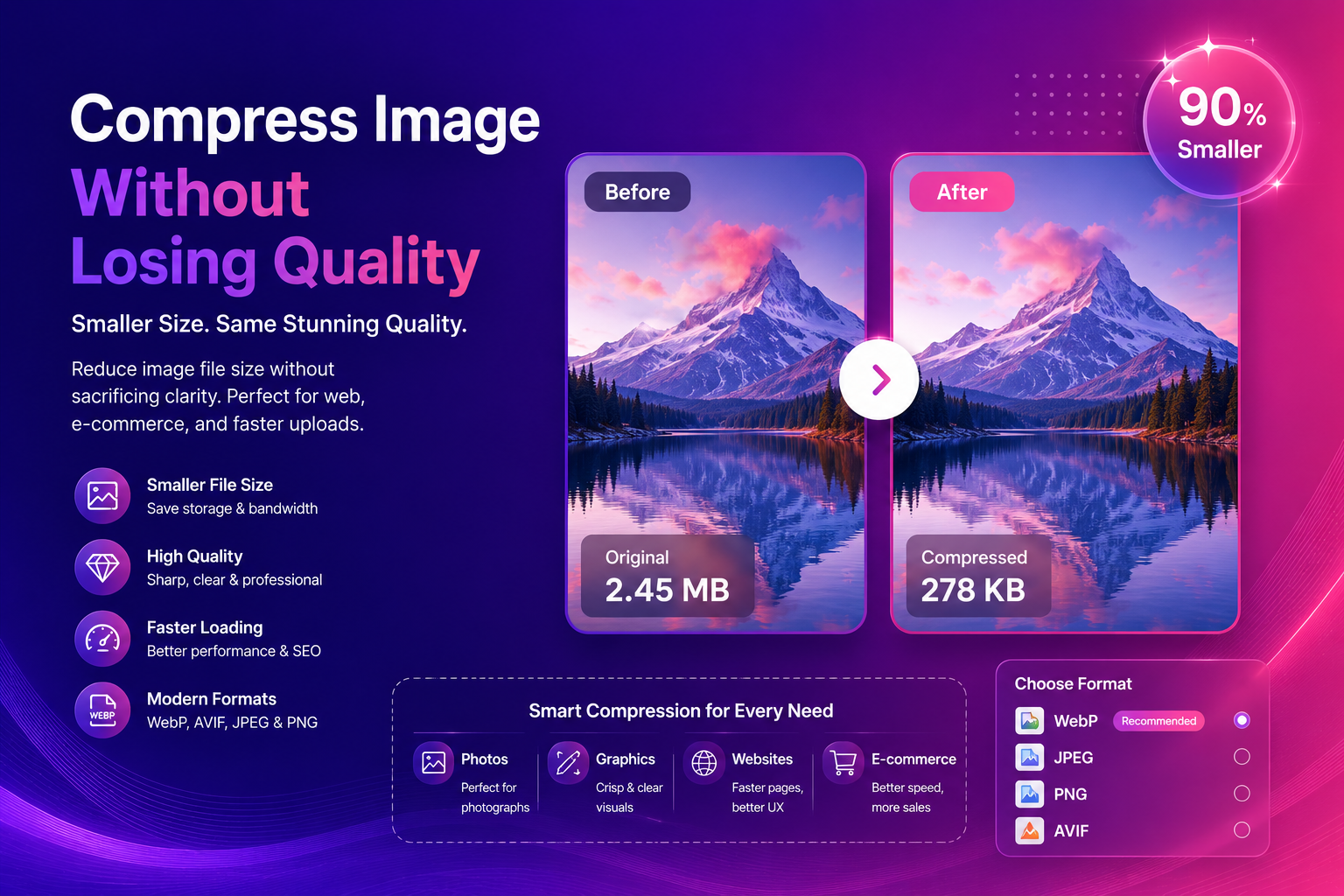
Compress Image Without Losing Quality (Best Methods)
Compress images without losing quality using practical methods for web and e-commerce. Learn formats, settings, and a simple workflow for fast, sharp results.
Read next →