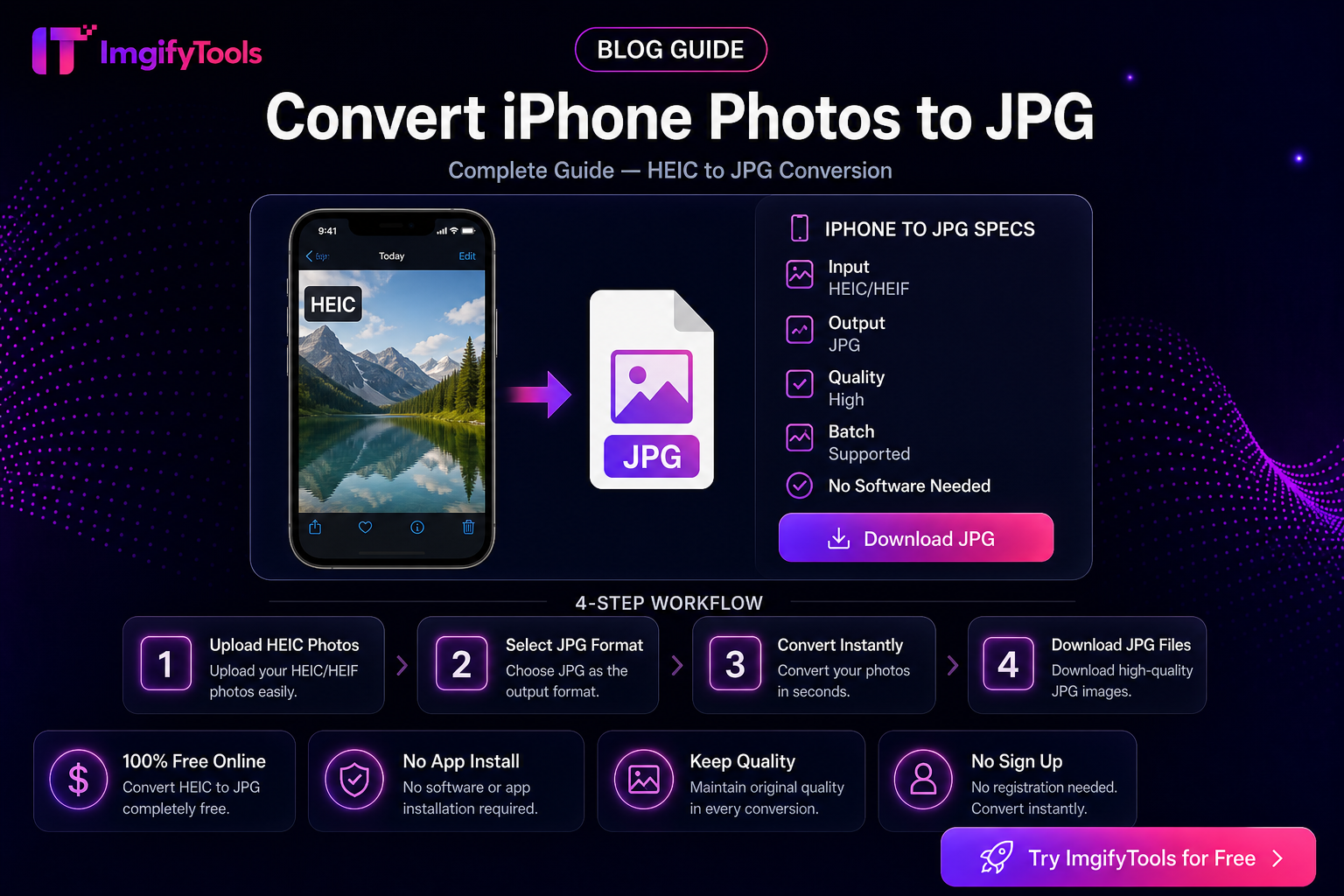
Convert iPhone Photos to JPG — Complete Guide
Most newer iPhones save camera rolls as HEIC. That is fine inside Apple’s ecosystem. It becomes a problem when a landlord portal, university form, marketplace listing, or Windows colleague expects JPG. This guide focuses on phone-side share and export choices, then conversion when you already have a HEIC file. For PC-only steps after files land on a laptop, use the companion HEIC to JPG on Windows guide instead of repeating that workflow here.
Primary tools: HEIC to JPG, Image Compressor.
Decide: prevent HEIC or convert after the fact
| Goal | Best approach |
|---|---|
| Future photos should already be JPG | Settings → Camera → Formats → Most Compatible |
| Keep High Efficiency storage; convert only when needed | Leave High Efficiency on; export or convert per file |
| One attachment for email or a form | Share Sheet → Mail / Files, or convert online |
| Many files for a Windows PC | Transfer originals, then convert on the PC (see Windows guide) |
Most Compatible trades some storage efficiency for fewer HEIC surprises. Switch it before a trip or a week of document uploads if JPG is mandatory.
Method 1 — Share Sheet to Mail or Files (on-device)
- Open Photos, select the image.
- Tap Share.
- Choose Mail, Messages, Save to Files, or another app that accepts images.
- Watch what leaves the phone: many share paths deliver a JPEG to the recipient even when the library master is HEIC. Mail is a common example when you send to yourself.
Caveats: Messaging apps may re-compress heavily. For a form that needs a crisp face or product detail, prefer Files → AirDrop/USB or a dedicated conversion step over a chat export.
Example: lease application from your phone
You need a clear JPG of your ID or a room photo under a portal’s size limit. Share to Files as an image, or open Safari, upload via HEIC to JPG if the saved file is still HEIC, then compress only if the portal shows a KB error.
Method 2 — Change Camera format for new shots
- Settings → Camera → Formats.
- Select Most Compatible (JPG for most stills).
- Take new photos for the task that requires JPG.
Existing HEIC library items stay HEIC until you convert or re-export them. This setting does not rewrite the camera roll.
Method 3 — Convert with ImgifyTools (any leftover HEIC)
Use this when you already have .heic in Files, Downloads, or iCloud Drive:
- Open HEIC to JPG in Safari or another mobile browser.
- Upload the HEIC file.
- Download the JPG back to Files or Photos.
- Attach that JPG to the portal or email.
If the download is still too large for a form, use Image Compressor or a target-size tool such as Resize to 100KB only when the site states a hard byte limit.
Method 4 — Mac Photos / iCloud when you have a Mac
On a Mac, Photos can export as JPEG (File → Export). iCloud.com downloads may also offer JPEG depending on account settings. Use Mac export when you are preparing a batch for a client drop folder; use the iPhone Share Sheet when you are away from a computer.
What usually goes wrong
- Renaming
photo.heictophoto.jpg— does not convert; portals still fail. - WhatsApp / social “save image” — often already JPG but low quality; avoid as a master for print or ID.
- Live Photos — conversion yields the key still frame, not the short motion clip.
- Portrait mode depth — depth metadata is not something a simple JPG converter preserves as an editable layer.
- Screenshots — already PNG or JPG; you usually do not need HEIC conversion.
Limitations
- Online conversion depends on upload size limits (often around 10 MB). Huge originals may need a smaller export from Photos first.
- We do not claim identical rendering to Apple Photos for every HDR/HEIC edge case.
- Browser tools are human-in-the-loop; they are not a full iCloud bulk migration product.
Privacy
Convert and compress tools upload files to ImgifyTools servers for temporary session processing and are not kept as a permanent upload library by default. The image editor processes primarily in the browser. See the Privacy Policy.
Troubleshooting
| Issue | Fix |
|---|---|
| Share still sends HEIC | Convert with HEIC to JPG, or enable Most Compatible for new shots |
| Upload rejected on mobile Safari | Check MB limit; compress; try desktop if the portal is picky |
| Face looks soft after compress | Compress less aggressively; start from the original HEIC, not a chat copy |
| Need Windows-specific steps | Follow HEIC on Windows without software |
FAQs
Is converting iPhone photos to JPG free on ImgifyTools?
Yes for core convert tools in the browser, without an account. Upload size and similar practical limits still apply.
Will Most Compatible delete my old HEIC photos?
No. It only changes how new photos are saved.
JPG or PNG from iPhone photos?
JPG for photographs and most forms. PNG when you need transparency (graphics, logos)—not typical for camera stills.
Can I convert on iPhone without a computer?
Yes. Use Share Sheet destinations that deliver JPEG, or open HEIC to JPG in the phone browser.
Related
You may also like
How To Convert HEIC To JPG On Windows Without Software
Open iPhone HEIC photos on Windows 10 and 11 without Microsoft Store codecs. USB, iCloud, and browser conversion steps plus limits and privacy notes.
Read next →
Image Format Converter — When to Use JPG, PNG, WebP, HEIC, AVIF, and PDF
Choose the right image format for web, print, portals, and phone photos. Practical conversion guidance with ImgifyTools—limitations and privacy included.
Read next →
Best Free HEIC Converters in 2026: How to Compare Options
Compare free HEIC-to-JPG options for Windows and the web using privacy, compatibility, color, and workflow criteria before choosing a converter.
Read next →