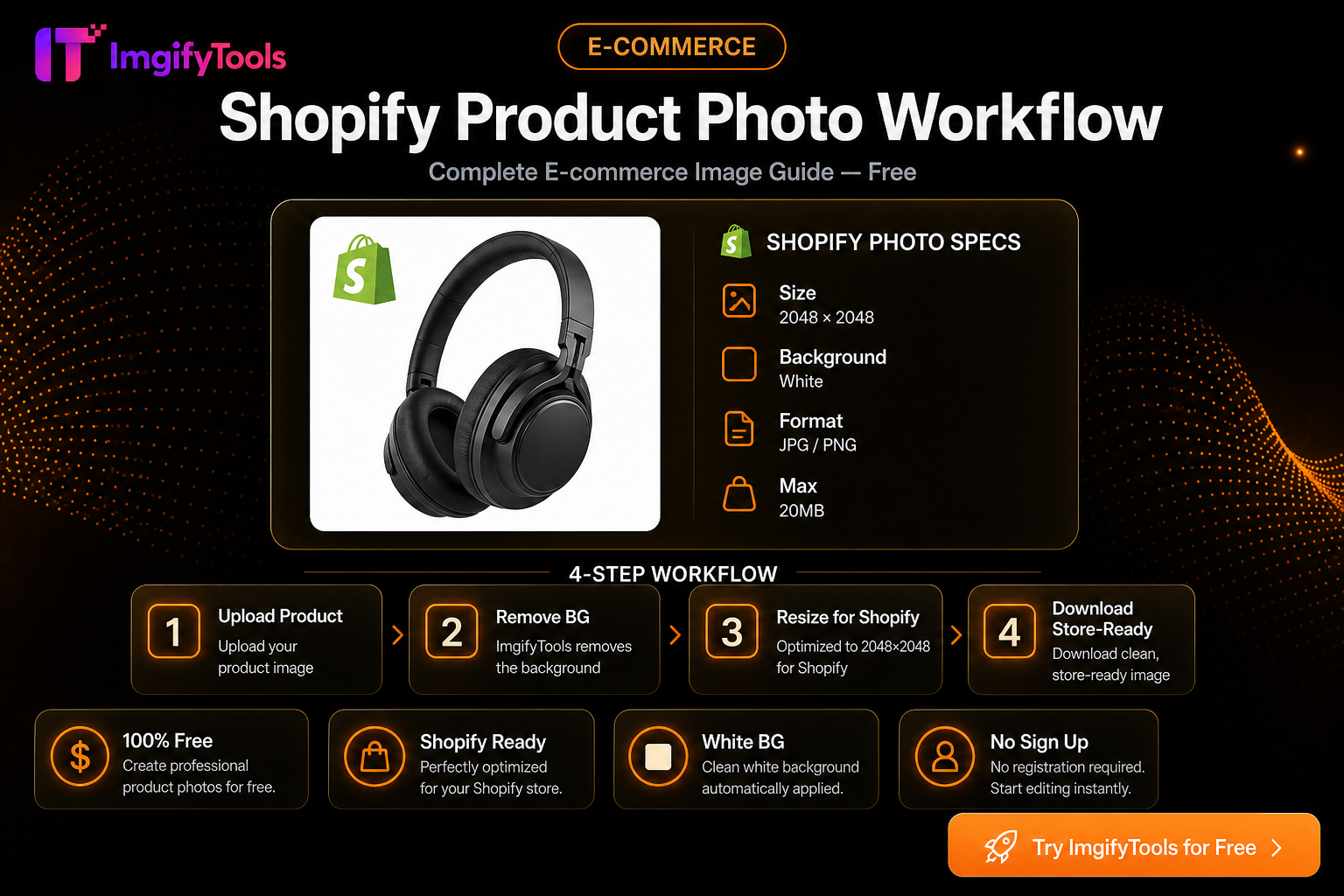
Shopify Product Photo Workflow (Free)
Shopify will accept a wide range of image sizes, but themes look uneven when every SKU uses a different aspect ratio, messy background, and multi‑megabyte master file. This workflow is for merchants who need catalog-ready product photos before uploading in Admin—without paying for a Shopify photo app.
Intent pages and tools: Shopify product photo editor (background prep), Background Remover, Platform Image Resizer, Image Compressor. Related: Best background remover for Shopify.
What “good enough” looks like for Shopify
Shopify’s help docs note that product images can be large (up to high megapixel / multi‑MB ceilings), and that square images around 2048×2048 px usually display well. Treat that as a working target, not a ranking promise:
| Item | Practical target |
|---|---|
| Aspect | Consistent across the catalog (square 1:1 is the common default) |
| Pixels | ~2048×2048 for hero product shots when you have the detail |
| File weight | Often a few hundred KB after compression—fast collection pages |
| Background | Clean white/neutral for grid thumbnails; lifestyle OK for secondary shots |
| Naming | sku-color-angle.jpg so variants stay organized |
Verify current limits in Shopify’s product media documentation when your theme or plan changes.
End-to-end workflow
1. Shoot or collect a usable master
Use even light. Leave a little margin around the product so square crops do not clip edges. Keep one unedited master archive outside Shopify.
2. Isolate the product when the grid needs a studio look
Supplier photos on carpets and kitchen tables fight your theme. Open Background Remover or the Shopify product photo editor path, upload, and export a cutout (typically transparent PNG) or place on white.
Example: A mug shot on a busy desk → remove background → white or transparent → same treatment for every mug color variant so the collection grid matches.
3. Resize to a consistent canvas
Use Platform Image Resizer or Image Resizer toward 2048×2048 (or your theme’s preferred square). Keep the product centered; do not stretch.
4. Compress for storefront speed
Run Image Compressor. Shopify can transform delivery, but uploading 8 MB masters still slows Admin uploads and theme editors. Aim for clarity on zoom without keeping camera RAW weight.
5. Upload in Shopify Admin
Products → media. Add alt text that describes the product for accessibility (write for humans, not keyword stuffing). Repeat for variants with the same framing rules.
6. Secondary images
Keep lifestyle, scale, and detail crops for slots after the hero. Those can keep natural backgrounds—consistency matters most on the first image shoppers see in the grid.
Theme and zoom notes
- Themes differ: some letterbox non-square images; others hard-crop. Preview the product page on mobile after upload.
- Zoom quality depends on having enough pixels in the source. Uploading a soft 600 px image and hoping Shopify “enhances” it will not invent detail.
- Transparent PNGs help some overlay-style themes; JPG on white is simpler for most catalogs.
Limitations
- Background removal struggles with fine hair, mesh, clear acrylic, and low-contrast edges—reshoot on a contrasting backdrop when cutouts look chewed.
- ImgifyTools is not a Shopify app inside Admin; you prepare files, then upload.
- Upload size caps on ImgifyTools tools (commonly around 10 MB) may require a pre-shrink for huge camera files.
- We do not claim this workflow increases conversion rate by a fixed percentage.
Privacy
AI background removal and convert/compress tools upload files to ImgifyTools servers for temporary session processing and are not kept as a permanent upload library by default. Broader edits can use the image editor, which works primarily in the browser. Privacy Policy.
Troubleshooting
| Problem | Fix |
|---|---|
| Crooked grid heights | Standardize aspect ratio before upload |
| Halos after cutout | Reshoot; or refine edges / different backdrop |
| Soft zoom | Start from a larger master; avoid compressing twice |
| HEIC from iPhone | HEIC to JPG before Shopify if needed |
| Colors differ per variant | Match white balance and background treatment across the set |
FAQs
Do Shopify product photos require a white background?
Not as a universal hard rule like Amazon’s main image policy. Clean, consistent backgrounds still make collection pages look intentional.
Is 2048×2048 mandatory?
No. It is a widely cited Shopify recommendation for square product images. Follow your theme’s docs if they specify otherwise.
Can I do this without a paid Shopify app?
Yes. Prep with ImgifyTools, then upload in Admin. No ImgifyTools account is required for core tools.
Should I upload PNG or JPG?
JPG for most photographs on white. PNG when you need transparency for the theme.
Related
You may also like
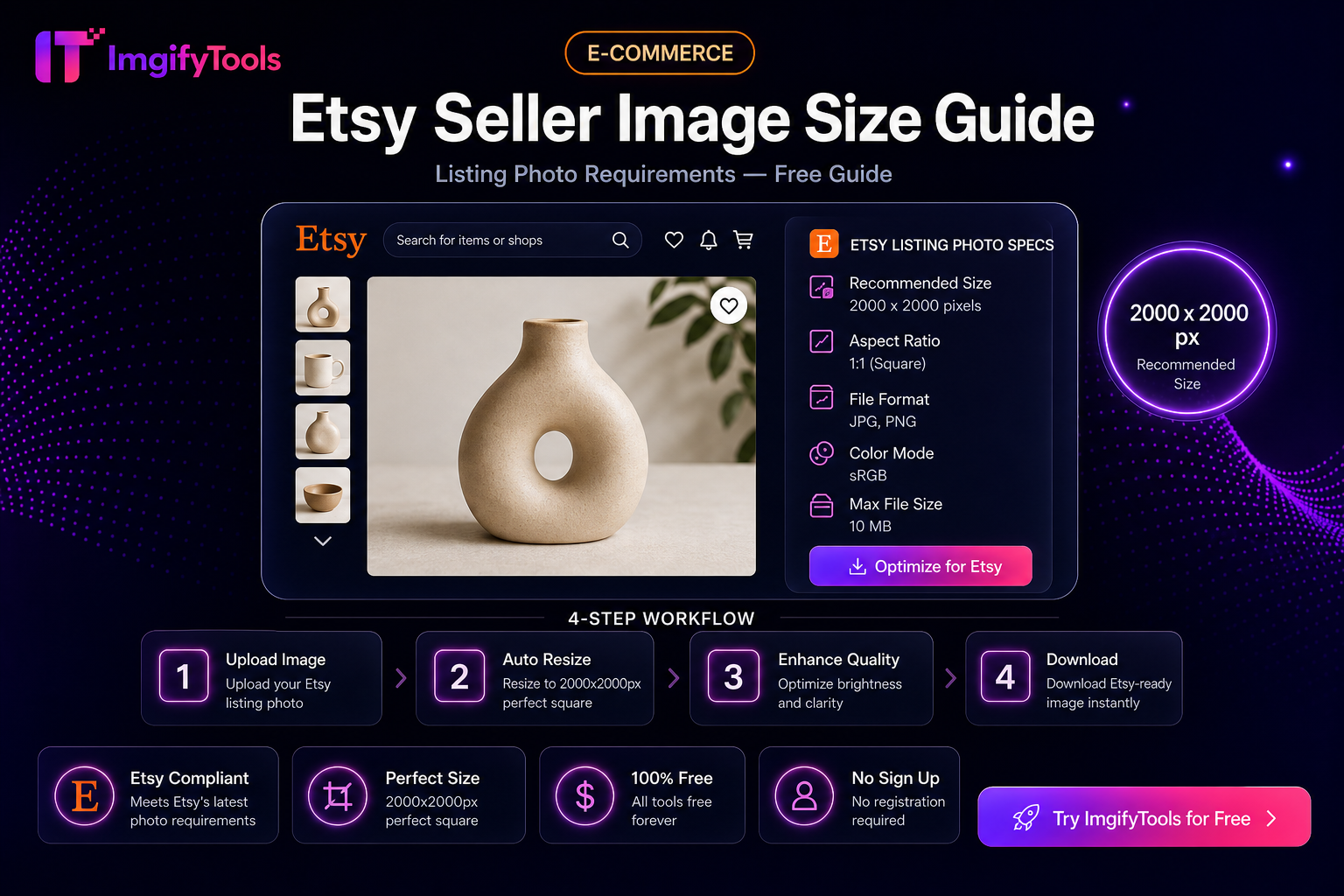
Etsy Seller Image Size Guide (Practical Listing Prep)
Prep Etsy listing photos: square crops, clean backgrounds, and sensible file sizes with free ImgifyTools—plus limits and privacy notes.
Read next →
eBay Photo Requirements — Size, Background, and File Tips
eBay listing photo expectations for sellers—background, clarity, and a free ImgifyTools workflow to prep gallery images that load fast.
Read next →
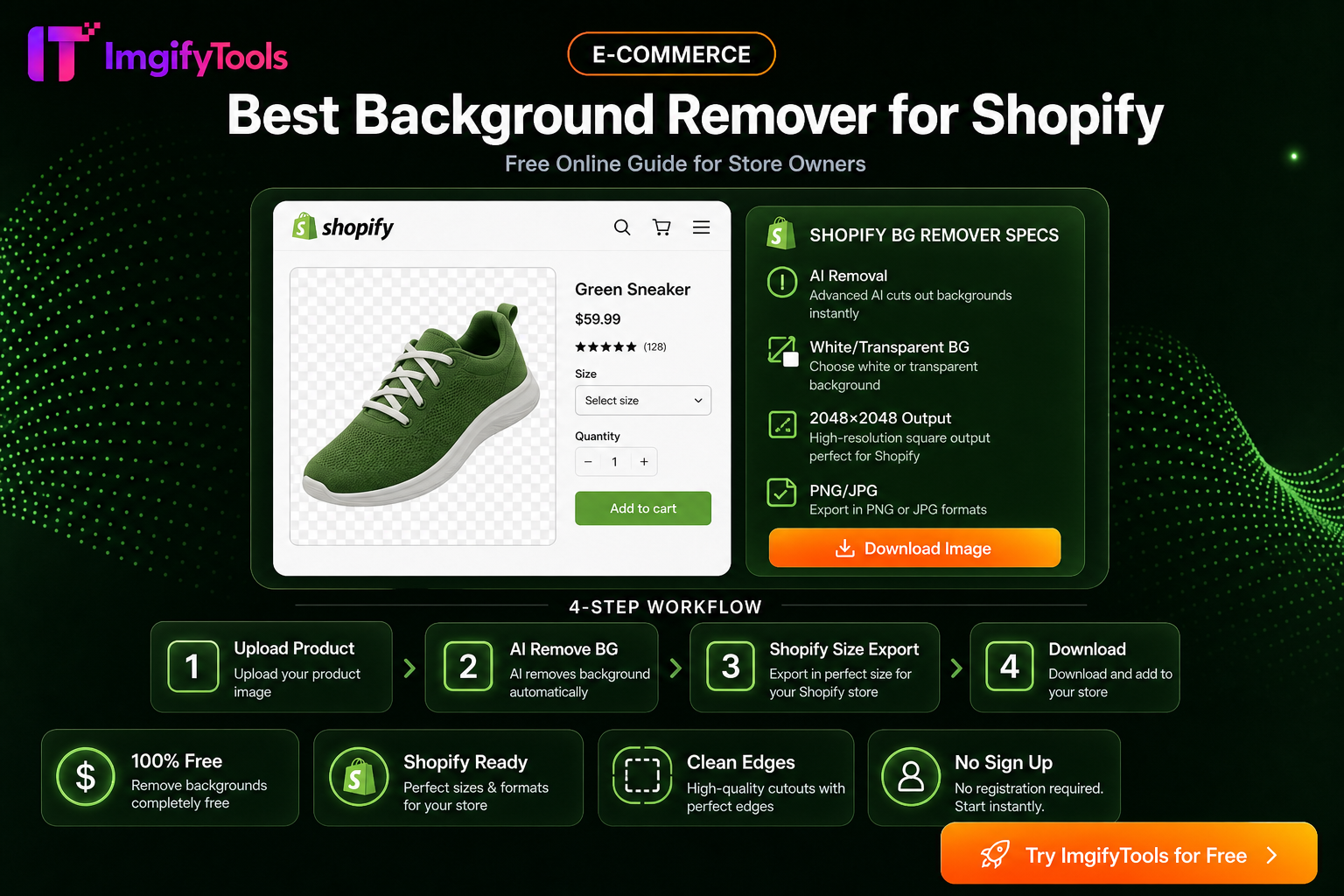
Best Background Remover For Shopify — Free Online Guide
Remove backgrounds from Shopify product photos for free. Fast AI cutouts for consistent storefront images.
Read next →