Remove Background for E-Commerce — Product Photo Checklist
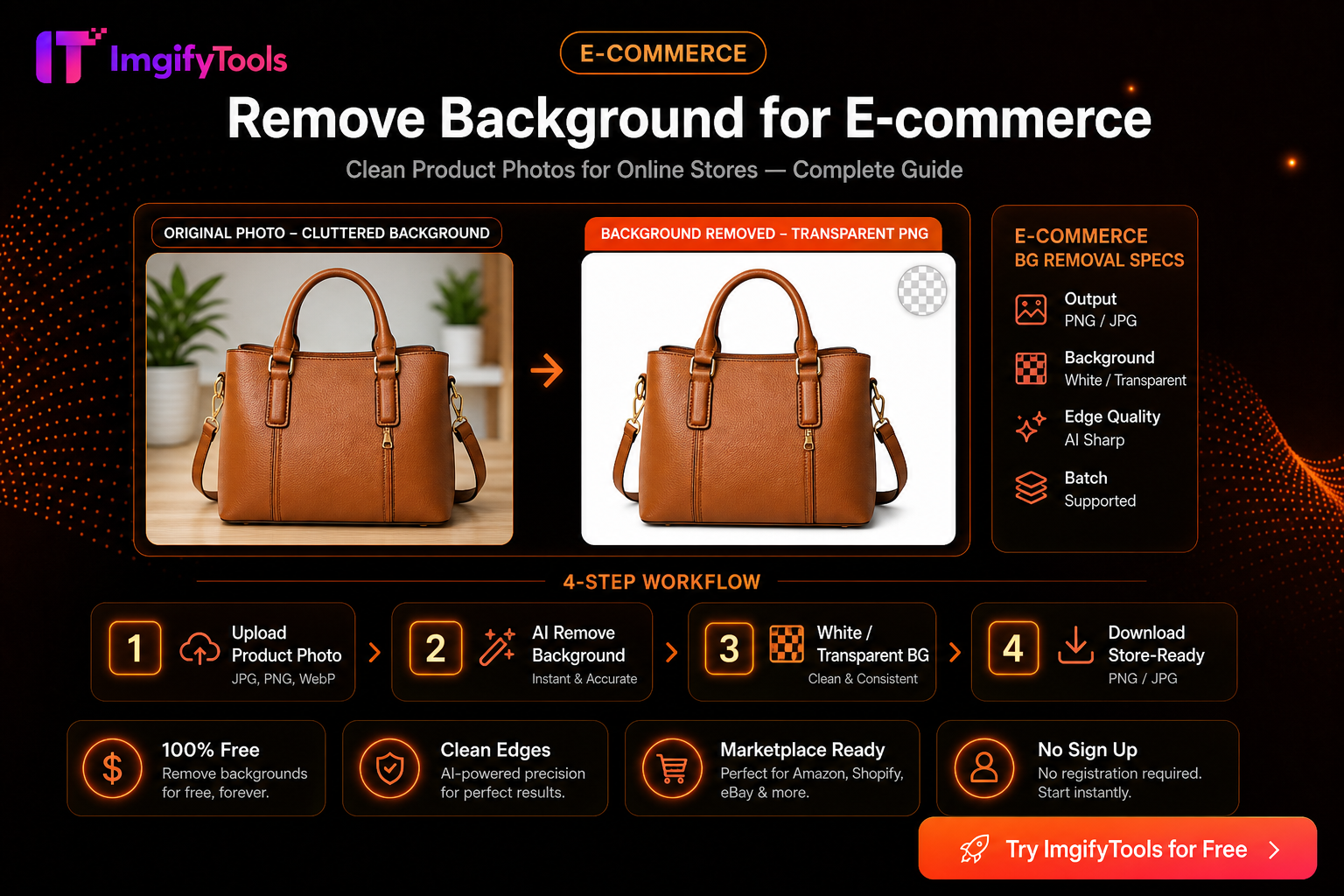
Marketplaces reward consistent, readable product images. A clean cutout helps thumbnails, zoom views, and ad creatives—but only if edges look natural and the file still meets each channel’s size and background rules.
Primary paths: Remove Product Background, AI Background Remover. Related: How to remove background from product photos, Shopify product photo workflow.
What “good enough” looks like for listings
Before you chase a perfect mask, check whether the photo will sell:
- Subject fully in frame with a little breathing room
- Even light, readable logos/labels
- Background plain enough for automatic removal (or already near-white)
- Export that matches the marketplace (often JPG on white, or PNG with transparency for design use)
AI cutouts fail most often on glass reflections, thin straps, fringe, and busy patterned cloth. Plan a manual touch-up path for those SKUs instead of re-running the same photo ten times.
Capture tips that save editing time
- Use a plain backdrop and soft front light.
- Separate the product slightly from the backdrop to reduce cast shadows.
- Shoot one hero angle consistently across a catalog.
- Keep the highest-resolution master; do not start from a compressed chat export.
Step-by-step cutout workflow
- Open Remove Product Background or AI Background Remover.
- Upload a real product photo (within the tool’s published size limit—typically about 10MB for AI uploads unless the panel says otherwise).
- Review the mask at 100% zoom: hair-like fibers, bottle edges, and logo corners.
- Export a transparent PNG if you will composite later; place on white/brand color if the channel wants a solid background.
- Resize and compress for the marketplace with Image Compressor or Platform Image Resizer.
- Spot-check on a phone screen—tiny thumbnails hide problems that show up on zoom.
For Amazon-oriented framing notes, see Amazon product image background requirements. For Shopify-oriented sequencing, see the Shopify workflow post.
Marketplace habits (verify current rules)
| Channel habit | Practical implication |
|---|---|
| White / light studio background | Place cutout on #FFFFFF or shoot white in-camera |
| Main image often no text overlays | Keep badges off the primary image |
| File size / dimension caps | Compress after cutout, not before if you can avoid it |
| Zoom / detail images | Keep a higher-res master; compress only the upload copy |
Rules change. Treat seller help pages as source of truth for the account you sell on.
Quality checklist before you publish
- No jagged halos around the product
- No leftover backdrop bits in corners
- Shadow policy matches the channel (some allow soft shadow; some want flat white)
- Correct aspect ratio for the listing template
- File opens and looks correct after download (extension matches intent)
Privacy and processing
AI background removal and related convert/AI tools upload images to ImgifyTools servers for temporary session processing. They are not a permanent public upload library by default. The in-browser image editor primarily processes on your device. See Privacy Policy.
Limitations
- Results vary by photo; we do not publish fabricated accuracy percentages.
- Complex subjects may need Photopea/Photoshop-level manual masking.
- Bulk catalog automation with custom SLAs may need a dedicated API product—evaluate that separately from browser tools.
FAQs
Should every SKU use AI removal?
No. Near-white studio shots sometimes need only crop and color correction. Use AI when the backdrop fights the marketplace rule.
PNG or JPG for the storefront?
Use PNG while editing transparency. Many storefronts prefer JPG on a white background for the live listing—convert/compress at the end: PNG to JPG.
What if the cutout looks plastic?
Usually over-aggressive edges or a soft original. Try a better capture first; then compare with Remove.bg alternative notes.
Related tools
You may also like
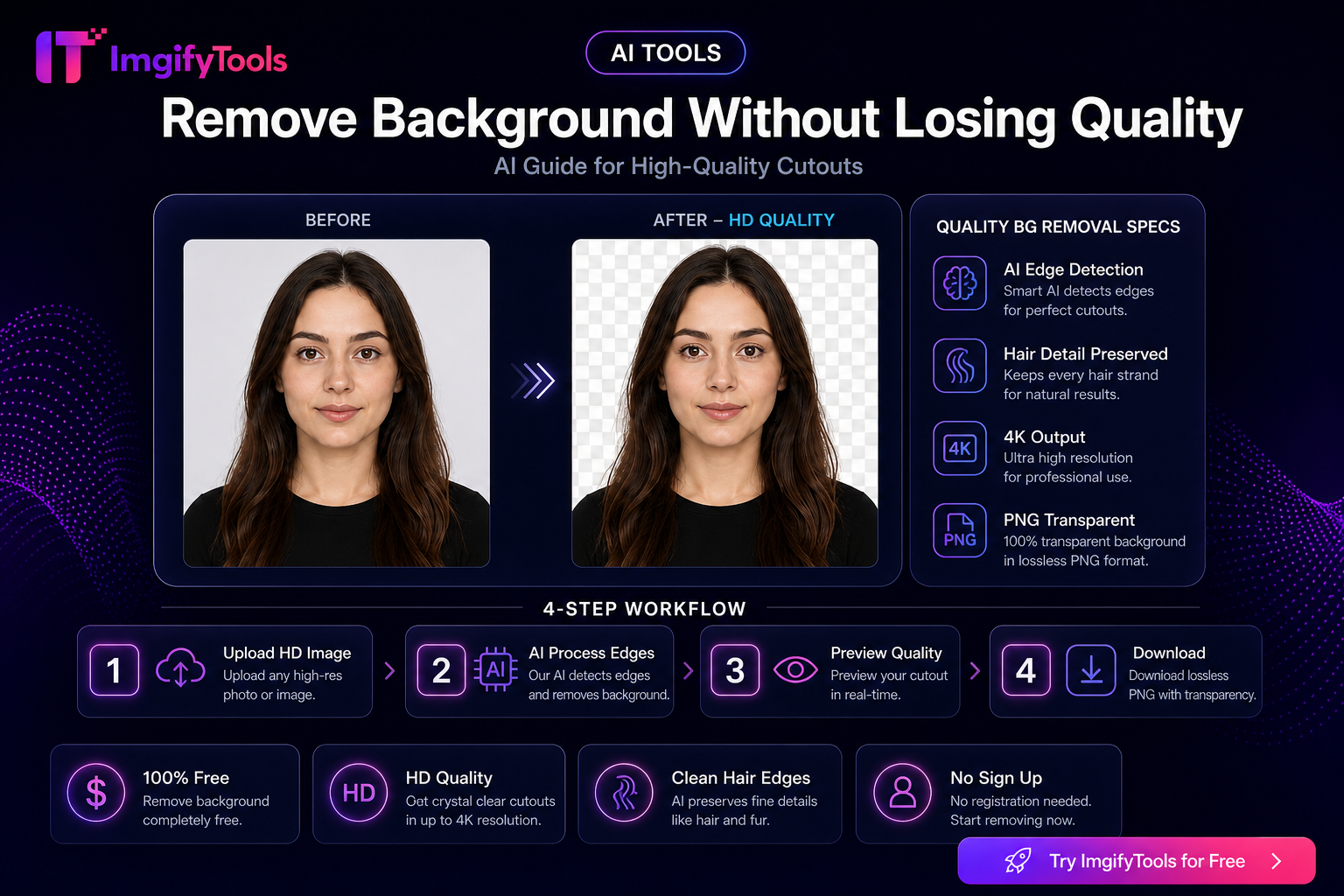
Remove Background Without Losing Quality — AI Guide
Remove image backgrounds without losing edge quality. Tips for hair, fur, and product photos using free AI tools.
Read next →
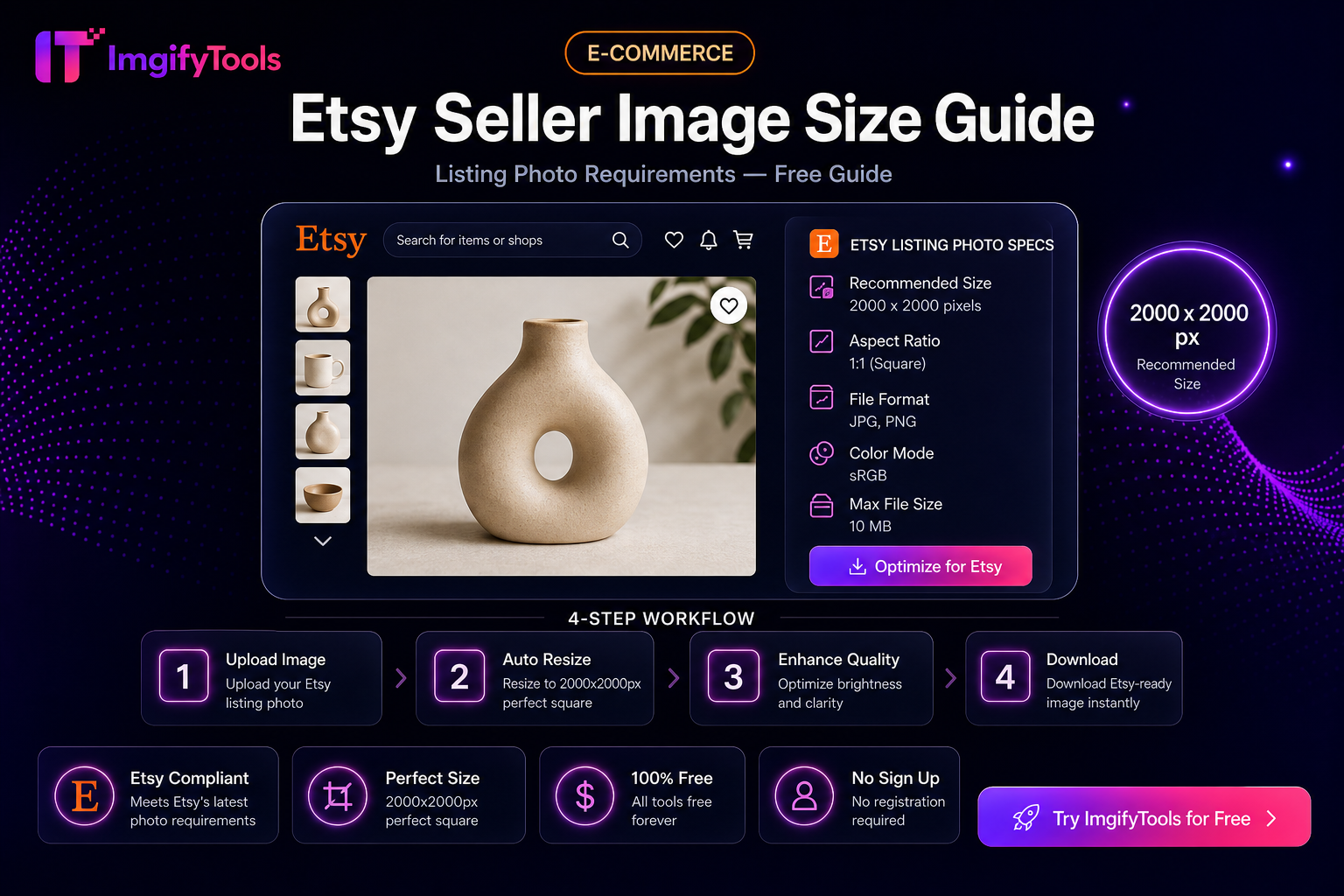
Etsy Seller Image Size Guide (Practical Listing Prep)
Prep Etsy listing photos: square crops, clean backgrounds, and sensible file sizes with free ImgifyTools—plus limits and privacy notes.
Read next →
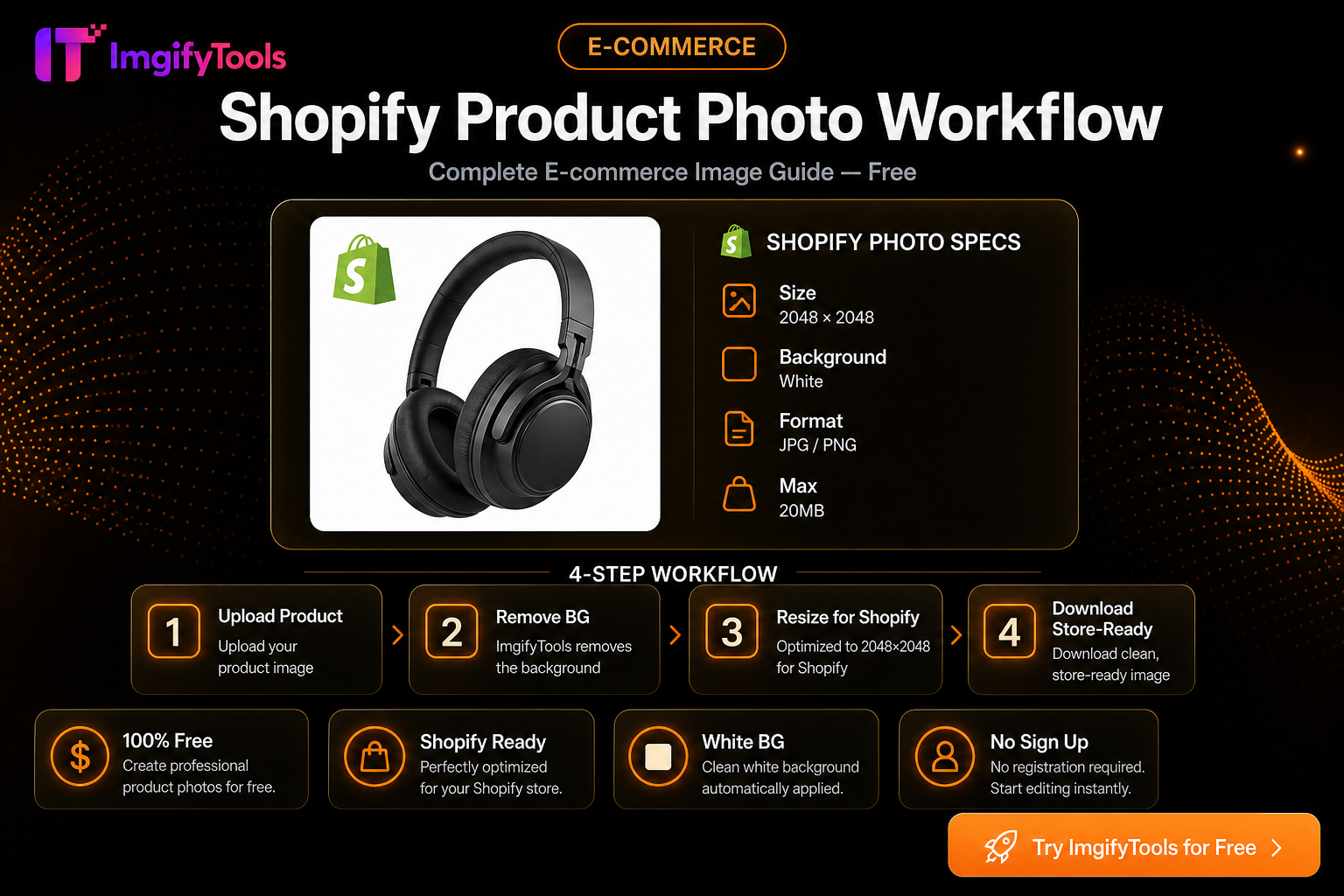
Shopify Product Photo Workflow (Free)
Prep Shopify listing images: consistent squares, clean backgrounds, and storefront-friendly file sizes with free ImgifyTools—no monthly photo app.
Read next →